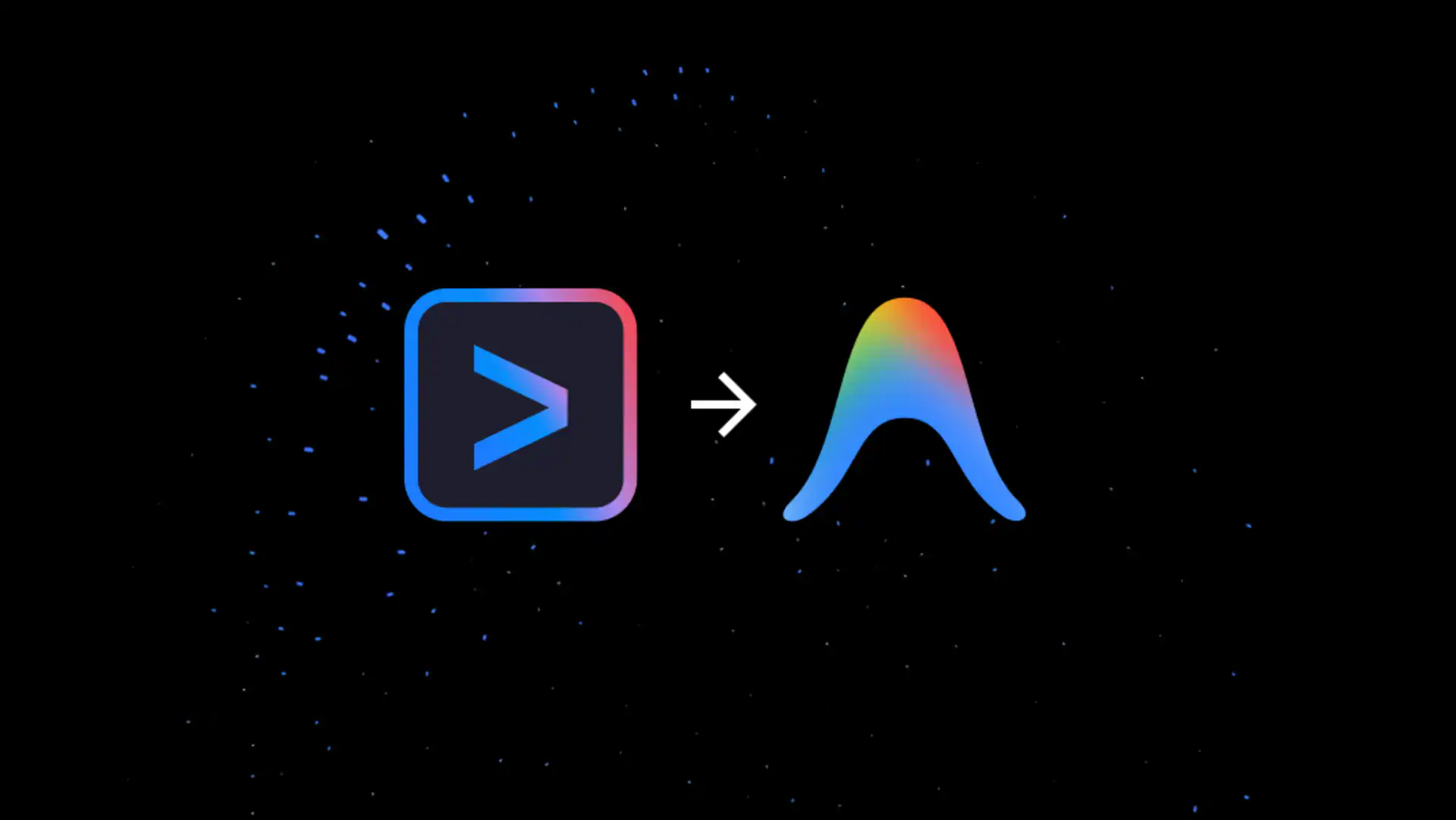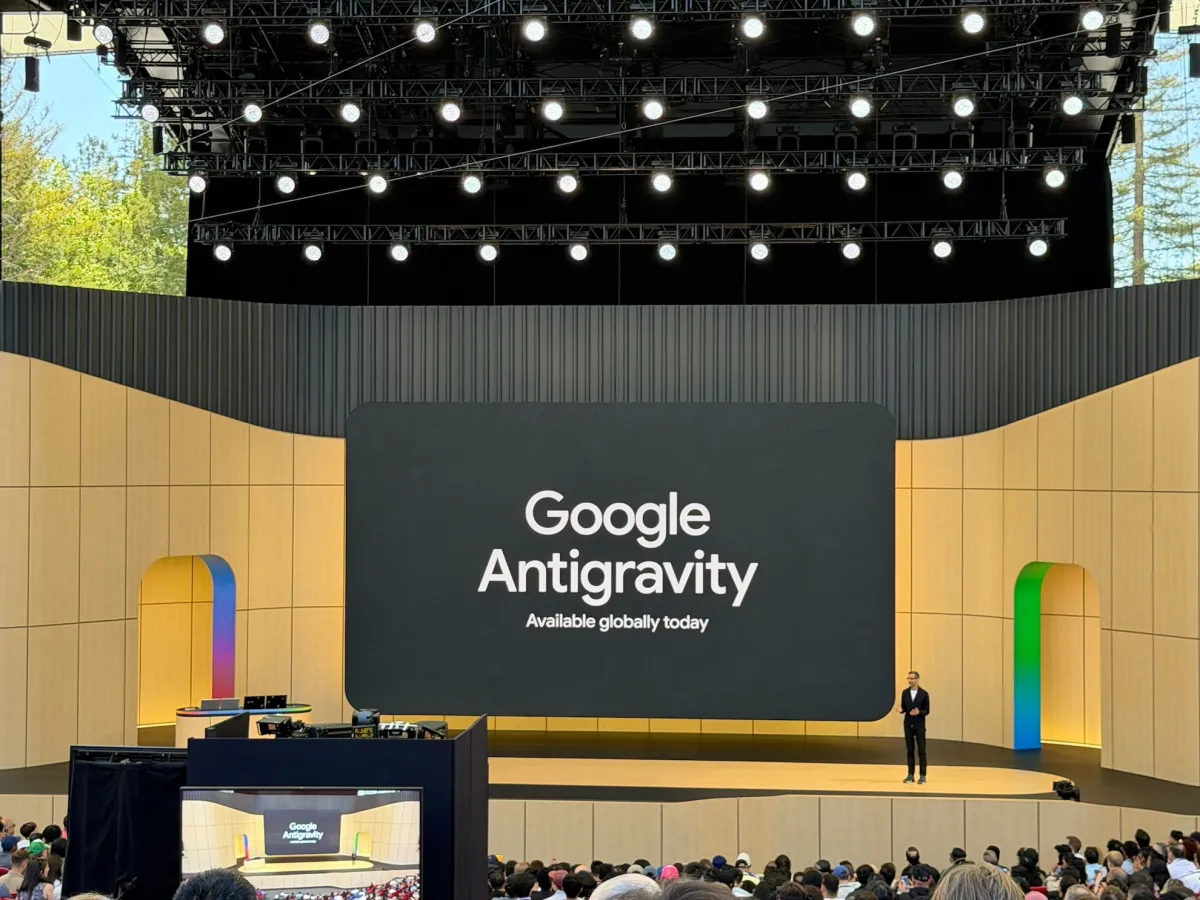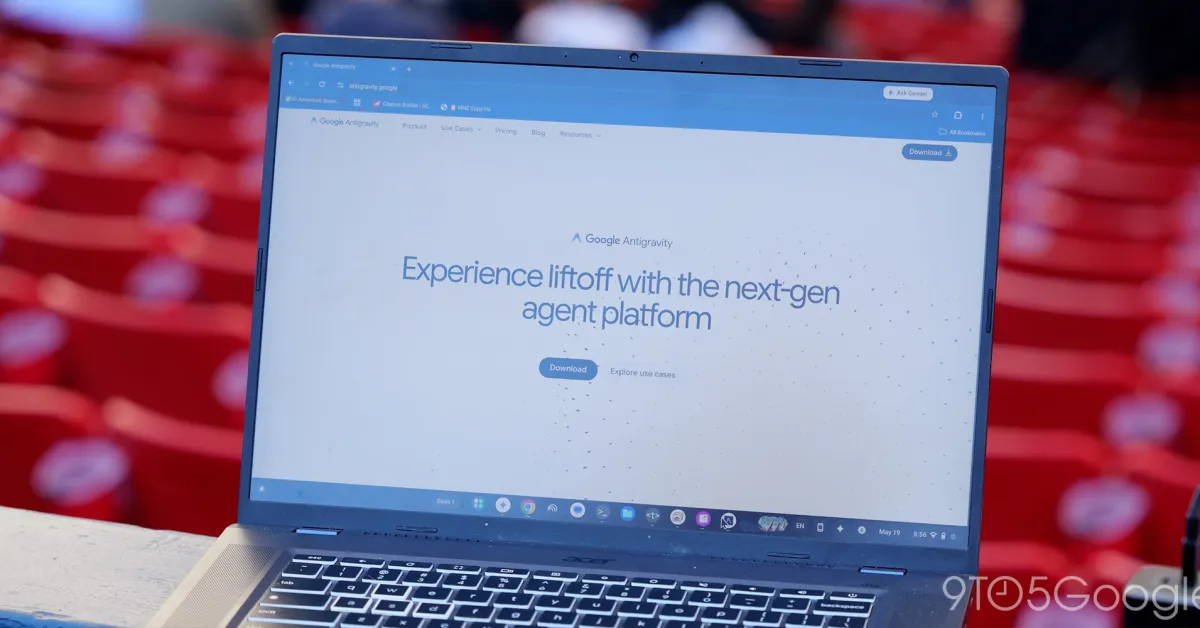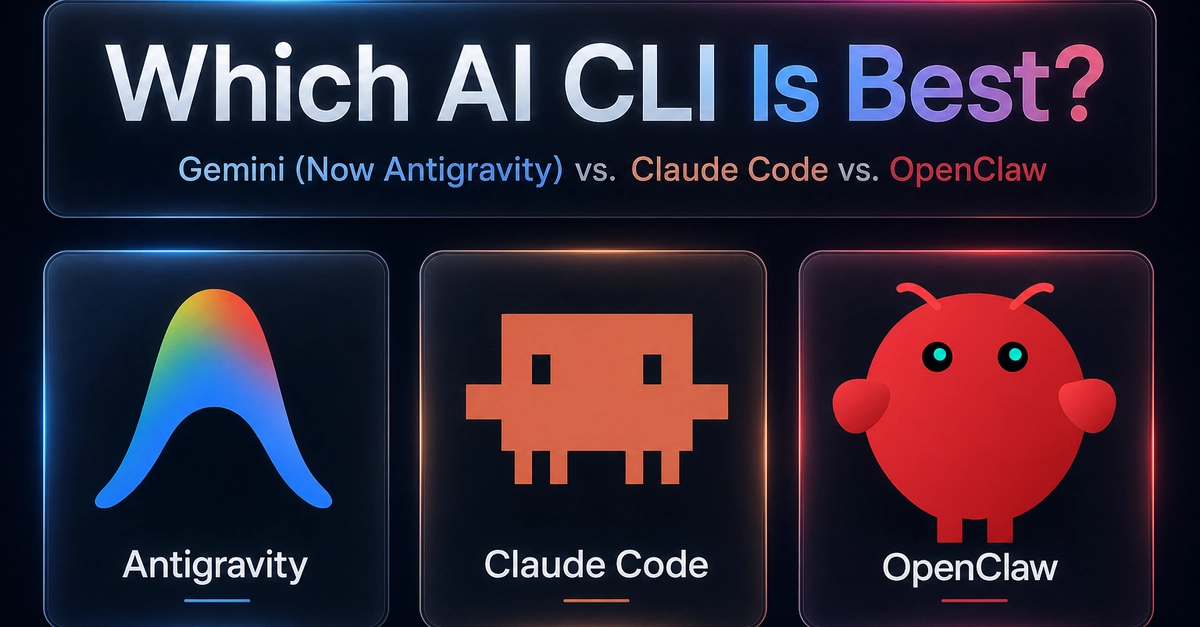
The AI coding agent space has been reshuffling fast. Anthropic has Claude Code, OpenAI has Codex CLI, xAI has Grok CLI, and now Google has retired Gemini CLI and replaced it with something bigger: Antigravity CLI, a Go-based terminal agent that shares its engine with the Antigravity 2.0 desktop application.
In this tutorial, I will walk you through everything you need to know to get started with Antigravity CLI. We will cover the installation process, authentication, the agent and command modes, and build two practical projects that show what this tool can actually do. By the end, you will have a solid foundation for using Antigravity CLI in your real development workflow.
What Is Antigravity CLI?
Antigravity CLI is Google's command-line coding agent powered by the Gemini family of models (with optional support for Claude and open-source backends). Unlike a simple chat wrapper, it is designed to reason across your project, edit multiple files at once, spawn subagents for parallel work, and call tools on your behalf.
Google describes it as a lightweight Terminal User Interface (TUI) that brings the core capabilities of Antigravity 2.0 (multi-step reasoning, multi-file editing, tool calling, and persistent history) directly to your terminal. It is the official replacement for Gemini CLI, which sunsets for individual Google AI Pro and Ultra users on June 18, 2026.