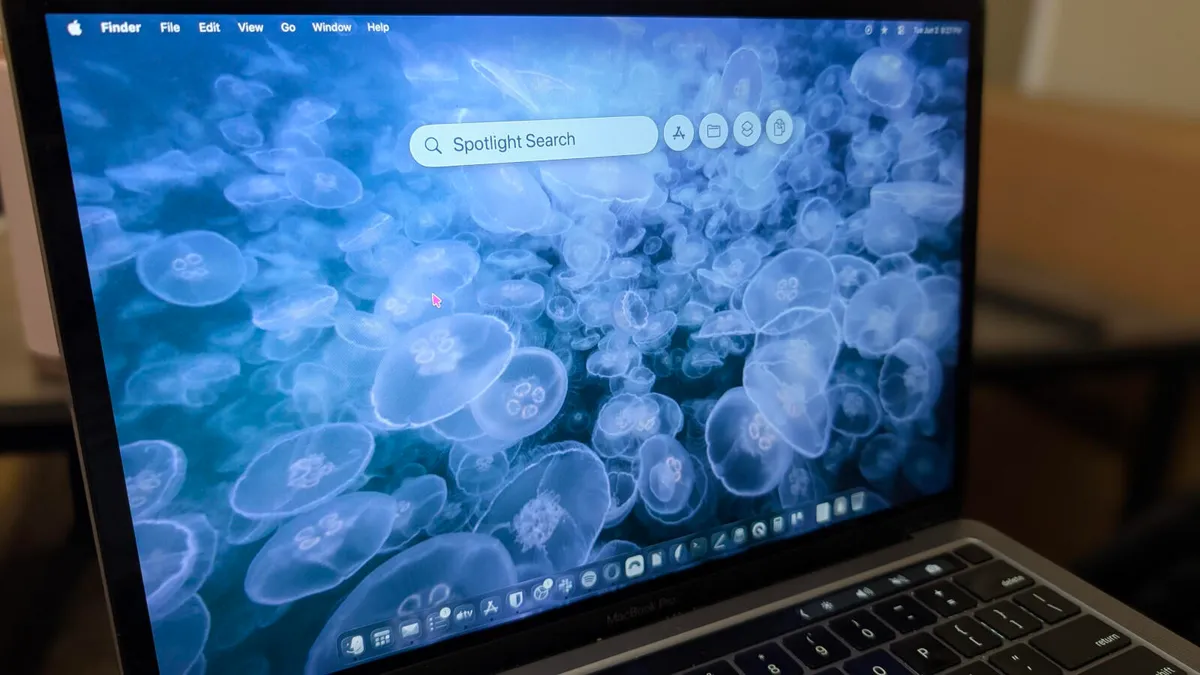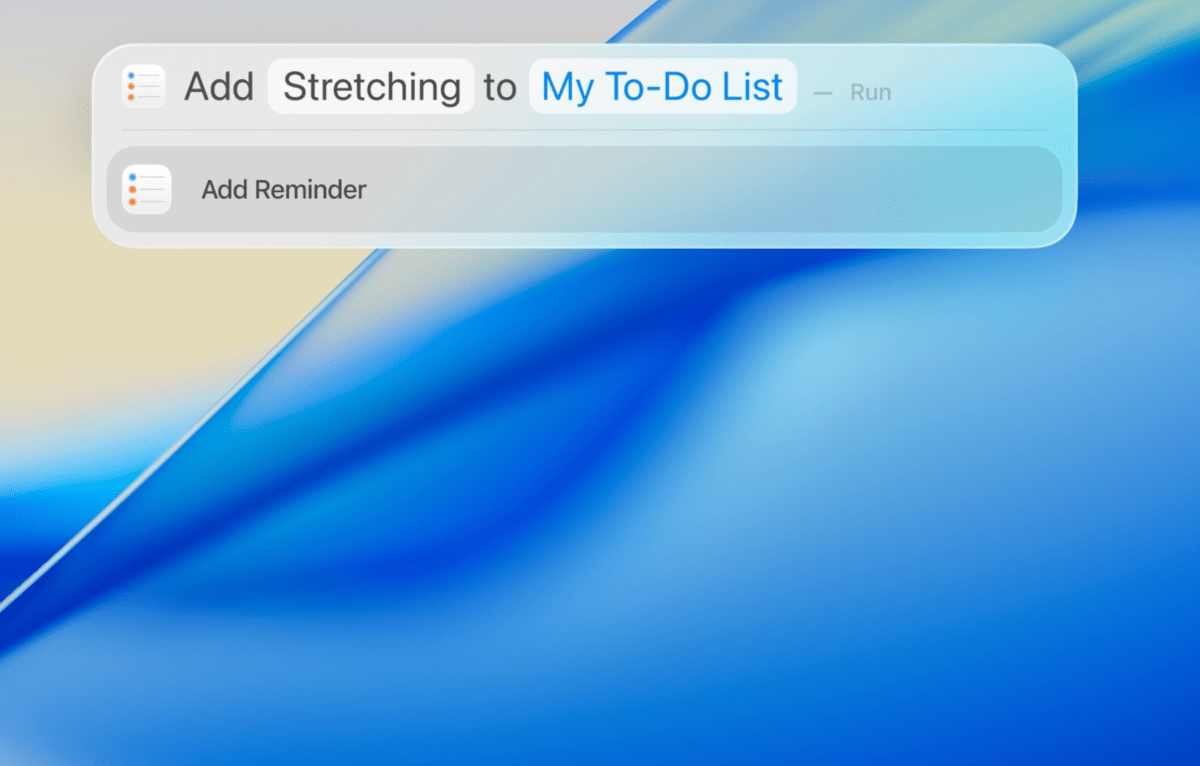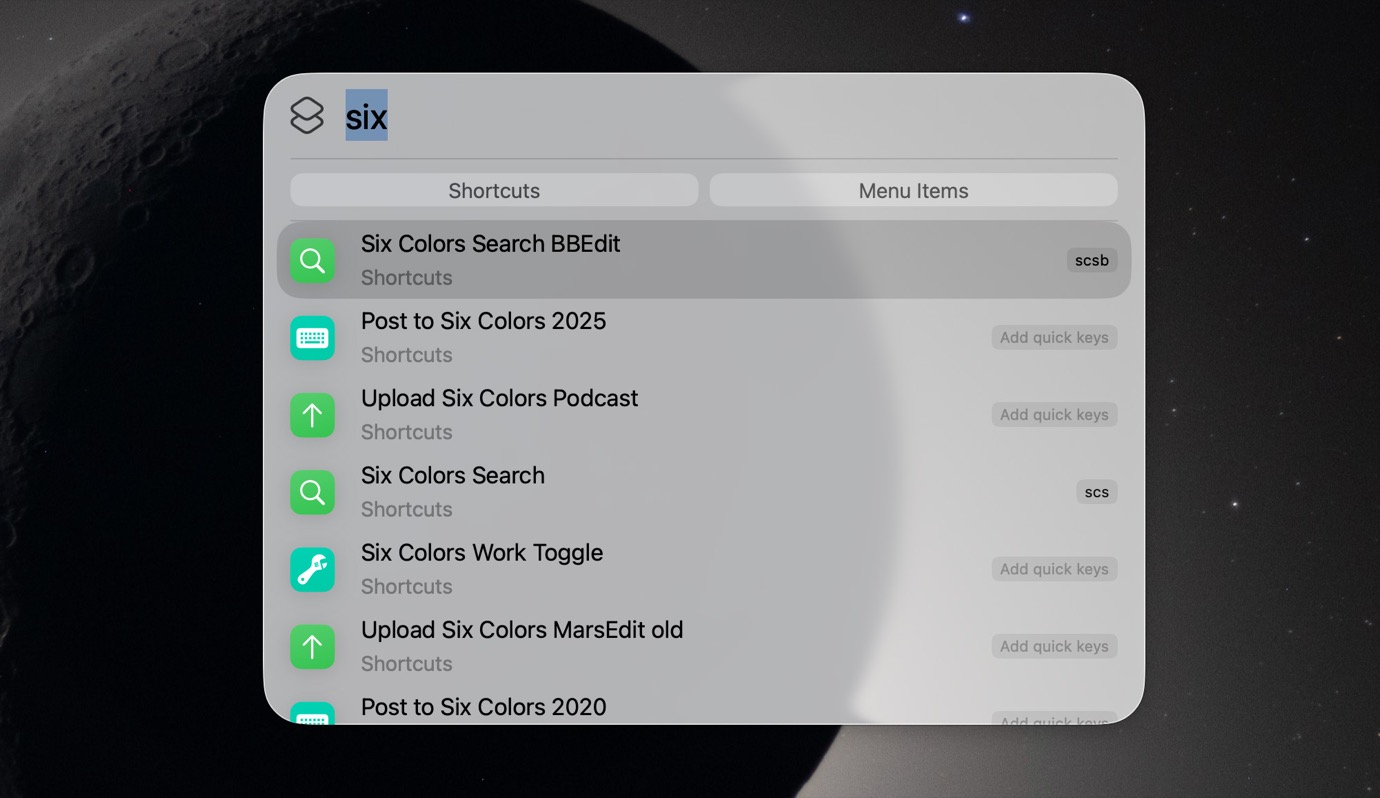
Spotlight search is one of the most useful features in macOS. You can access it by pressing Command-Space, and it allows you to find anything on your Mac. And there's so much more Spotlight search can do than you might realize. From performing currency conversions to running complex automation routines, here are 10 Spotlight search hacks that you'll find useful.
Enable clipboard history to keep track of everything you copySince the release of macOS 26 Tahoe, Spotlight search has been able to store your clipboard history. This means that Spotlight keeps a record of every item you copy on your Mac. This feature is disabled by default. You can enable it by clicking the Apple logo in the top-left corner of your Mac's screen, and going to System Settings > Spotlight. Scroll down, and enable Results from Clipboard. You can use the drop-down menu below this option to set an auto-delete timer for clipboard history, and your choices are 30 minutes, 8 hours, or 7 days.To access clipboard history, press Command-Space to open Spotlight search, and then, press Command-4.
Use the built-in converter for instant currency and unit conversions
I stopped using online searches for currency and unit conversions ever since I discovered this Spotlight feature. To convert currency in Spotlight search, you can type "USD 100 to INR." The result appears in Spotlight, which is a lot faster than opening a browser and performing a web search. Feel free to replace the currency abbreviations with the ones you need, as Spotlight search supports almost all countries' currencies (but not cryptocurrencies). You can use similar syntax to convert units. For example, try something like: "100lbs to kg," or "3L to oz."You should also try Spotlight's built-in calculator, which can handle arithmetic quite well. Ask it to add, subtract, divide, or multiply numbers, and Spotlight will show you the results instantly.Try Spotlight search filters to find any file on your MacOnce you have the search bar open, you can type any file name or app name, and Spotlight will search your Mac to locate it—that part is pretty clear. The fun begins when you start using search filters for advanced queries. You can ask Spotlight to restrict search results to PDF files by typing "/pdf" ahead of your query. This works for other file types such as jpeg, png, and tiff. To use it correctly, you'll have to select the filter from the search results. When you type "/pdf," the first search result will be "PDF" with the word Kind written under it. Select this, and type your query to restrict queries to that file type.You can also use this format to search specific folders, such as "/downloads" to look for files in the Downloads folder in your Mac.