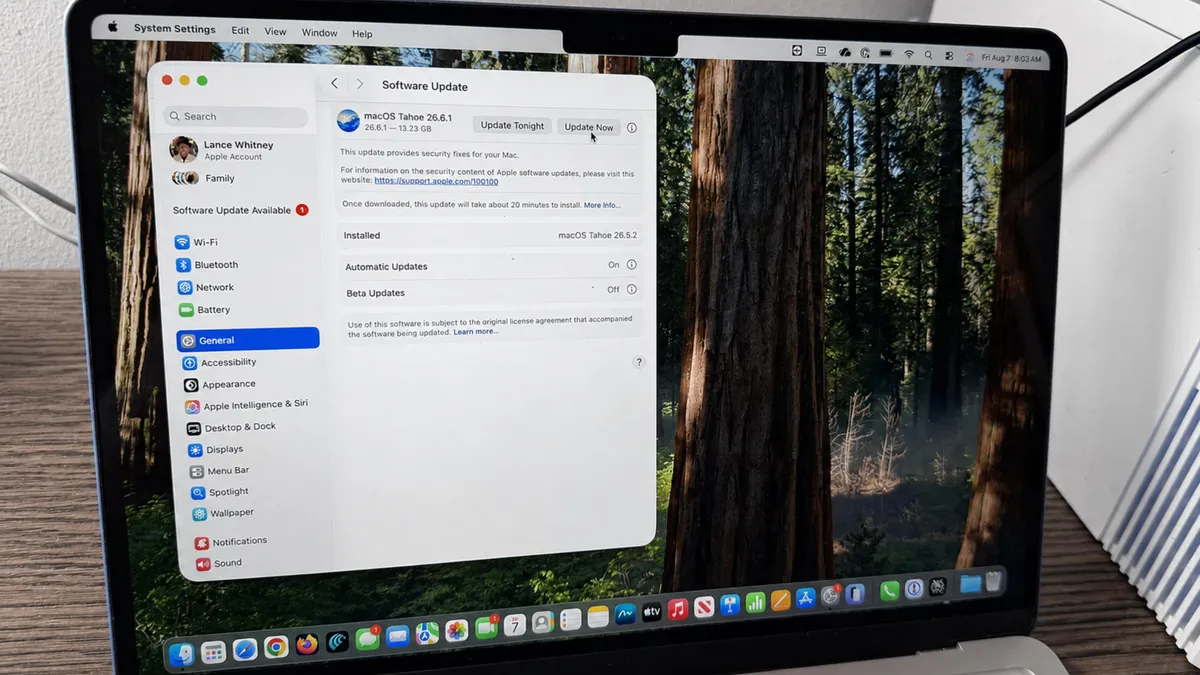
While third-party screenshot apps are excellent on the Mac, Apple has steadily improved its default tools. Today, the Mac's built-in screenshot utility is good enough for most people. You can, of course, use it to take screenshots, but you can do so much more, such as record a video of your screen, or even create professional screencasts. If you find yourself taking screenshots on your Mac, these are the 10 best hacks you need to know.Clean up the clutter by saving screenshots to the clipboardI find I only need to save around 10% of the screenshots I take. Left to its default settings, my Mac would save the other 90%, adding to an endless clutter I'd never take care of. As such, I always save screenshots to my Mac's clipboard, so I can paste it in the app of my choice without saving the image at all. Goodbye clutter. On your Mac, you can do this by using two keyboard shortcuts. Press Command-Control-Shift-3 for a screenshot of the entire screen, or use Command-Control-Shift-4 to capture an area of your screen. You can then paste these screenshots in any app or social media site.Not only do I use these shortcuts exclusively, I've actually disabled the shortcuts to save screenshots to the Mac because I basically never use them. If you want to do the same, click the Apple logo in the top-left corner of your Mac's screen, and go to System Settings > Keyboard > Keyboard Shortcuts > Screenshots. Here, disable "Save picture of screen as a file" and "Save picture of selected area as a file."
10 Screenshot Hacks Every Mac User Should Know
macOS ships with plenty of excellent screenshot and screen recording features—you just need to know where to look.
1,176 words~5 min read