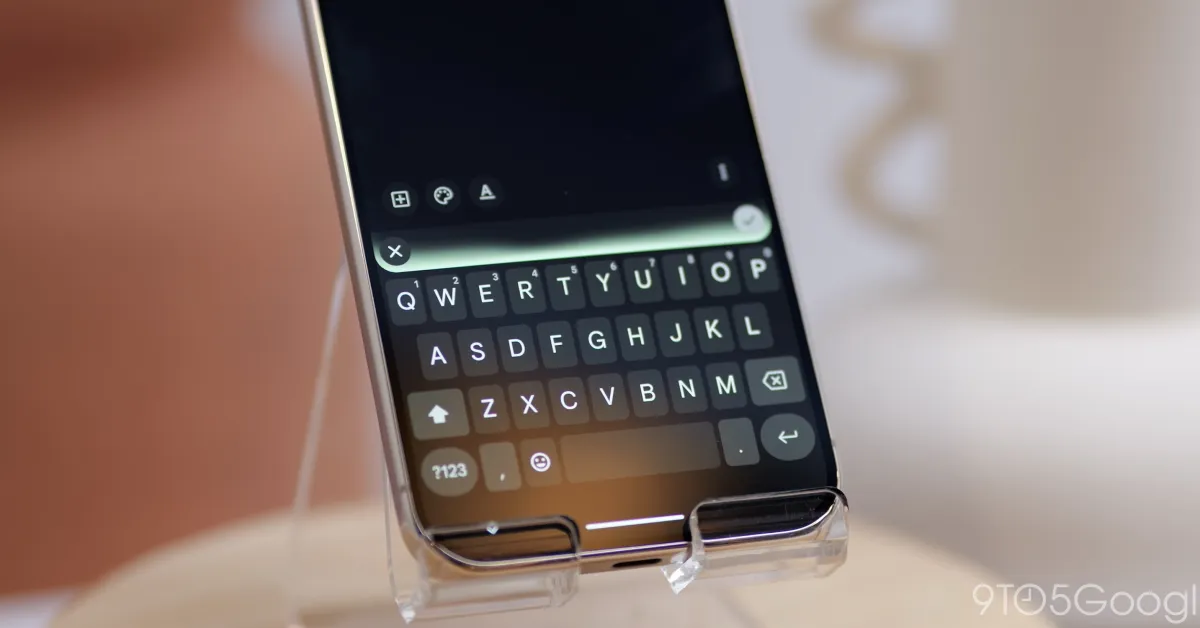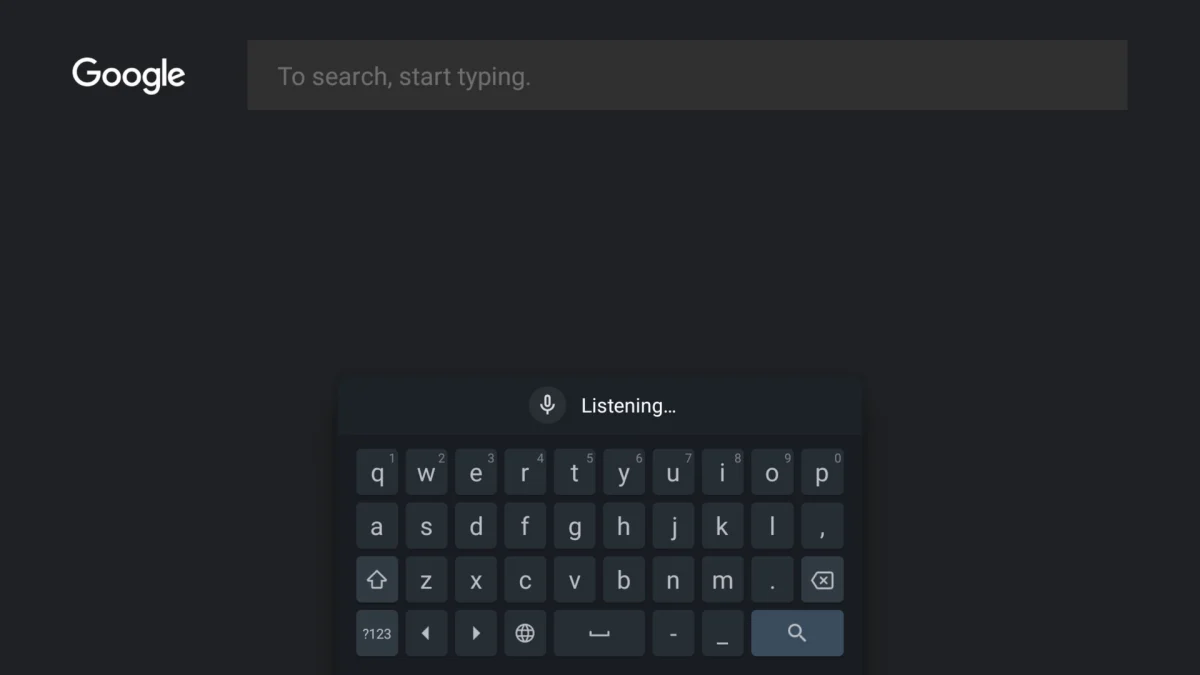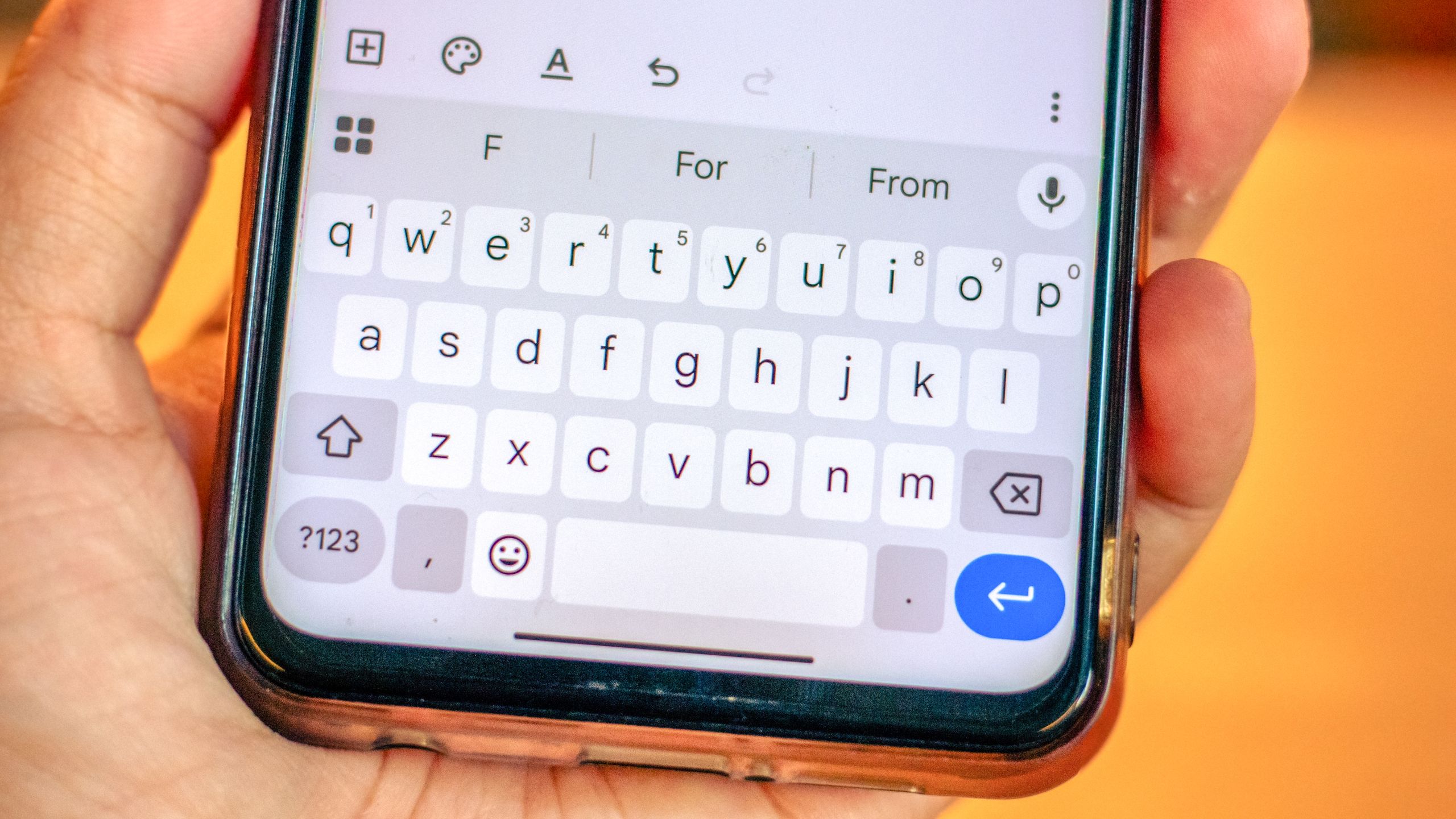
Gboard is the default keyboard option for a staggering number of Android smartphones across the globe, and it's not just limited to Pixels. If you have an Android device, you've probably used Gboard for years without giving it a second look. The default setup is good, the predictive text suggestions work, and in a pinch, you can swipe to type.
But like other seemingly basic Android apps and features, a lot more is hiding behind Gboard's surface simplicity. Explore the menus, tweak the settings, and learn some gestures, and you'll uncover a ton of useful features that can make it faster and easier to use—without switching to an entirely new keyboard. Here are my favorite tips, tricks, and hacks for Gboard.Pin frequently used text in the clipboard for instant access
You don’t need to go looking for ad-filled clipboard manager apps on Android: Gboard is hiding a capable clipboard manager in plain sight, but it’s not enabled by default. In the Gboard app, tap the Menu button and choose the Clipboard option. On your first try, enable the feature. Now you will see all your copied items here in a handy list. Gboard automatically deletes clipboard entries every hour (a nice security feature), but you can pin any and every entry in the clipboard using the long-press menu. Once pinned, the entry will stay put. You can use this feature to copy and paste items you use frequently, like email templates or your mailing address.