(Image credit: Tom's Guide)
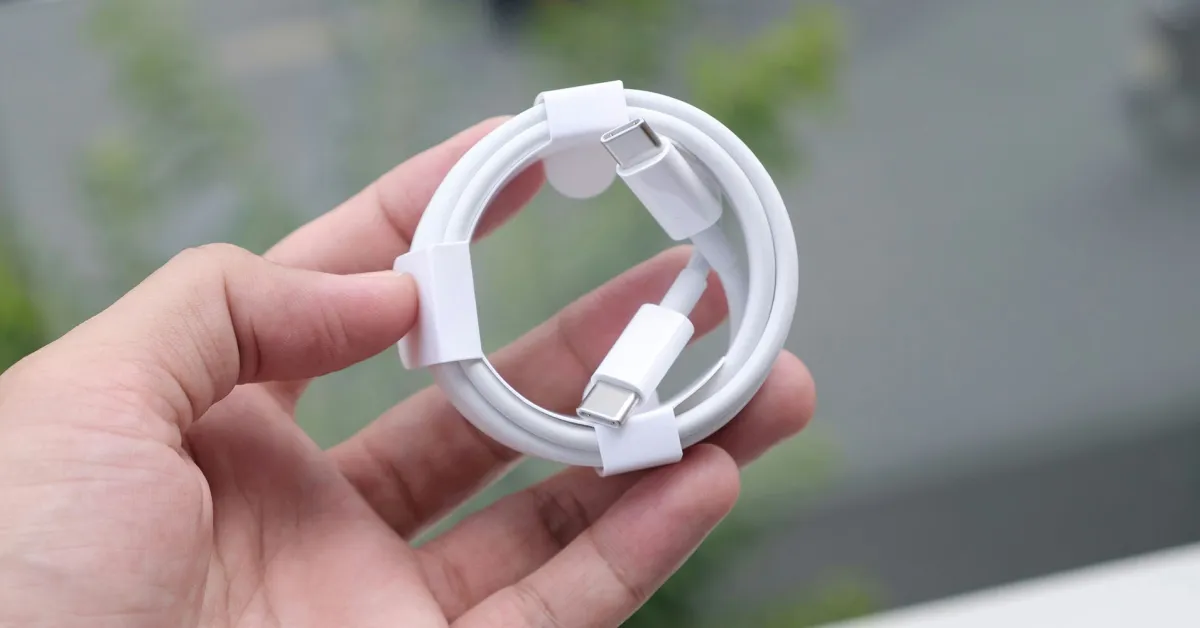
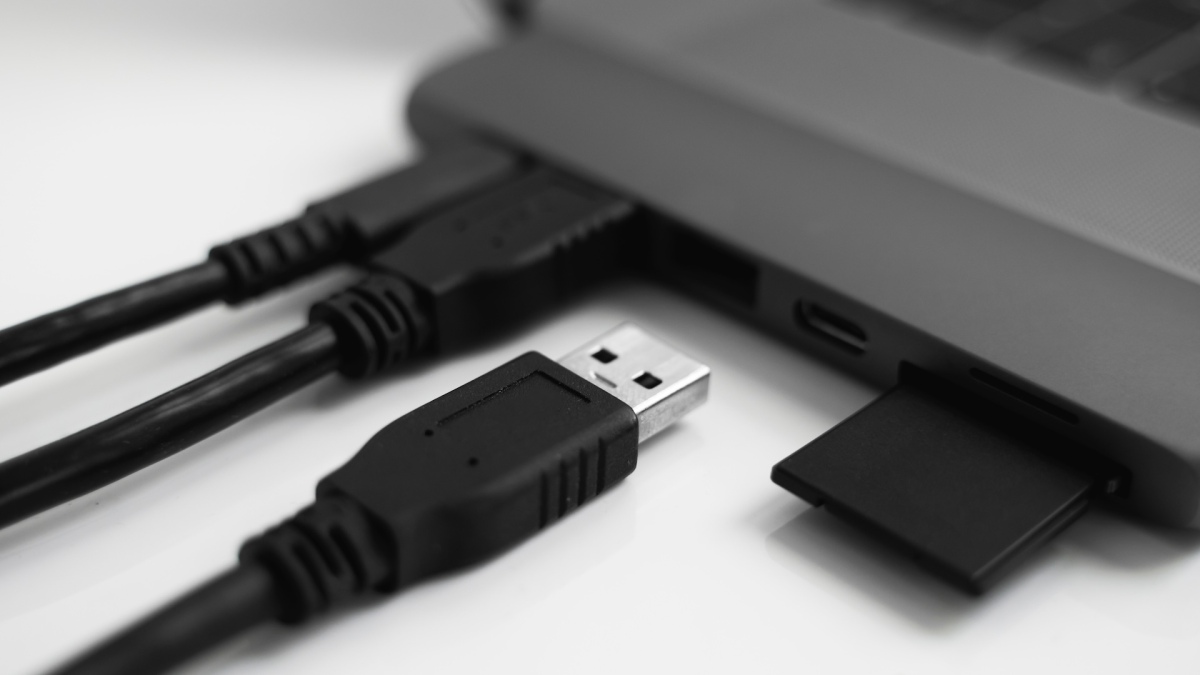
Over a decade ago, when we first made the transition to USB-C, cable manufacturers promised things would be different. Sure, we no longer had to worry about which side of our cables we plugged in, but now we’re facing a completely different problem: there’s no easy way to know how fast (and capable) our cables really are.At least with USB-A to USB-C cables, the larger end often gives us some insights. For instance, USB 2.0 cables are black, USB 3.0 ones are blue, and the less aptly named USB 3.2 Gen 2x2 ones are red. With USB-C to USB-C cables, though, it’s a different story entirely.
The TOP Must-Have MacBook Neo Accessories - YouTube
Watch On
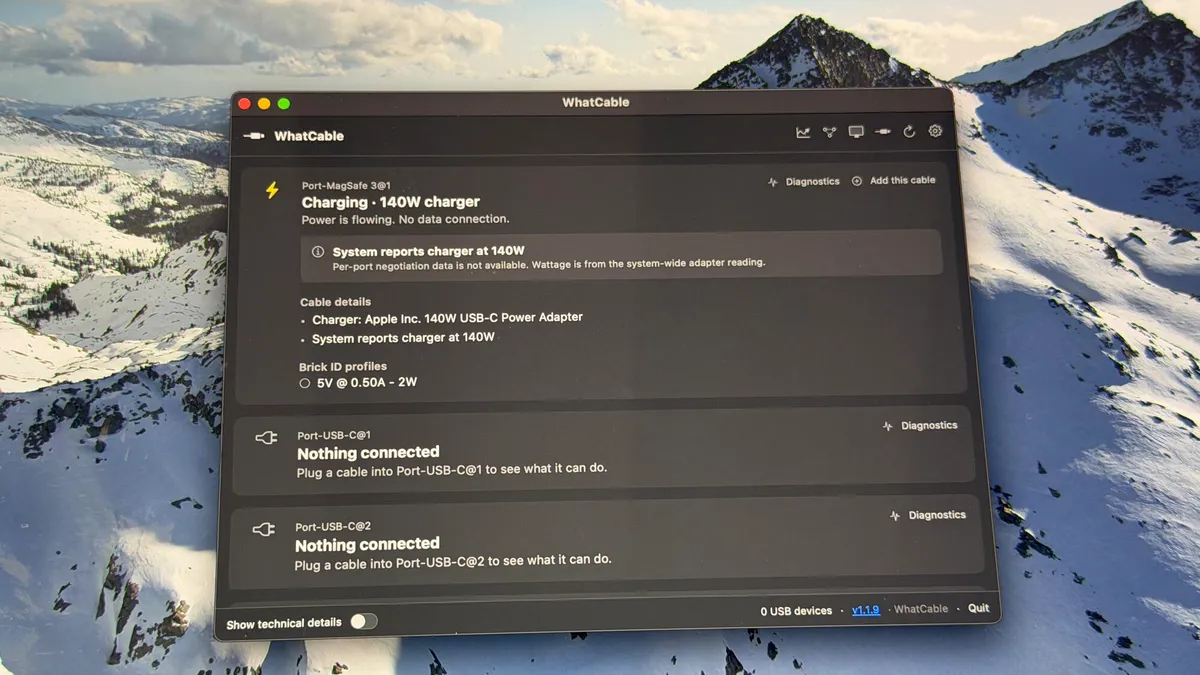
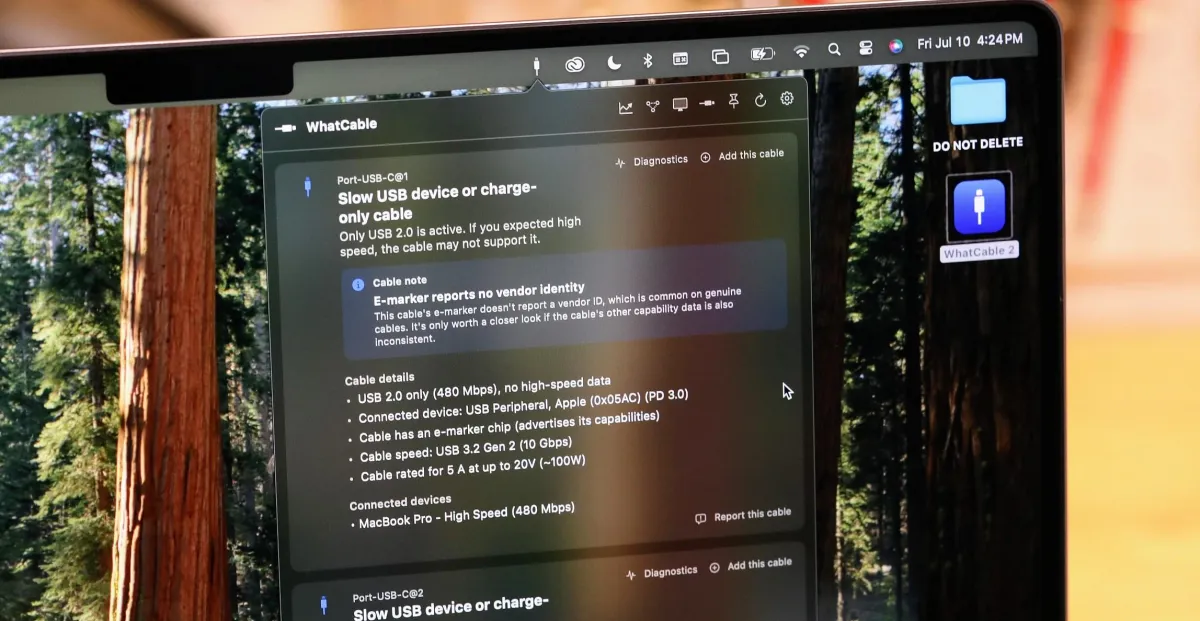
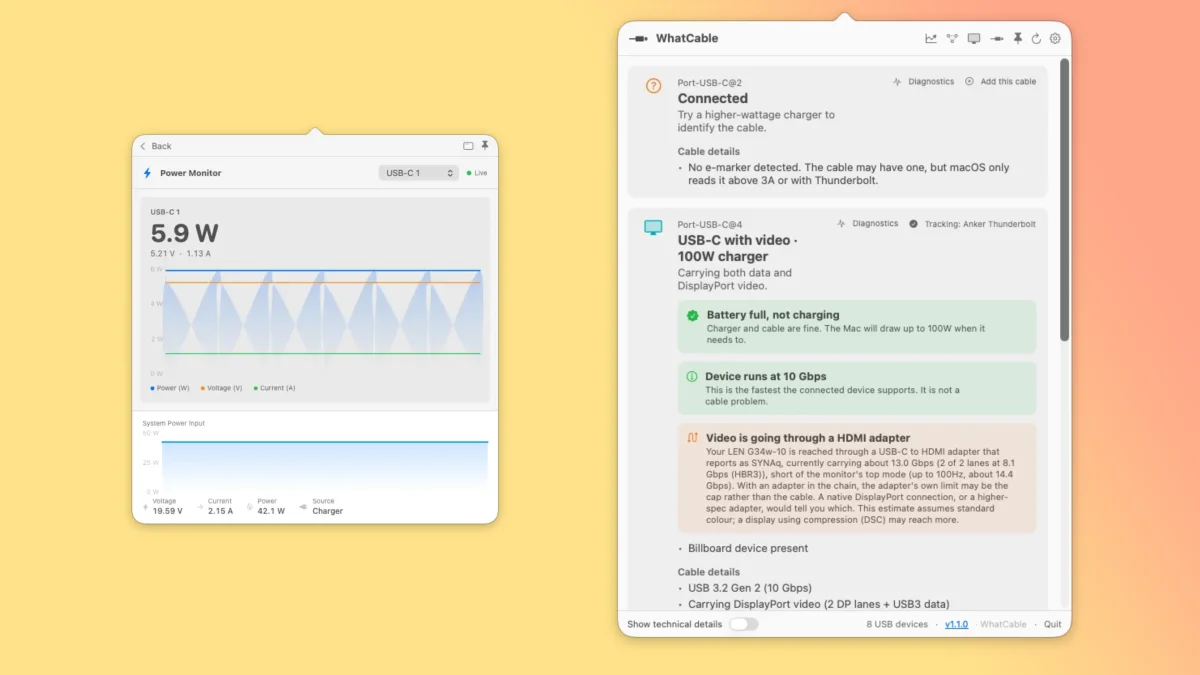
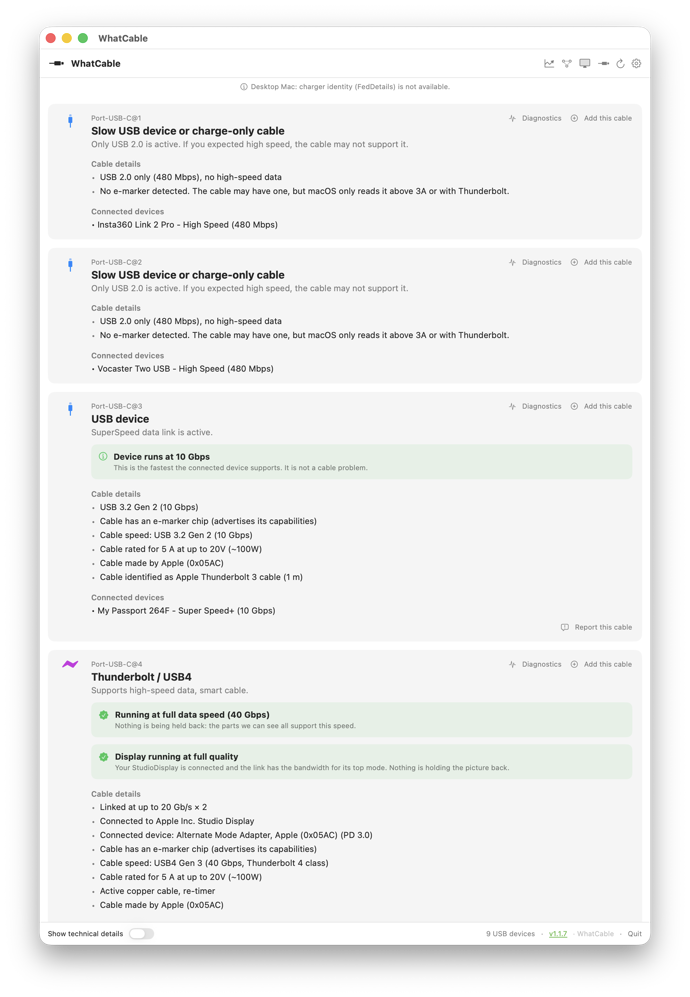
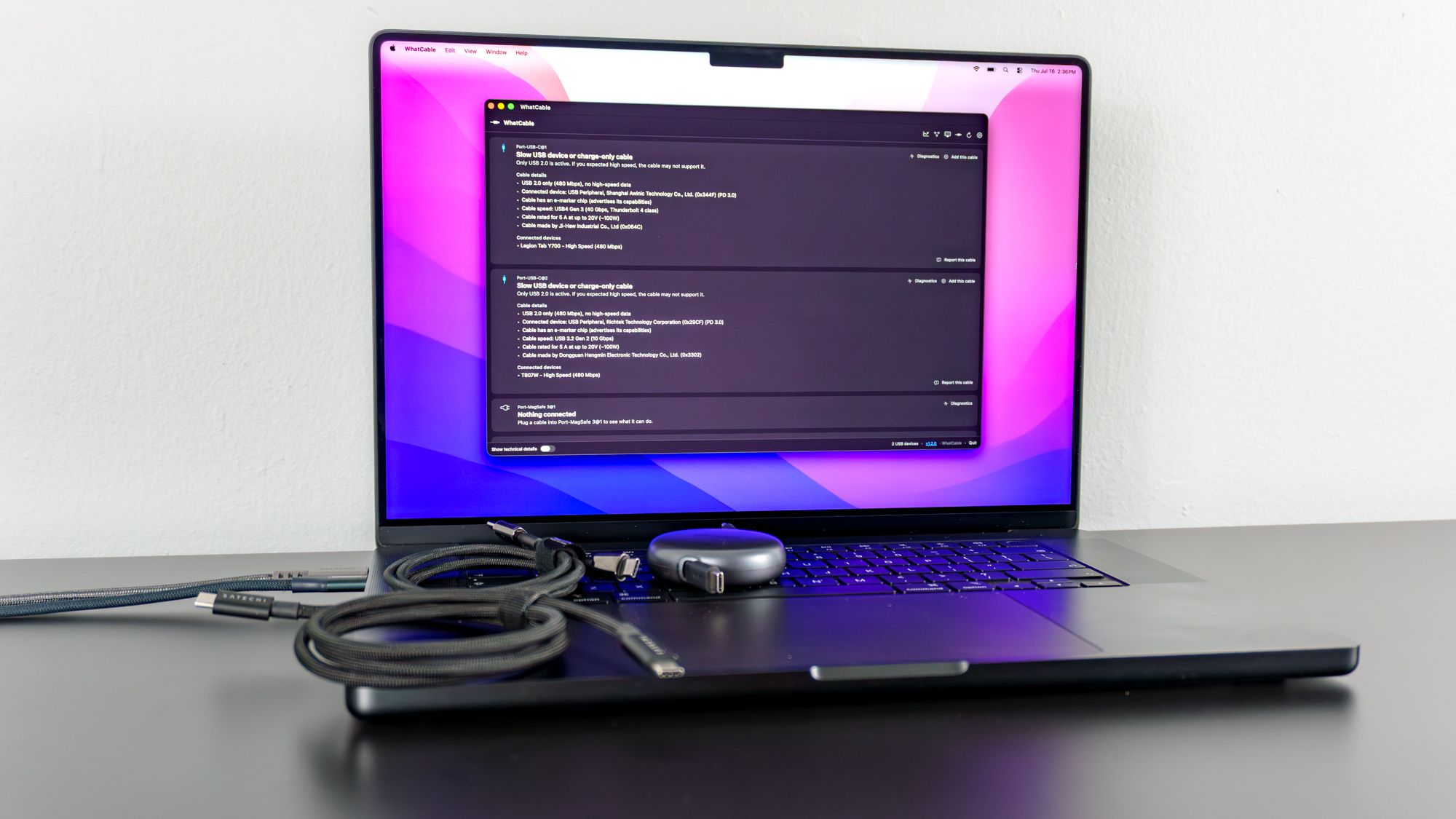
While some manufacturers label the ends of their cables with their respective specs, this isn’t always the case. And depending on where you buy your cables, those labels might not even be accurate. For this reason, some people end up buying dedicated cable testers to see whether that high-speed USB-C cable is actually as fast as it claims to be.Just when I was considering buying one of these devices to test my own cables, I stumbled upon an open-source Mac app that can do the exact same thing for free. Here’s what I learned after testing 10 of my own USB-C to USB-C cables, and why I ended up paying the full $13 for the pro version of the WhatCable app.Branded, but untested