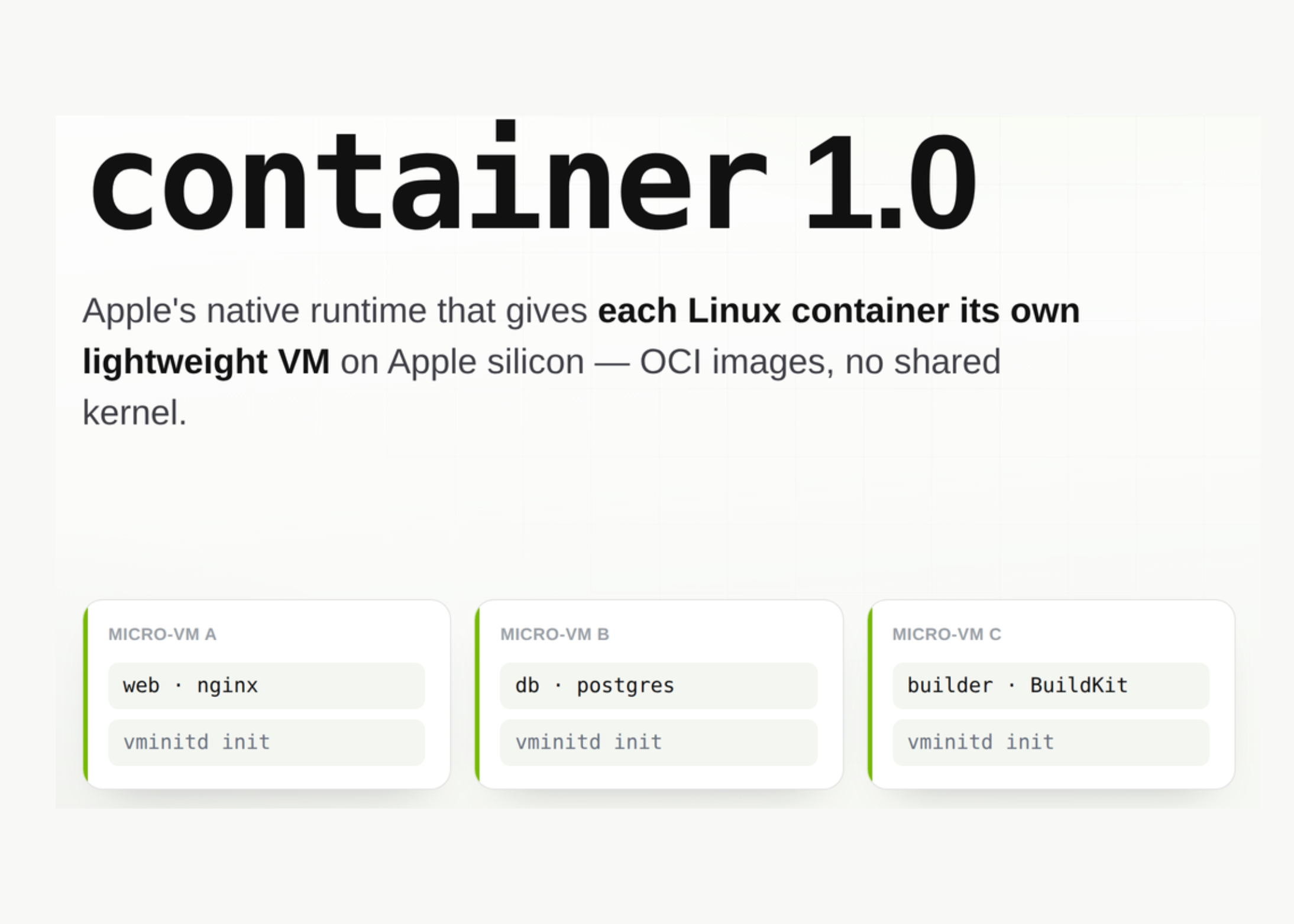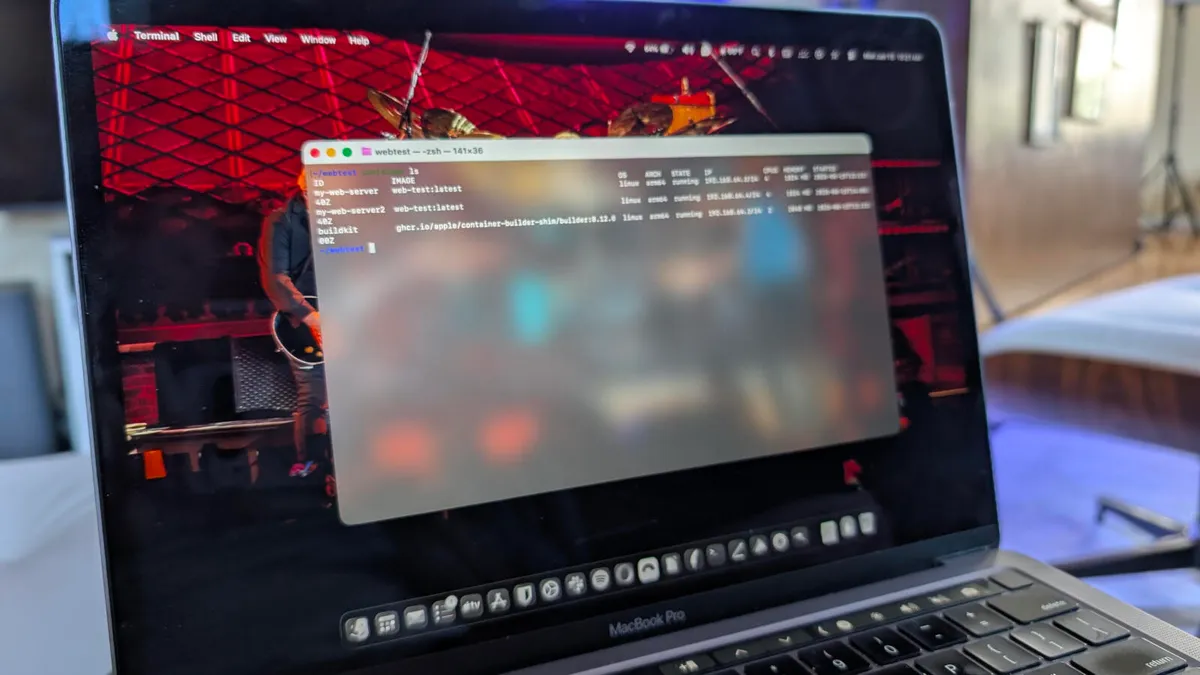
Jack Wallen/ZDNETFollow ZDNET: Add us as a preferred source on Google.ZDNET's key takeawaysContainer is a solid tool to develop for Linux on MacOS.It deploys lightweight Linux containers on Apple silicon.Container is a free command-line tool.I've used all sorts of container tools over the years: Docker, Docker Desktop, Podman, Portainer… the list goes on. Most of my container work has been handled on various Linux machines, but every once in a while, I want to work with my MacBook. Either way, I've found there are always choices.My first choice (when using my MacBook) is to SSH into a Linux machine and work from the command line. But what happens when I don't have a network available (or I'm away from my home)?Well, there's a new version of the command-line tool for MacOS, called Container, that is just as good as the tools I've used on Linux. Container has been around since 2025 and is a handy piece of software that allows you to create and run Linux containers as lightweight virtual machines on your MacOS Apple silicon-powered machine. The latest release of Container is optimized specifically for Apple Silicon Mac hardware. If you've ever used the Docker command-line tool, you'll feel right at home with Container. Also: The best Linux distributions for beginners: Expert tested and reviewedThe difference between Container and Docker is that with Container, each container runs in its own lightweight virtual machine and is launched using a Swift-based init system (vminitd). Container is fast and will be familiar to anyone who has previously worked with tools like Docker or Podman.I'm going to walk you through the installation and usage of Container on a MacBook, but it can be installed on any desktop or laptop running Apple silicon.Installing ContainerInstalling Container is simple. Once the file has downloaded, double-click it to launch the user-friendly installation Wizard. Walk through the simple steps until the installation is complete.
Container made it easy to run Linux on my MacBook - here's how I set it up
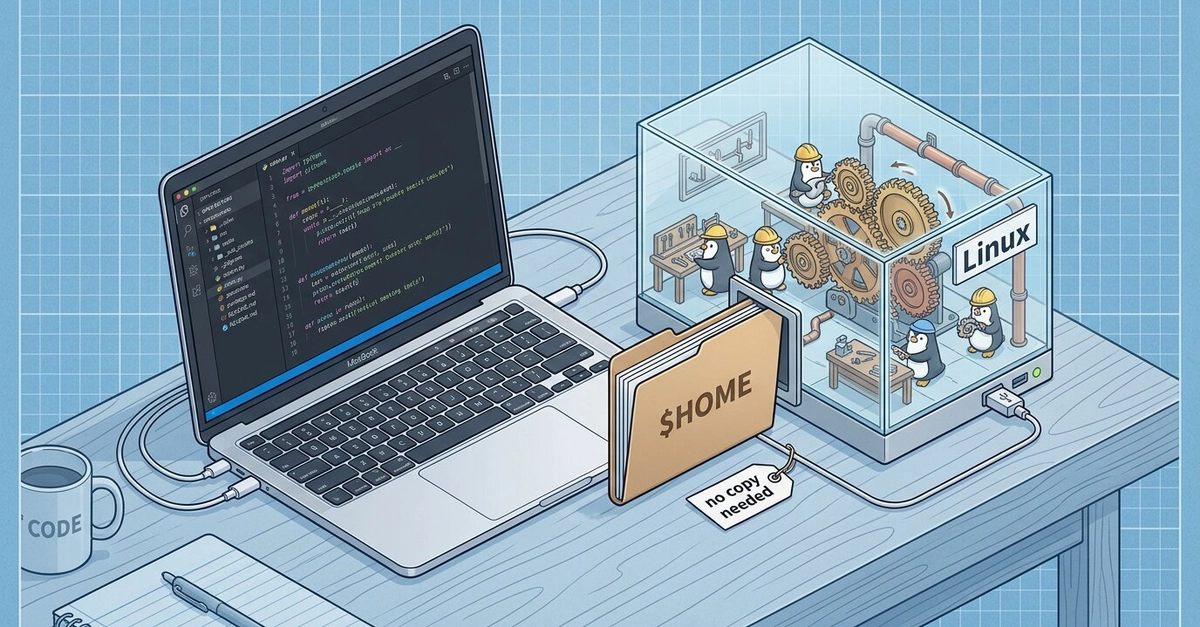
If you're looking to get into developing for Linux, but you prefer using a Mac as your developer tool of choice, there's a new command-line tool that you should definitely look into.
TL;DRAI
Container, a free CLI tool, deploys Linux containers on Apple silicon Macs with Swift-based init, similar to Docker. Removes Docker Desktop and remote SSH dependencies; marks expanding optimization of dev tools for Apple silicon ecosystem.
912 words~4 min read