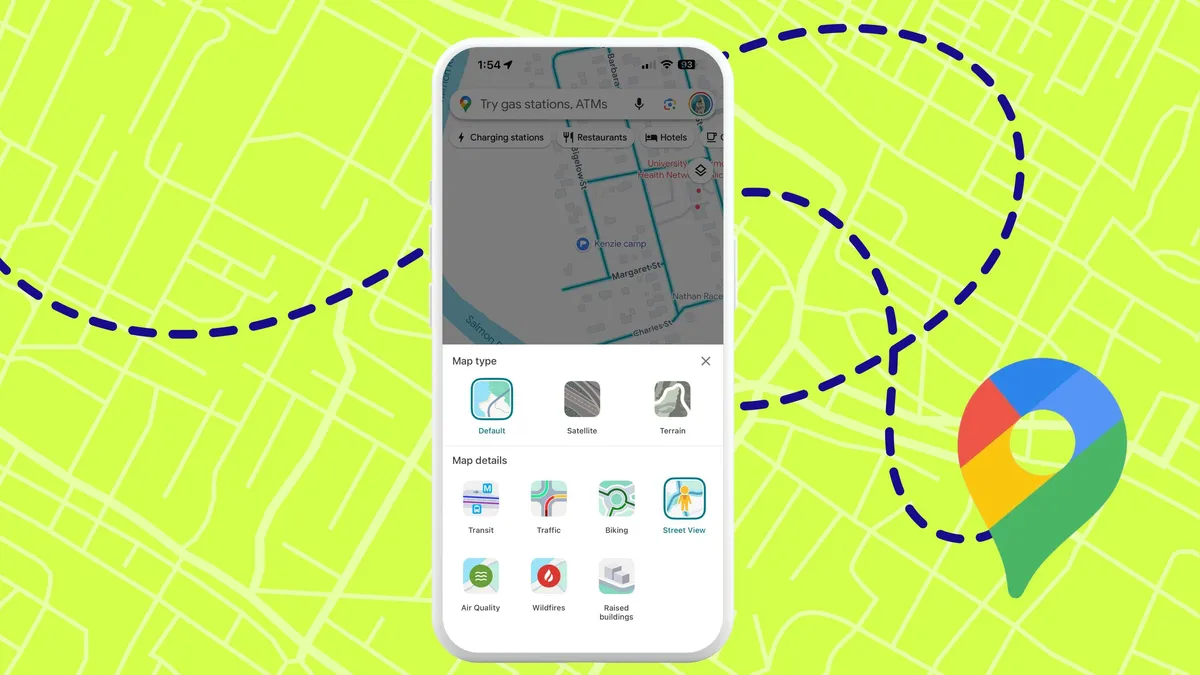
Type your address into Google Maps, switch to Street View, and there it is: a high-resolution photo of your front door, windows, and property line.While it’s a convenient tool for navigating, it also means your home's exterior features are visible to anyone online. If you'd prefer to keep those details private, Google provides a straightforward, free way to handle it.You can request to permanently blur your home from Street View, removing it from public view entirely. Here is how to get it done.How to hide your home on Google MapsYou're best off using a desktop browser for this, as the blurring feature doesn't work as well on mobile. Go to maps.google.com and search your home address. When your location appears, click the photo of your home displayed above your address. This opens Street View.Once in Street View, look at the bottom-right corner for "Report a Problem" and click it. You'll see a red and black box overlaid on the image.
(Image credit: Tom's Guide)You'll see a red and black box overlaid on the image. Use your mouse to position this box so your home and anything else you want blurred is completely contained within it. The plus button zooms in, the minus button zooms out. Adjust until you've framed exactly what you want hidden.