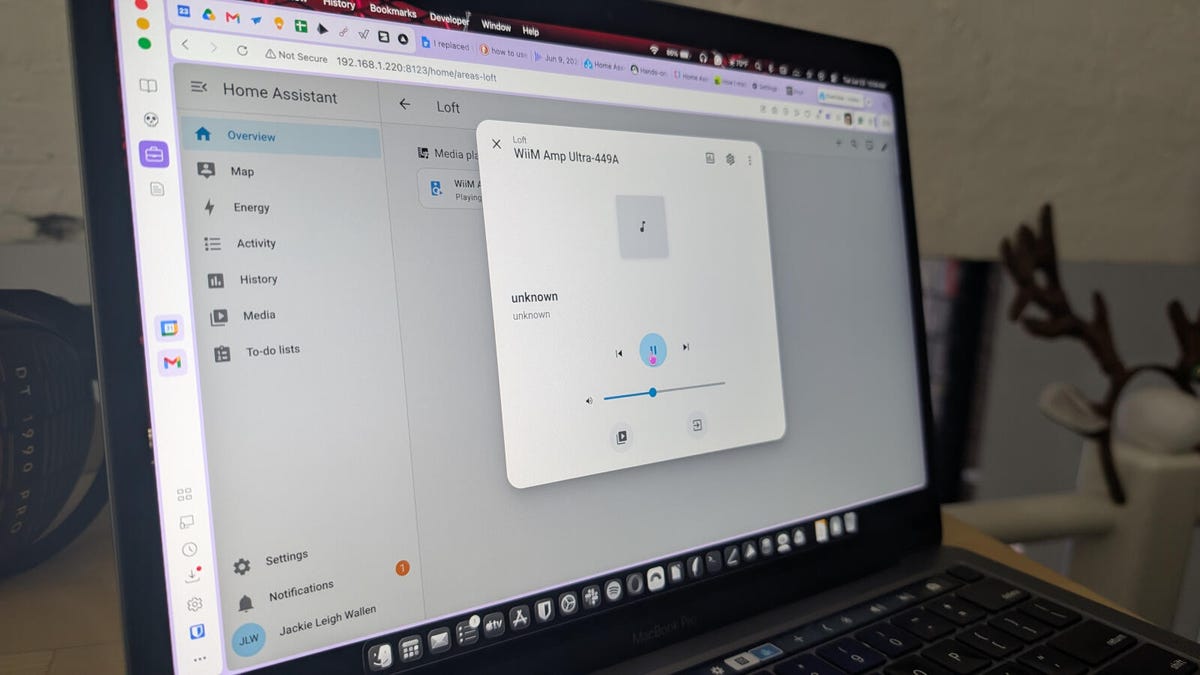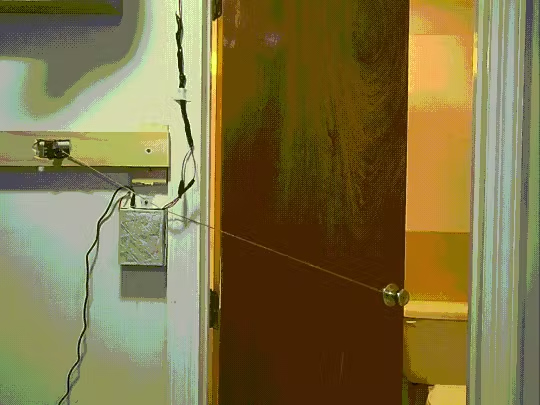
Building a DIY Motion Sensor from Scratch – The “After the Install” Way Hey there, it’s Nick Creighton, your resident SmartHome Wizardry guide. If you’ve ever stared at a $40 motion sensor and wondered why the price tag includes a “hub” you’ll never use, you’re in the right place. In this post I’ll walk you through the exact same build we covered in the latest After the Install episode – a cheap, solder‑free motion sensor that talks straight to Home Assistant (or whatever platform you love). No PhD in electrical engineering required, just a breadboard, a few components, and a willingness to tinker. ### Why DIY Makes Sense Right Now (2024 Edition) The market in November 2024 feels like a four‑option plateau: - Aqara Motion – $15 each, requires a $40 Aqara Hub. - Hue Motion – $40 each, requires a $60 Hue Bridge. - Ecobee/SmartThings equivalents – similar price, similar lock‑in. - Generic Zigbee‑only sensors – $20–$30, still need a bridge. What you’re really paying for isn’t the sensor hardware; it’s the ecosystem. The hub gives the manufacturer a data pipeline, a subscription foothold, and a way to keep you from mixing brands. If you’re building a home that lives on open standards (MQTT, ESPHome, Z‑Wave, Thread), that lock‑in feels like a betrayal of the very idea of “smart”. Enter the DIY motion sensor. For roughly half the cost of a boxed solution you get: - Full ownership of data – no “cloud” unless you choose it. - Radio freedom – use Wi‑Fi, BLE, or even Thread with a compatible MCU. - Future‑proofing – swap out the firmware or add new features without buying a new device. - Pure satisfaction – because you built it. ### What You’ll Need (All Available for Under $30) Here’s the exact parts list I used on the show. All items are Amazon‑or‑AliExpress friendly, and you can usually find a “starter kit” that includes the bulk of these components. - Microcontroller: ESP‑32 DevKitC (or ESP‑8266 if you’re fine with Wi‑Fi only). Cost: $7‑$10 - PIR motion sensor: HC‑SR501 (3‑V to 5‑V compatible). Cost: $1‑$2 - Power: 5‑V USB wall adapter or a 5‑V USB‑C power bank. Cost: $5‑$8 - Breadboard (full‑size) and a set of jumper wires. Cost: $4‑$6 - LED + resistor (optional visual indicator). Cost: Vin pin on the ESP board, and the GND rail to any GND pin. - **Wire the PIR sensor: VCC (pin 1) → 5‑V rail. - GND (pin 2) → GND rail. - OUT (pin 3) → GPIO 14 (or any free digital pin). - **Optional LED indicator: Connect the anode (+) to GPIO 27 via a 220 Ω resistor. - Connect the cathode (‑) to GND. When you power up the board the PIR sensor will go through a short “calibration” period (about 30 seconds). After that, it will pull the OUT line HIGH (3.3 V) whenever motion is detected. The LED mirrors that state, giving you a quick visual check. ### Flashing the Firmware – ESPHome Takes the Wheel For a “no‑code” experience I recommend ESPHome. It compiles YAML into native firmware, and Home Assistant discovers the device automatically via mDNS. If you prefer Arduino C++, the code snippet later in this post will get you there, but ESPHome is the fastest path to a working sensor. Here’s a minimal motion_sensor.yaml that you can drop into ESPHome: esphome: name: diy_motion_sensor platform: ESP32 board: esp32dev wifi: ssid: "YOUR_WIFI_SSID" password: "YOUR_WIFI_PASSWORD" # Enable OTA updates ota: # Enable Home Assistant API api: services: - service: reset then: - lambda: 'ESP.restart();' # MQTT (optional, if you prefer MQTT over native API) mqtt: broker: "mqtt.myhome.local" binary_sensor: - platform: gpio pin: number: 14 mode: INPUT inverted: false name: "DIY Motion Sensor" device_class: motion filters: - delayed_on: 100ms - delayed_off: 500ms on_press: then: - light.turn_on: id: motion_led on_release: then: - light.turn_off: id: motion_led output: - platform: gpio pin: 27 id: motion_led Steps to get it on your network: - Install ESPHome on your Home Assistant instance (Add‑on > ESPHome). - Create a new device, paste the YAML above, and click “Validate”. - Connect the ESP‑32 to your PC via USB, then click “Upload”. ESPHome handles the bootloader and flashing automatically. - Once the upload finishes, the sensor shows up in Home Assistant under *Integrations → ESPHome. If you want raw Arduino code instead, here’s a bare‑bones sketch that publishes to an MQTT topic called home/diy_motion: #include <WiFi.h> #include <PubSubClient.h> const char* ssid = "YOUR_WIFI_SSID"; const char* password = "YOUR_WIFI_PASSWORD"; const char* mqtt_server = "mqtt.myhome.local"; WiFiClient espClient; PubSubClient client(espClient); const int pirPin = 14; const int ledPin = 27; void setup() { pinMode(pirPin, INPUT); pinMode(ledPin, OUTPUT); Serial.begin(115200); WiFi.begin(ssid, password); while (WiFi.status() != WL_CONNECTED) { delay(500); Serial.print("."); } client.setServer(mqtt_server, 1883); } void loop() { if (!client.connected()) { reconnect(); } client.loop(); int motion = digitalRead(pirPin); digitalWrite(ledPin, motion); static int lastState = LOW; if (motion != lastState) { const char* payload = motion ? "ON" : "OFF"; client.publish("home/diy_motion", payload); lastState = motion; } delay(100); } void reconnect() { while (!client.connected()) { if (client.connect("DiyMotionSensor")) { client.subscribe("home/diy_motion/set"); } else { delay(5000); } } } ### Testing the Sensor – From Breadboard to Real‑World Placement Now that the firmware is live, it’s time to verify the sensor works before you mount it permanently. - Check Home Assistant: In the UI you should see a new binary sensor called “DIY Motion Sensor”. Toggle the “History” graph to confirm it flips when you wave your hand. - LED feedback: The on‑board LED on GPIO 27 should light up in sync with the motion detection. If it doesn’t, double‑check the wiring and make sure the PIR’s OUT pin is wired to the correct GPIO. - Range test: Move slowly away from the sensor. Most HC‑SR501 units have a detection cone of ~120° and a range of 5‑7 m. Adjust the sensor’s potentiometer (tiny screw on the side) to tweak sensitivity if you get false positives. - Power stability: Run the sensor for a couple of hours on your chosen power source. If you notice occasional disconnects, consider a dedicated 5‑V wall wart instead of a USB hub that may power‑cycle. ### Integrating with Automations – Make Your Home React With the binary sensor now in Home Assistant you can build automations that would otherwise require a paid hub. Here are three practical examples you can copy‑paste. 1️⃣ Turn on hallway lights when motion is detected (with a “no‑retrigger” delay) automation: - alias: "Hallway Light On Motion" trigger: - platform: state entity_id: binary_sensor.diy_motion_sensor to: "on" condition: - condition: state entity_id: light.hallway state: "off" action: - service: light.turn_on target: entity_id: light.hallway - wait_for_trigger: - platform: state entity_id: binary_sensor.diy_motion_sensor to: "off" - delay: "00:02:00" - service: light.turn_off target: entity_id: light.hallway 2️⃣ Send a push notification if motion occurs after 10 PM (security use‑case) automation: - alias: "Night Motion Alert" trigger: - platform: state entity_id: binary_sensor.diy_motion_sensor to: "on" condition: - condition: time after: "22:00:00" action: - service: notify.mobile_app data: title: "⚠️ Motion Detected" message: "Movement in the living room after 10 PM" 3️⃣ Log motion events to a CSV file for later analysis automation: - alias: "Log Motion to File" trigger: - platform: state entity_id: binary_sensor.diy_motion_sensor action: - service: recorder.record_events data: entity_id: binary_sensor.diy_motion_sensor Because the sensor is native to Home Assistant, you can combine it with any other integration (Google Cast, Alexa, Zigbee2MQTT, etc.) without paying a “gateway fee”. ### Cost Breakdown – How Much Did We Save? Item DIY Cost Typical Boxed Alternative Savings Sensor hardware $9.50 $40 (Hue) / $15 (Aqara) + hub ~$30‑$45 Power supply $6.00 Included with most kits (but you already own one) $0‑$6 Enclosure (optional) $3.00 Often $5‑$10 for proprietary housing $2‑$7 Total $18.50 $55‑$65 ~$36‑$46 Even if you already have a USB charger at home, you’re looking at a 70‑80 % reduction** compared to buying a commercial sensor with its required hub. ### Troubleshooting – Quick Fixes for Common Issues - No Wi‑Fi connection. Double‑check SSID/password strings for stray quotes. Re‑flash the Wi‑Fi section of the YAML or Arduino sketch and watch the Serial monitor for WiFi connected messages. - Constant “ON” state. Most HC‑SR501 modules have a small potentiometer that sets sensitivity; turn it clockwise to lower sensitivity, counter‑clockwise to raise it. Also verify you’re not feeding 5 V directly into a 3.3 V‑only GPIO (the ESP‑32’s pins are 3.3 V tolerant). - ESP keeps rebooting. Likely a power dip. Use a stable 5‑V wall adapter, not a phone charger that throttles under load. Adding a 100 µF electrolytic capacitor across the 5‑V rail can smooth spikes. - Home Assistant can’t discover the sensor. Ensure mDNS is not blocked on your router, or enable the api: section in ESPHome and manually add the device via Integration → ESPHome → Add Manual Entry. - False positives at night. PIR sensors can be triggered by heat sources (radiators, pets). If you have a pet, consider adding a small IR filter or using a dual‑sensor approach (PIR + ultrasonic) – both are cheap upgrades. ### Scaling Up – From
How To Build Diy Smart Home Motion Sensor
Building a DIY Motion Sensor from Scratch – The “After the Install” Way Hey there, it’s Nick...
1,505 words~7 min read