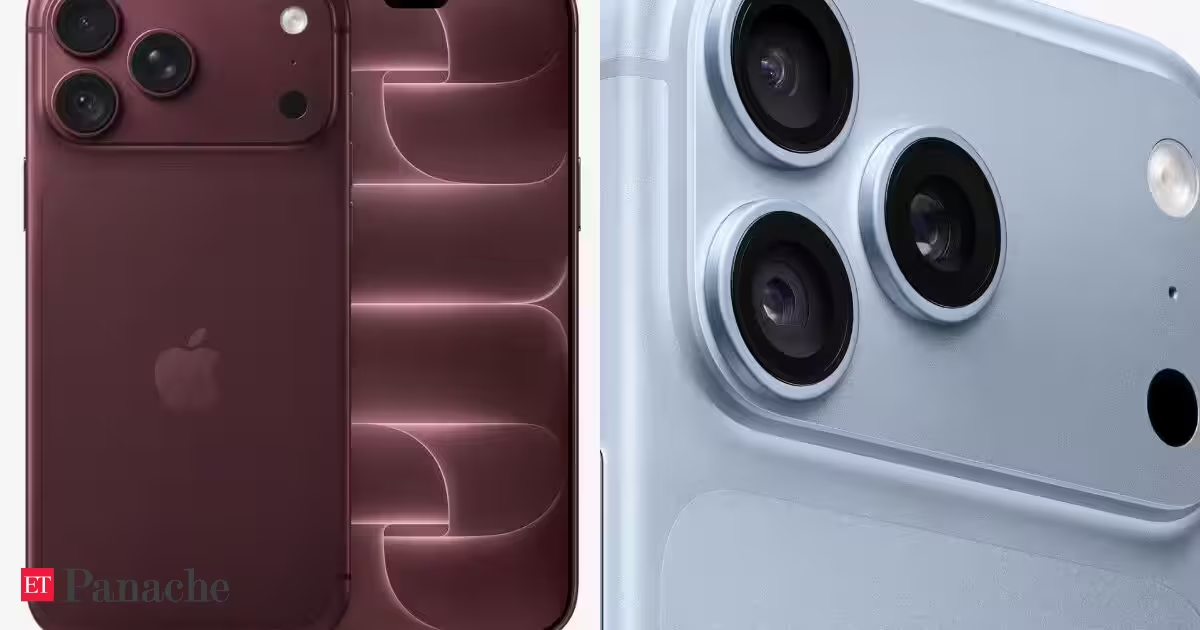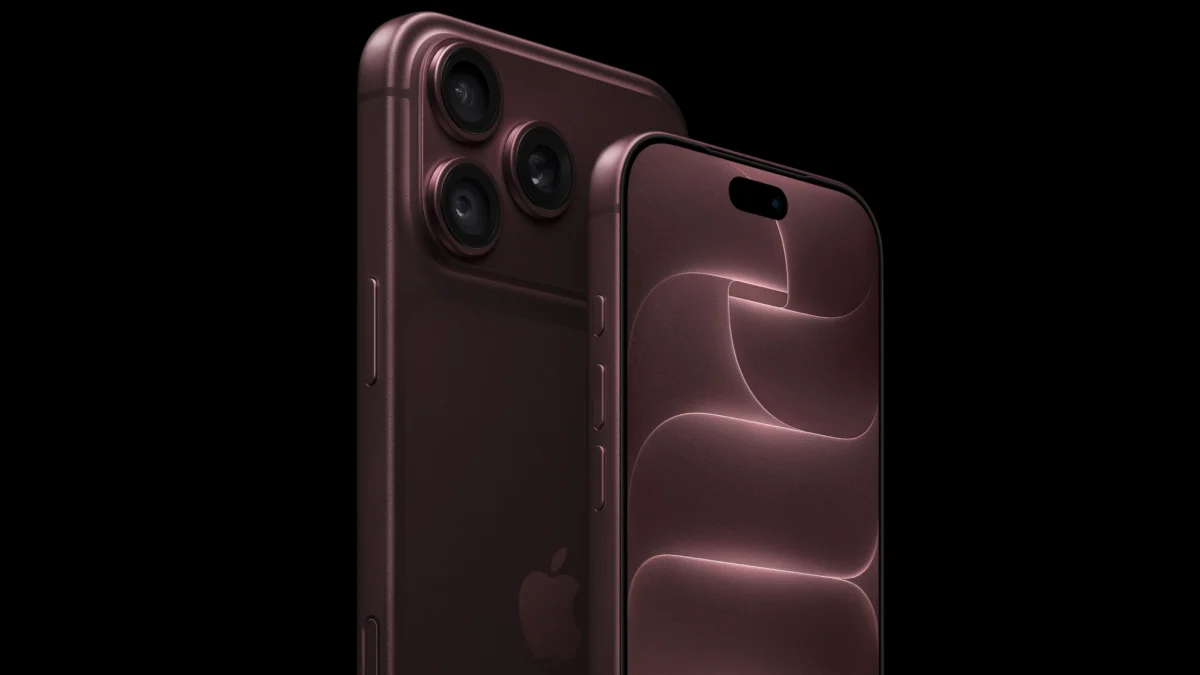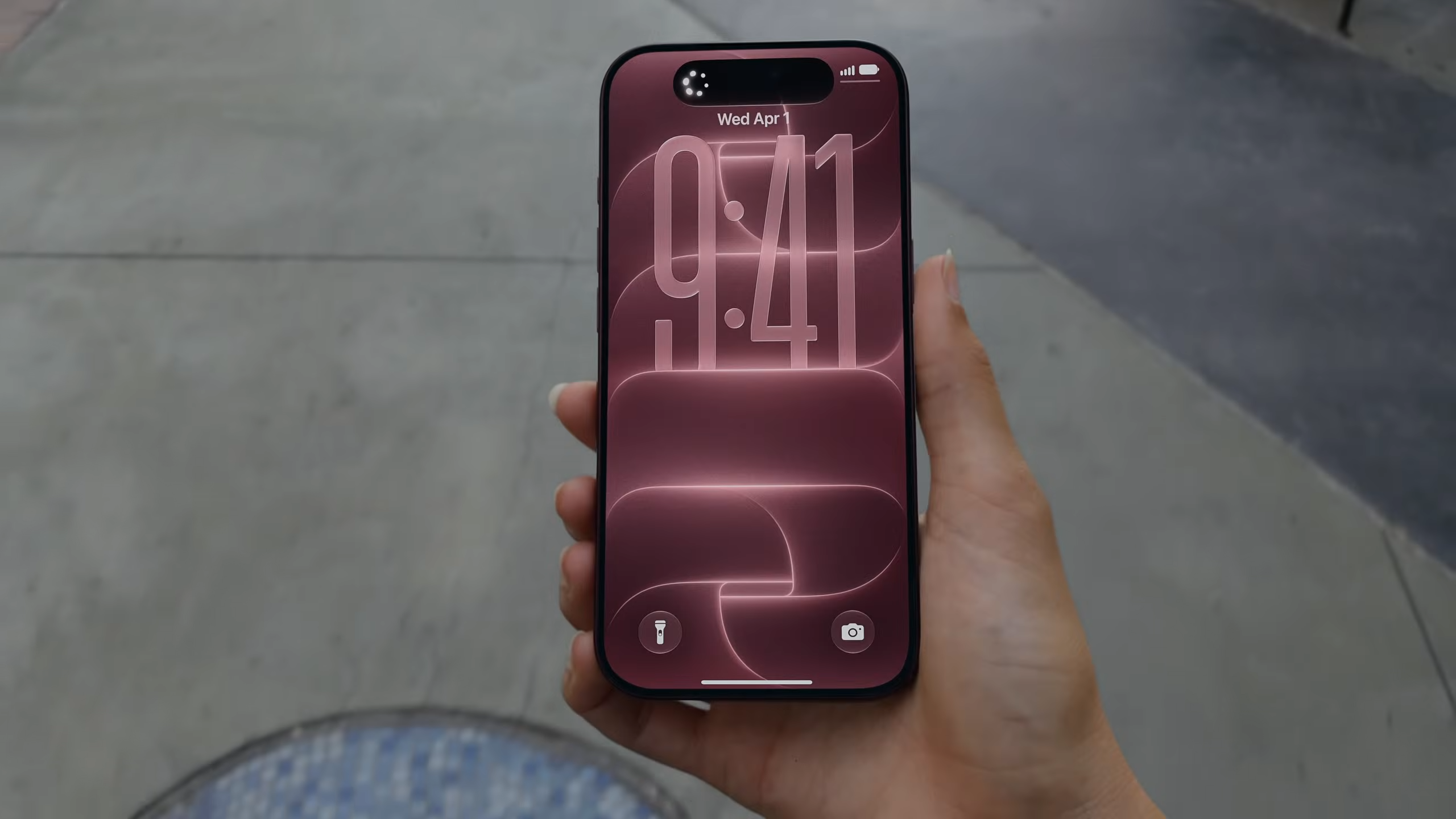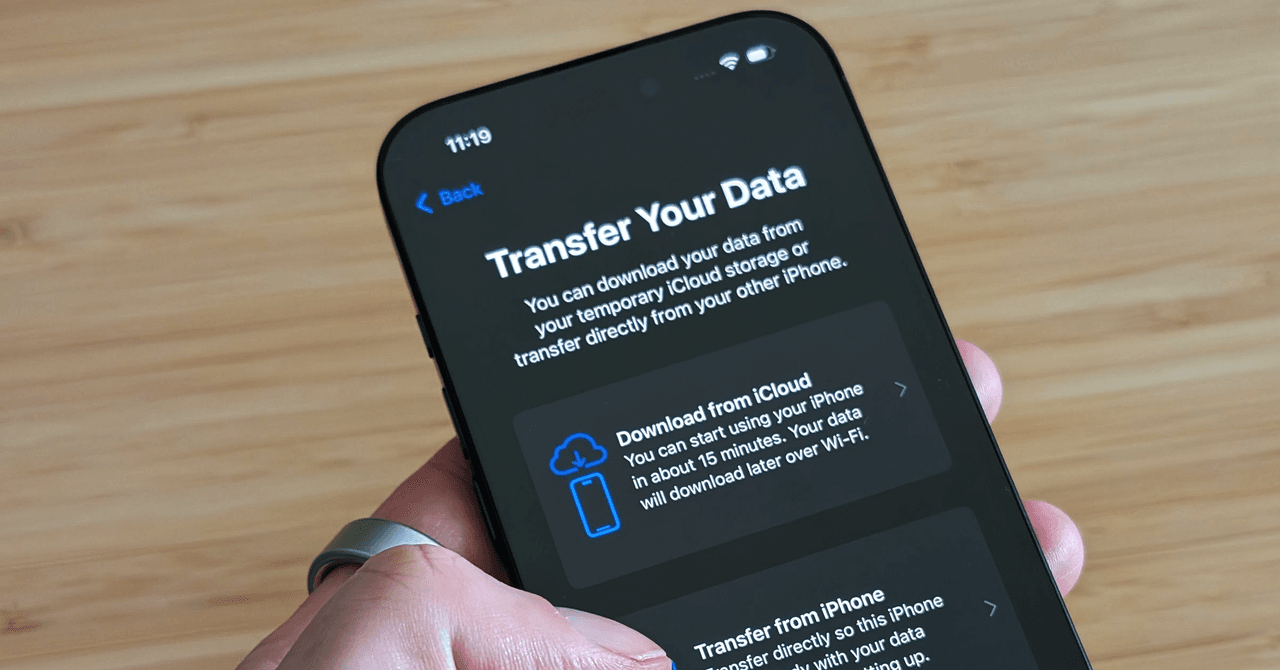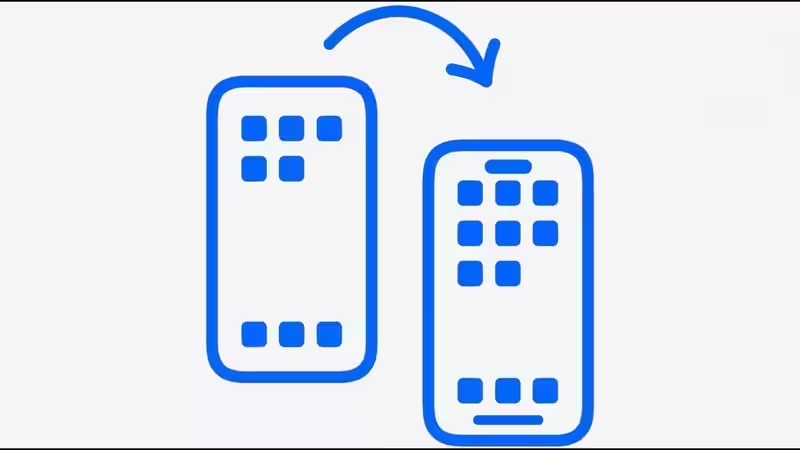
With a new iPhone 18 Pro you aren't left to start all over. Apple's Quick Start option allows you to easily transfer over apps, your settings, photos, texts and whatever else personal information from your previous iPhone. ICloud transfer or wired transfer is also an option.Key highlightsQuick Start is the easiest option: Transfer data directly from your old iPhone to the iPhone 18 Pro wirelessly.Keep both iPhones nearby: Wi-Fi and Bluetooth should be enabled on the old iPhone.Choose direct transfer or iCloud: Direct transfer requires waiting for the migration to finish, while iCloud downloads content in the background.Keep both devices plugged in: This helps prevent the transfer from being interrupted.Wired transfer is also available: A cable can be used when supported by the devices.How to transfer data using Quick Start1. Prepare your old iPhoneYour current iPhone needs to be connected to WiFi and your Bluetooth setting switched on when you begin. A current backup should have been made and it's also handy to know your Apple ID password. Apple can give you temporary iCloud storage to use with a new iPhone if you don't have enough to back up your current iPhone.About The AuthorA journalist and writer interested in geopolitics, national politics, conflict and war reporting, with a growing focus on technology and the automobile industry. His work is driven by a curiosity to understand the political, social and technological forces shaping contemporary India and the world. He enjoys engaging with people, exploring perspectives often overlooked in mainstream narratives, and breaking down complex subjects into accessible, well-researched stories. Alongside political and geopolitical writing, he closely follows developments in technology and automobiles, particularly how innovation, policy and changing consumer trends are reshaping these sectors.It will be helpful if the old iPhone and the iPhone 18 Pro are connected to the power supply throughout, particularly if there is a lot to be transferred.2. Turn on the iPhone 18 ProTurn on the new iPhone 18 Pro and lay it next to your existing iPhone. Follow the prompts on your old iPhone's screen. If the Quick Start screen isn't displayed on your new iPhone, Apple advises to reset both iPhones and begin the procedure again.3. Authenticate your new iPhoneDuring the setup process, you'll be prompted to confirm the new device using your existing iPhone. This may include providing the passcode for your old iPhone and following on-screen prompts.You will then be guided to set up Face ID and connect the new iPhone to your wireless network or mobile carrier service. You'll also be prompted to activate cellular service if your carrier and setup allow for it.4. Choose how to transfer your dataWhen prompted, you can select either "Transfer from iPhone" or "Download from iCloud". With transferring data from iPhone it will only send data through both iPhone devices, which means it will take a lot of time and will be able to use iPhone 18 Pro when it is done.With the iCloud method it can only transfer data and applications to your iPhone 18 Pro in the background, then you can use your iPhone immediately after you get it.More articles by AuthorTrending Stories5. Wait for the migration to finishDuring this process, the phones should remain together, and plugged in, until the entire transfer has been done. This means that they shouldn't be allowed to get too far from each other and the whole procedure should not be interrupted for any reason.It should also be noted that time the transfer actually takes is mostly dependent on how much data is transferred and how well the connection is. A phone, for instance, carrying several hundred GBs worth of photos and videos could take significantly longer than one carrying fairly little photos.Can you transfer data using a cable?Yes. Apple also allows wired transfers between compatible iPhones. Apple documentation also gives guides on performing direct transfers for iPhone 15 or more new models, between a computer via USB-C cable and for the older lightning enabled iPhones via USB-C to Lightning Cable when transferred to a new USB-C model. If you prefer not to use wireless connection when migrating, wired can be a useful alternative.What to check after transferring dataAfter the transfer, you can access your Photos, Messages, Contacts, Calendars and the apps you care for. You should re-enter your login credentials and re-enable notifications in certain applications; Apple advises us to verify Mail, Contacts and Calendar once the transfer to the new device has finished.Do not turn off or restore your previous iPhone until you ensure that your data and accounts have completely transferred to iPhone 18 Pro. FAQsCan I transfer everything from my old iPhone to iPhone 18 Pro?Quick Start can transfer many of your apps, settings and personal content. You can also restore your new iPhone from an iCloud backup or a computer backup.Do I need an iCloud backup to use Quick Start?No. You can transfer data directly from your previous iPhone using Quick Start. An iCloud backup is still useful as an additional safety measure.Can I use my old iPhone while the transfer is running?For a direct transfer, you should expect both devices to be occupied until the migration is complete. Apple recommends choosing a time when you do not need to use the old device.What happens if Quick Start does not appear?Make sure Wi-Fi and Bluetooth are enabled on the old iPhone and place it close to the iPhone 18 Pro. If the setup prompt disappears, Apple recommends restarting both devices and trying again.Should I keep my old iPhone after the transfer?Yes. Keep it until you have checked that your important photos, contacts, messages, apps and other data are available on the iPhone 18 Pro. Only then should you consider erasing the old device.READ NEXT ARTICLE
How to Transfer Data From an Old iPhone to iPhone 18 Pro: Step-by-Step Guide
Apple's Quick Start feature makes it incredibly easy to migrate to your new iPhone 18 Pro. With this tool, you can wirelessly transfer apps, settings, photos, and messages from your old smartphone. Just ensure both devices are nearby and charged for a smooth transition. If preferred, a wired transfer option is also available for compatibility. Remember to review all your data and accounts once the setup is complete.
952 words~4 min read