When you’re working with Microsoft Copilot to create a business document, you might find yourself torn between two opposing instincts. Part of you is itching to edit its output right away, while another part wants to keep prompting the AI assistant to refine the generated text.
Turns out you can do both.
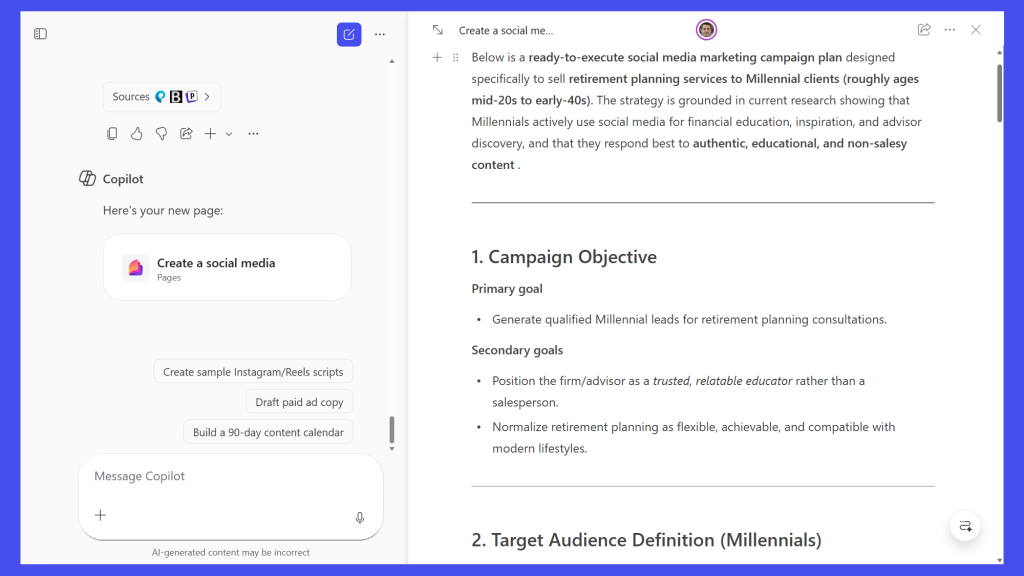
The Pages feature in the M365 Copilot app is a dynamic text editor that works in a window alongside your Copilot chat. It lets you turn the AI’s response into a persistent document (a “page,” in Microsoft parlance) that you can edit manually while continuing to collaborate with Copilot on it.
You can also invite your co-workers to collaborate on it, either by sharing the page with them or by embedding it in a Word document, Outlook email, OneNote note, or Teams chat as a Loop component. (More on that later.)
In this guide, we’ll go over how to use the Pages tool in the M365 Copilot app. It’s available with a paid Microsoft 365 plan and, notably, does not require a separate Copilot license. This means that enterprise users who have a Microsoft 365 plan but not a Microsoft 365 Copilot add-on plan can use Copilot Pages.