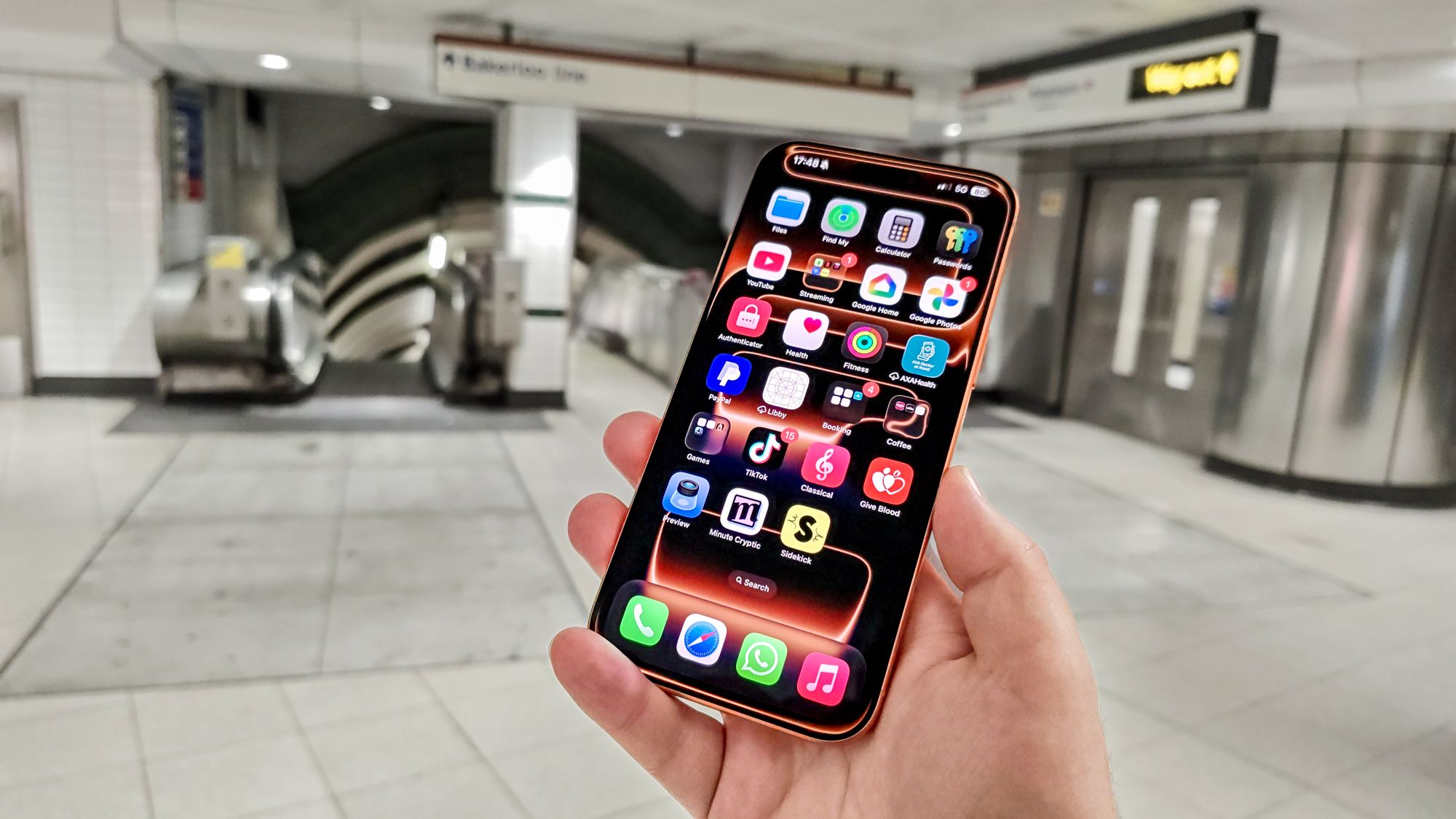
Your mobile carrier collects location data constantly. It's part of how cellular networks operate. But you actually have more control over what gets shared than you might realize.Apple built simple privacy settings into iOS specifically for this reason. Most people never find them. I discovered this setting and immediately felt more in control of my personal data.You can restrict your carrier’s location tracking in under a minute without losing calls or texts. Here's how to do the same thing on your iPhone.
Disable background location services
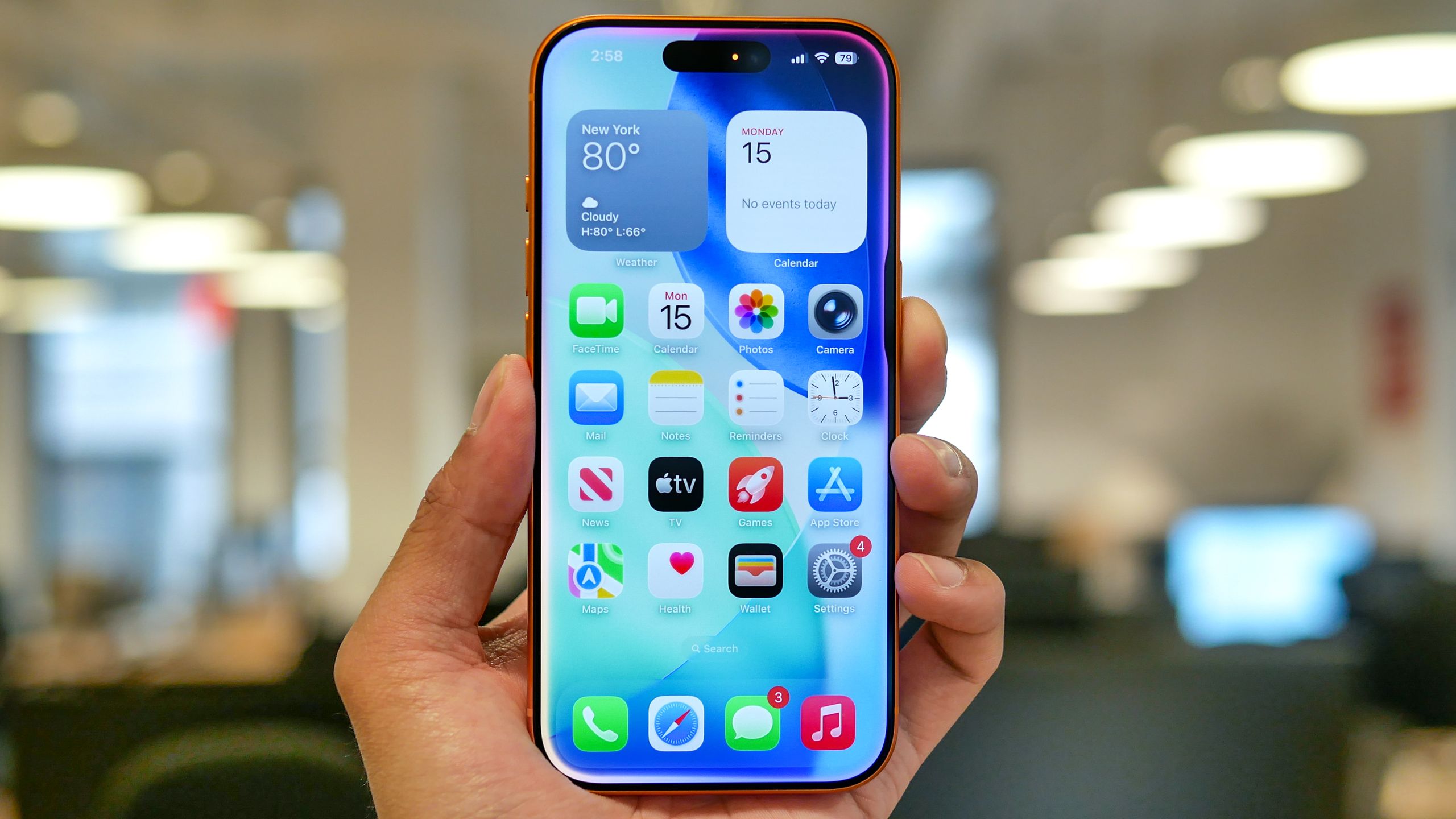
Open your iPhone's Settings app and go to Privacy & Security, then tap Location Services. Scroll to the very bottom and select System Services. You'll see several background features running that continuously send location data to Apple and your carrier — things like Cell Network Search and Networking & Wireless. These services operate invisibly in the background, reporting your location constantly. Toggle off the ones you don't actively need.
Enable precise location limits
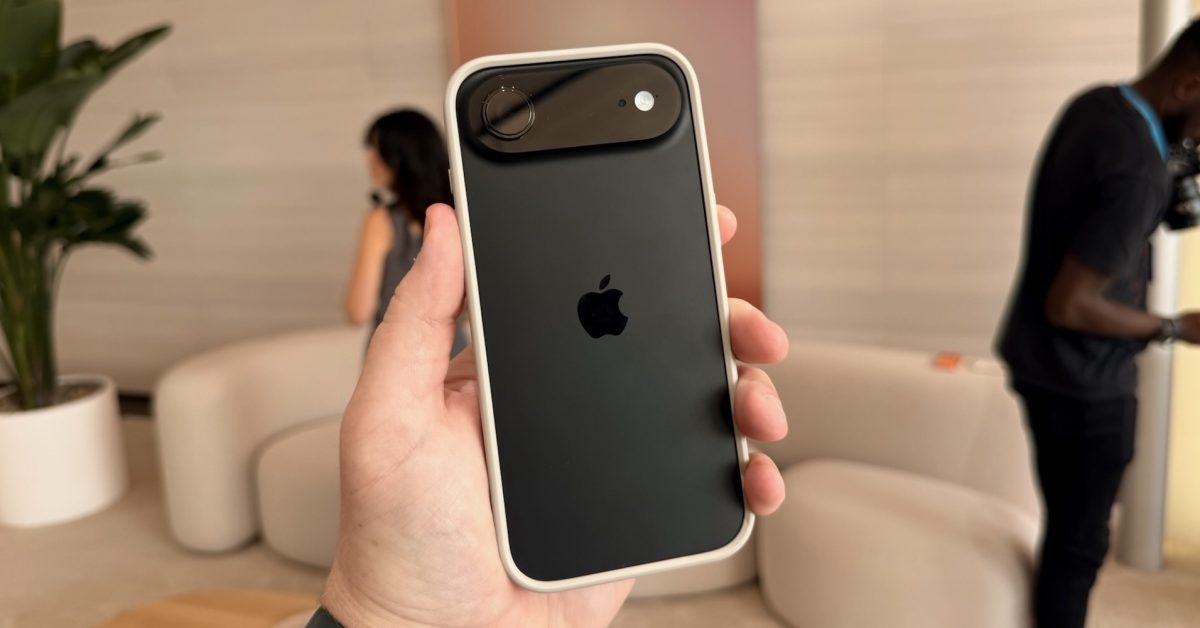
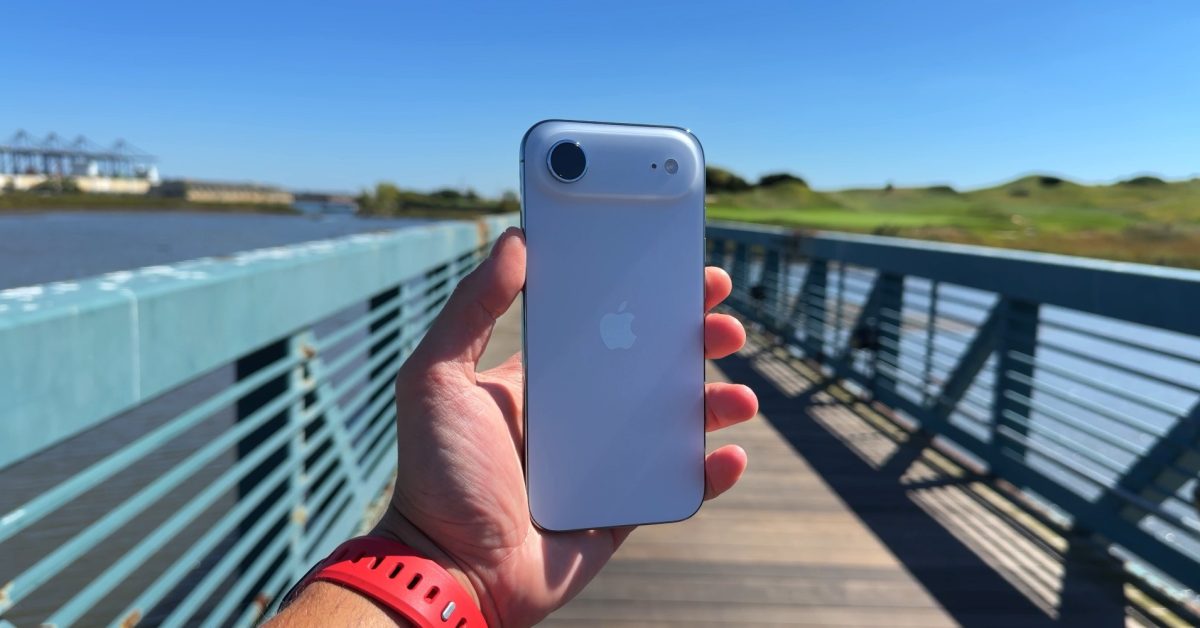
Go back to the main Privacy & Security menu, select Location Services and navigate to Cellular (or Mobile Service), then select Cellular Data Options. Scroll through the menu until you find Limit Precise Location and toggle it on. This single change prevents compatible networks from accessing exact street-level coordinates via cell-tower triangulation, though this feature only works on newer iPhones with Apple's own built-in cellular tech (like the iPhone Air, iPhone 16e and iPhone 17e) and requires explicit carrier support. Once activated, they can only see a general neighborhood area where your phone connects to towers. Your carrier still has enough information to provide cellular service, but they lose the ability to pinpoint your exact movements.