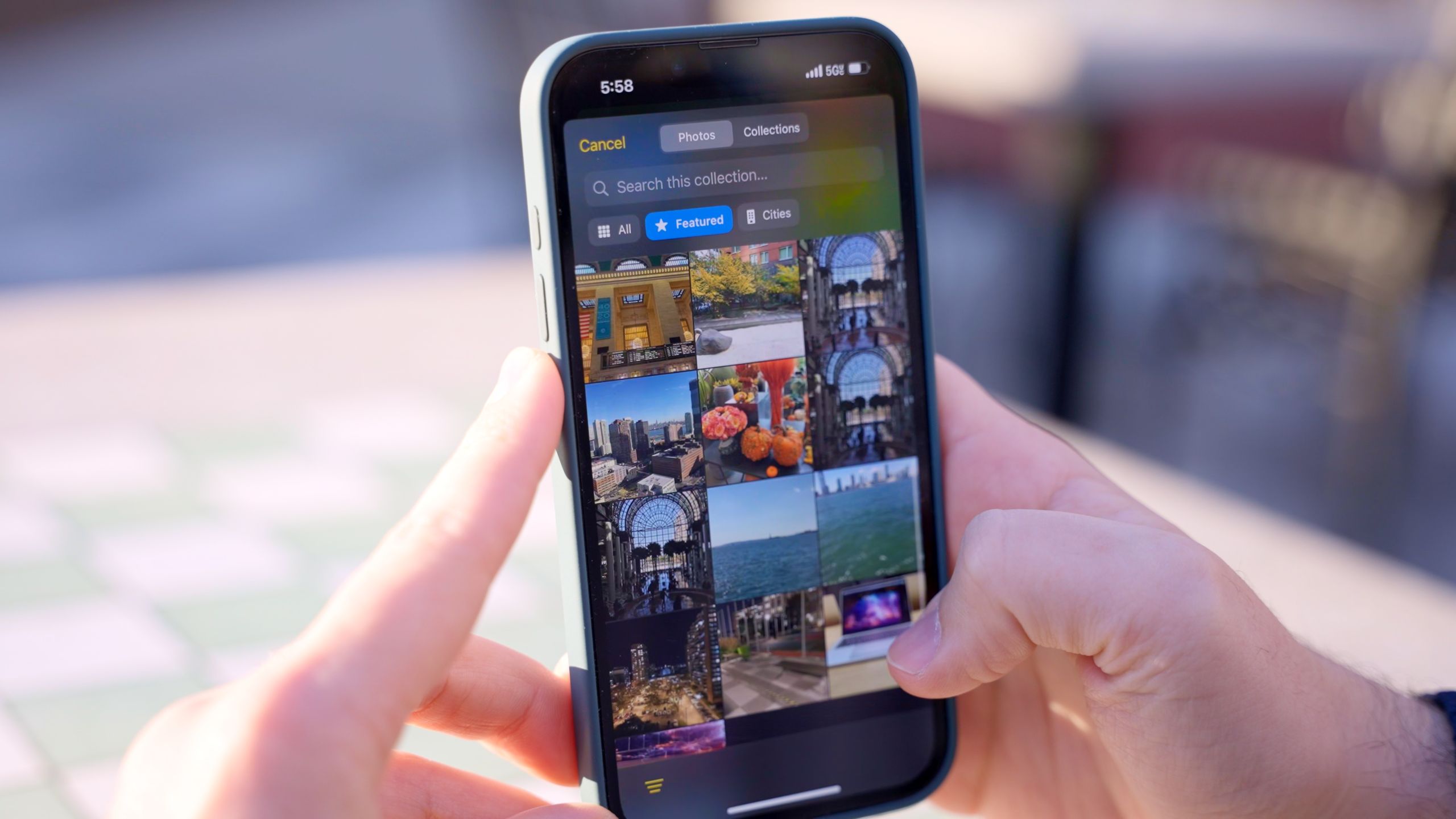
If your iPhone photo library is filled with dozens of duplicate shots, screenshots you no longer need, and vacation photos you keep meaning to sort through, iOS 27 introduces a long-awaited organizational tool to help.For the first time, Apple allows you to assign one-to-five-star ratings and custom metadata keywords directly to your images and videos, bringing sorting to the native Photos.Because the star rating controls are hidden by default when you first update your device, you need to enable the feature in your settings before you can start rating your media.Here's how to turn on rating controls, assign stars to your photos, and filter your library to find your best shots in seconds.
Turn on star rating controls in iOS 27
To turn on star rating controls in iOS 27, launch the Photos app on your iPhone, select the Collections tab, and tap your profile icon located in the top-right corner. Next, scroll down the account settings screen and toggle on Show Rating Controls. Finally, close the account menu to return to your main photo collection where rating options are now active.
How to rate your photos
To rate an individual photo once rating controls are enabled, tap any photo in your library to open it full screen, tap the star icon in the top-right corner, and select a rating from one to five stars. If you want to rate multiple photos at once, tap Select in the top-right corner of your grid view and tap every photo you wish to assign the same rating to. Then tap the three-dot menu icon in the bottom-right corner, select Rating, and choose your desired star level to apply it to all selected media.