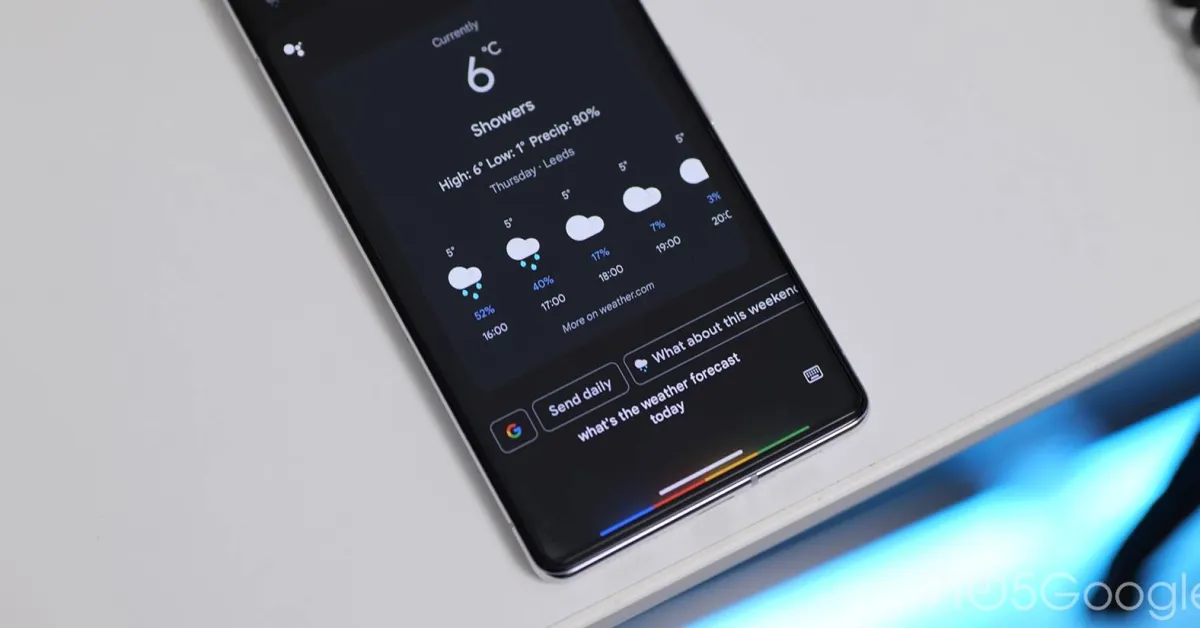
Google Assistant is about to get one heck of a headstone in the Google Graveyard. The voice assistant has been a handy tool for years, but the company has finally decided to replace it with Gemini entirely. If you’re not exactly thrilled about the AI-ification of every app you use, there are a few ways to make Gemini behave a bit more like the Assistant of yore.The switch from Assistant has been coming for a while; it’s a seismic shift for a lot of devices. On top of deprecating Assistant on Android phones and tablets, it’s also disappearing for Wear OS devices and some Android Auto cars. Some smart home devices and TVs will still support Assistant, but you can switch to Gemini (and you might want to since the choice is likely to be made for you eventually).Regardless of how you feel about AI chatbots, using Gemini might become unavoidable if you’re in the Google ecosystem. So, if you want to keep the functionality you had in your phone, car, or kitchen, it might take a little bit of effort. Here’s how to get started.
Set your default assistant everywhereWhen September rolls around, you’re going to be pushed to Gemini on your Google-powered phone, tablet, and watch, but that might not cover all your devices. If you’re going to be reprogramming your muscle memory, you may as well do it all at once.Depending on when you set up your Google Home or Nest devices, you might’ve gotten a prompt to upgrade to Gemini. If not, open the Google Home app, tap your profile picture, and choose “Home settings.” Here, you should find a banner that lets you set up Gemini for Home.It might sound counterintuitive to move away from Assistant in order to make Gemini work more like Assistant, but in the next sections I’ll walk through how to rebuild your favorite Assistant commands. This step will make the whole system work more consistently, but activating Gemini on your smart speakers is technically optional. Just be aware that if you opt not to do this, you might hit some bumps if your phone and smart speaker try to compete to respond to your commands with different assistants.Turn off personalization features you don’t needPart of the appeal of Google Assistant was its simplicity. Turn your lights on and off, set reminders, stuff like that. No trying to plan your meals for you based on your travel itinerary and anime viewing history or whatever. If that kind of simplicity appeals to you, consider taking the opposite of our previous advice, and turn off many of the “Connected Apps” you find there.In the Gemini app on your phone, you can find this under Settings > Personal Intelligence > Connected Apps. Here, you’ll find a list of apps you can connect (or disconnect) to affect how Gemini responds. You might want to turn off some of these to simplify your assistant’s responses, like Google Workspace or Search Services. These use data connected to your Google account to personalize your results, which might muck up what you’re trying to accomplish.However, some of these apps should probably stay on. Google Home, for example, is used to control your smart home devices, and Utilities handles things like timers and alarms. Other functions are, in typical Google fashion, a bit convoluted. Reminders, for example, are typically handled by Google apps like Tasks (or sometimes Keep or Calendar?) so you might want to keep Workspace enabled, depending on your needs.Use Instructions for Gemini to create custom commandsI’ve been singing the praises of this feature for a while, but if you’re frustrated with how Gemini behaves, the most powerful tool to bend it to your will is the Instructions for Gemini (previously Saved Info) tool. While ostensibly this is used to store information about yourself that you want Gemini to keep in mind, you can use it to create custom shorthand commands that work a lot more like how Assistant used to.To access this, head to Settings > Personal Intelligence > Instructions for Gemini in the Gemini app. Here, you can add custom instructions in natural language. So, for example, let’s say you want to turn off the living room and kitchen lights with a short command, you could add the following instructions: “If a prompt consists solely of ‘good night’, turn off the lights in the living room and kitchen.” You can further tailor this command to make sure it works reliably.