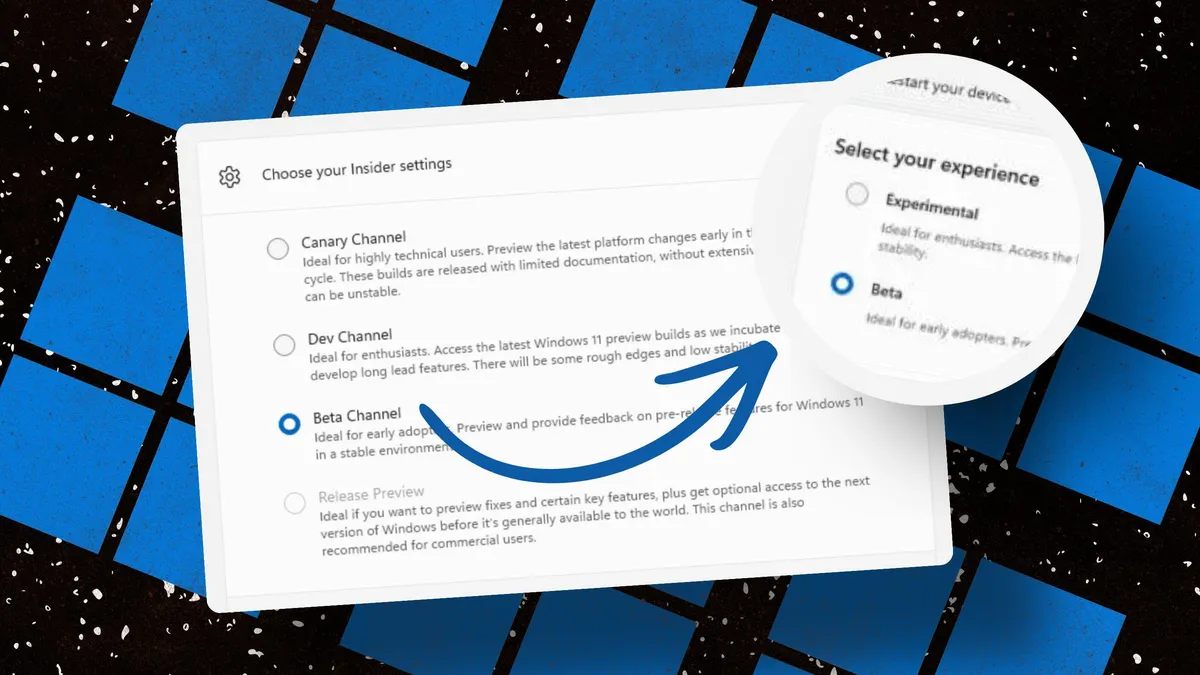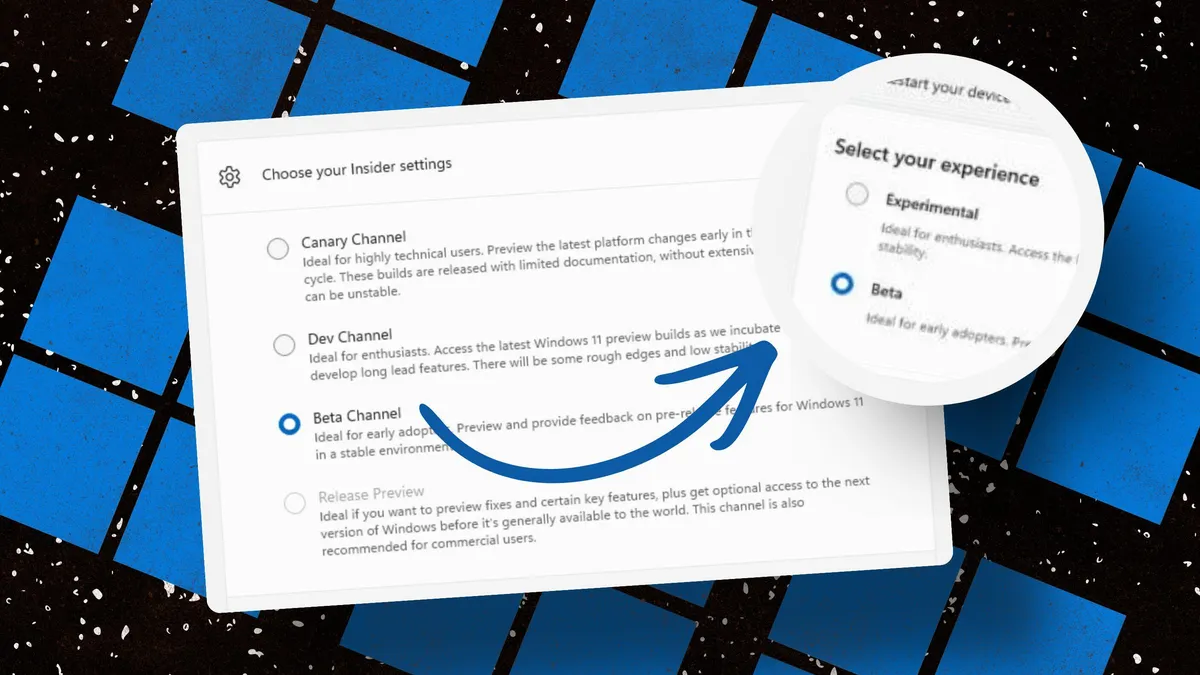
Ed Bott / Elyse Betters Picaro / ZDNETFollow ZDNET: Add us as a preferred source on Google.As a member of Microsoft's Windows Insider Program, I run Windows 11 Insider builds on both my desktop and laptop via virtual machines. With these pre-release editions, I'm able to test and write about changes to Windows before they officially hit the general public.Sometimes the changes highlight new features that hopefully will improve Windows 11 in small but key ways. Other times, the changes are designed to fix or correct features that don't work right or that Microsoft bungled in some way. One prime example? The company killed the option to move your Windows 11 taskbar to any side of the screen and is now finally restoring that capability through the latest insider builds.Also: Microsoft's new Windows 11 recovery tool is the ultimate Undo button - how to enable itAny Windows user can sign up for the Windows 11 Insider Program to try out the builds. Since the builds can be unstable, you should run them on a spare PC or virtual environment. Otherwise, my story on "How to join Microsoft's Windows Insider Program (and why you should)" provides the steps for getting started. With an eye on all the insider updates that Microsoft has pushed out this year, here are my five favorite changes. With Windows 10, you were able to move the taskbar to any side of the screen -- left, right, top, or bottom. In Windows 11, Microsoft clobbered that capability, restricting you to just aligning the taskbar to the left or center spot, thus triggering many user complaints. With its hands properly slapped over this blooper, the company has restored those options in the latest insider build.To try this, right-click the taskbar and select Taskbar settings from the pop-up menu. Scroll down the settings screen and click Taskbar behaviors if it's not already open. Under Taskbar position are four thumbnail windows showing the different sides of the screen. Just select the side you prefer.As a bonus, you can also shrink the size of the taskbar. To do this, click the drop-down menu for Taskbar size and set it to Small.
My 5 favorite Windows Insider features in 2026 so far
Microsoft's Windows 11 insider builds let you preview and try upcoming new features and settings. Here are my five favorites this year so far and how you can check them out.
1,071 words~5 min read