I've spent years tweaking my iPhone, but after seeing yet another viral "privacy screen" hack making the rounds online, I wondered what I was still missing.So instead of copying another internet trick, I asked ChatGPT to audit my iPhone's privacy settings. Here's the prompt I used:"I'm an iPhone user who often works in coffee shops, takes weekend getaways and occasionally hands my phone to family members. What privacy settings should I enable to better protect my personal information? Include settings that are easy to overlook and explain why each one matters."Some of ChatGPT's recommendations were obvious. Others were buried deep inside iOS — and a few were settings I'd simply never taken the time to enable.After trying every suggestion myself, these are the ones I'd recommend to almost anyone.1. Hide sensitive notification previews
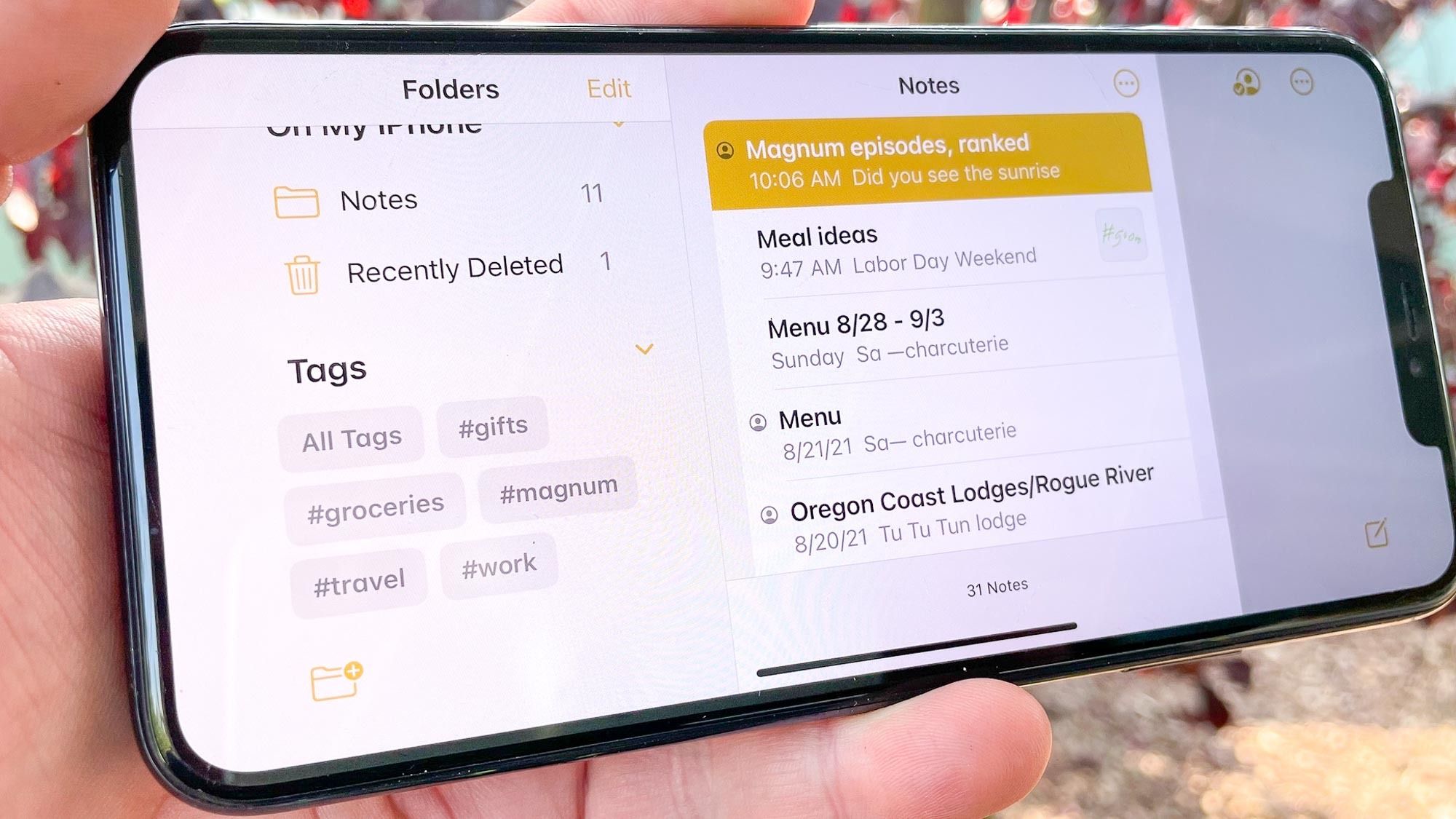
(Image credit: Future)This was ChatGPT's first recommendation, and it's probably the easiest privacy win on the list.Without changing anything, your iPhone can display text messages, banking alerts, two-factor authentication codes and other notifications right on your Lock Screen. Anyone nearby can glance at them without ever unlocking your phone.Get instant access to breaking news, the hottest reviews, great deals and helpful tips.Where to find it: Settings > Notifications > Show PreviewsThe tweak: Change the setting to When Unlocked.Changing previews to When Unlocked means Face ID has to authenticate you before those details appear.My take: I can't believe I left this turned off for so long. If you ever leave your phone face-up on a desk or café table, this setting alone is worth changing.2. Lock individual apps with Face ID