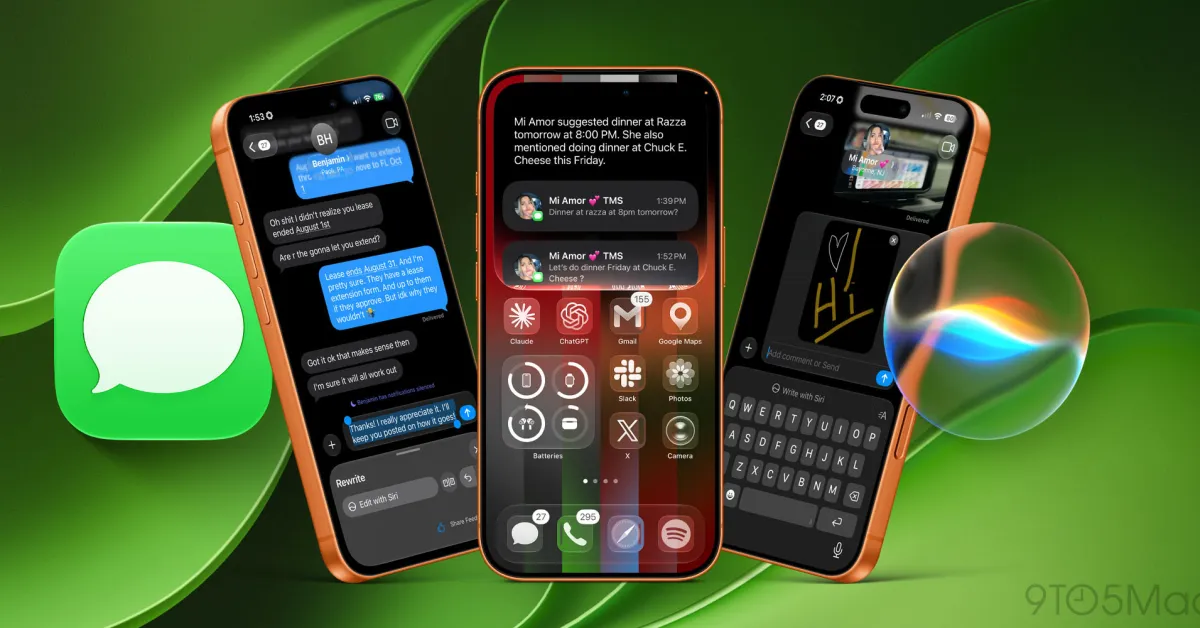
If you ever went diving into the various hidden features on offer in iOS 26, you may be aware of the handwriting option in the Messages app. Doing exactly what its name suggests, this feature lets you handwrite messages or draw pictures, and send them to contacts. Potentially very useful, even if it wasn't easy to find.iOS 27 takes that idea and makes it a lot simpler, turning iMessage's handwriting mode into a dedicated applet within the Messages app. Or, in other words, Apple has tweaked the feature in such a way that it is easier to both find and use. Better still, a bunch of useful improvements were added in the process, making it more like the handwriting tools in Apple Notes.Here's how to send handwritten messages and drawings over iMessage in iOS 27.
1.Open the Messages app
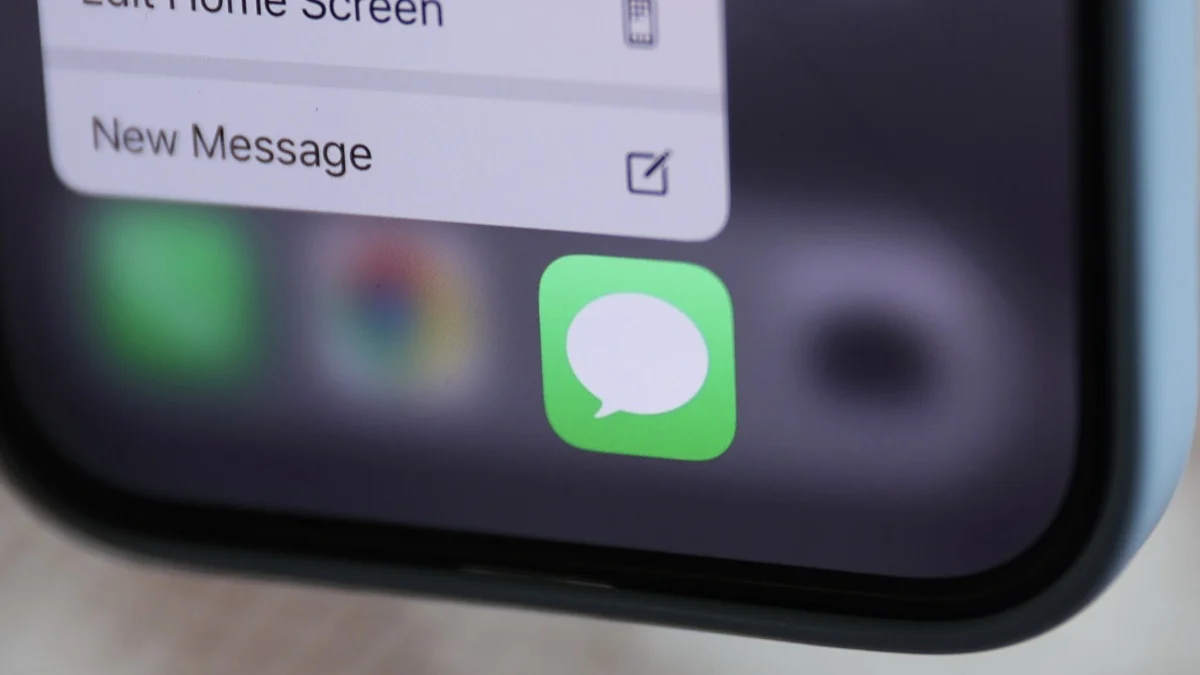
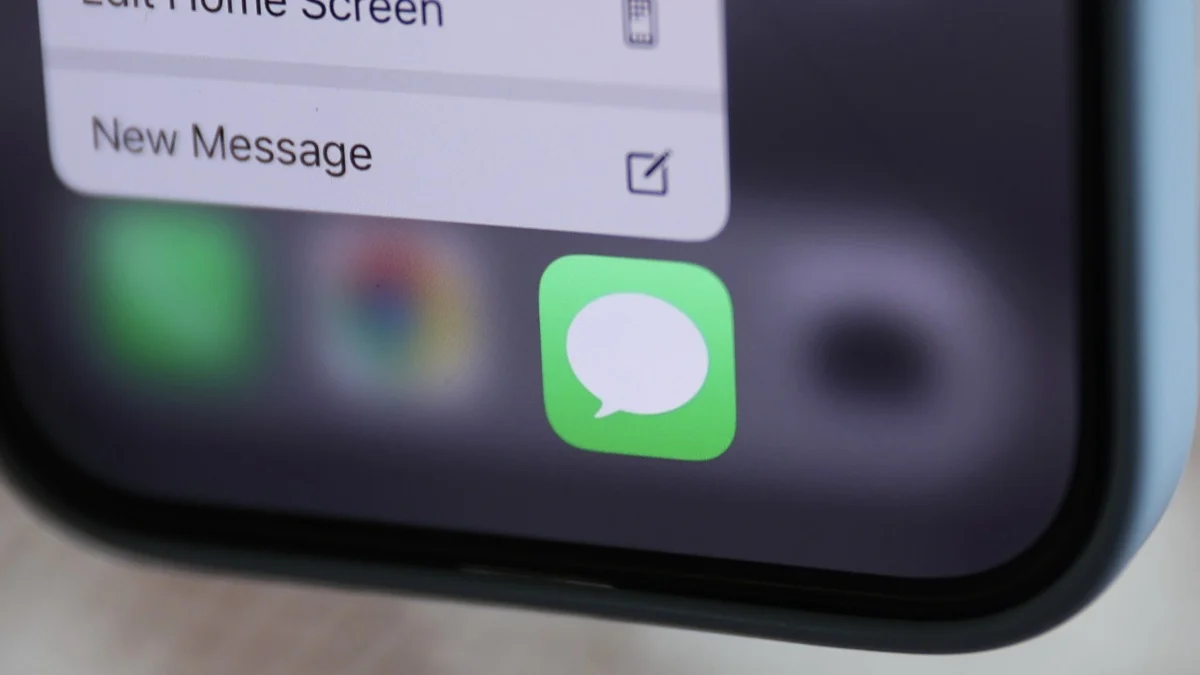
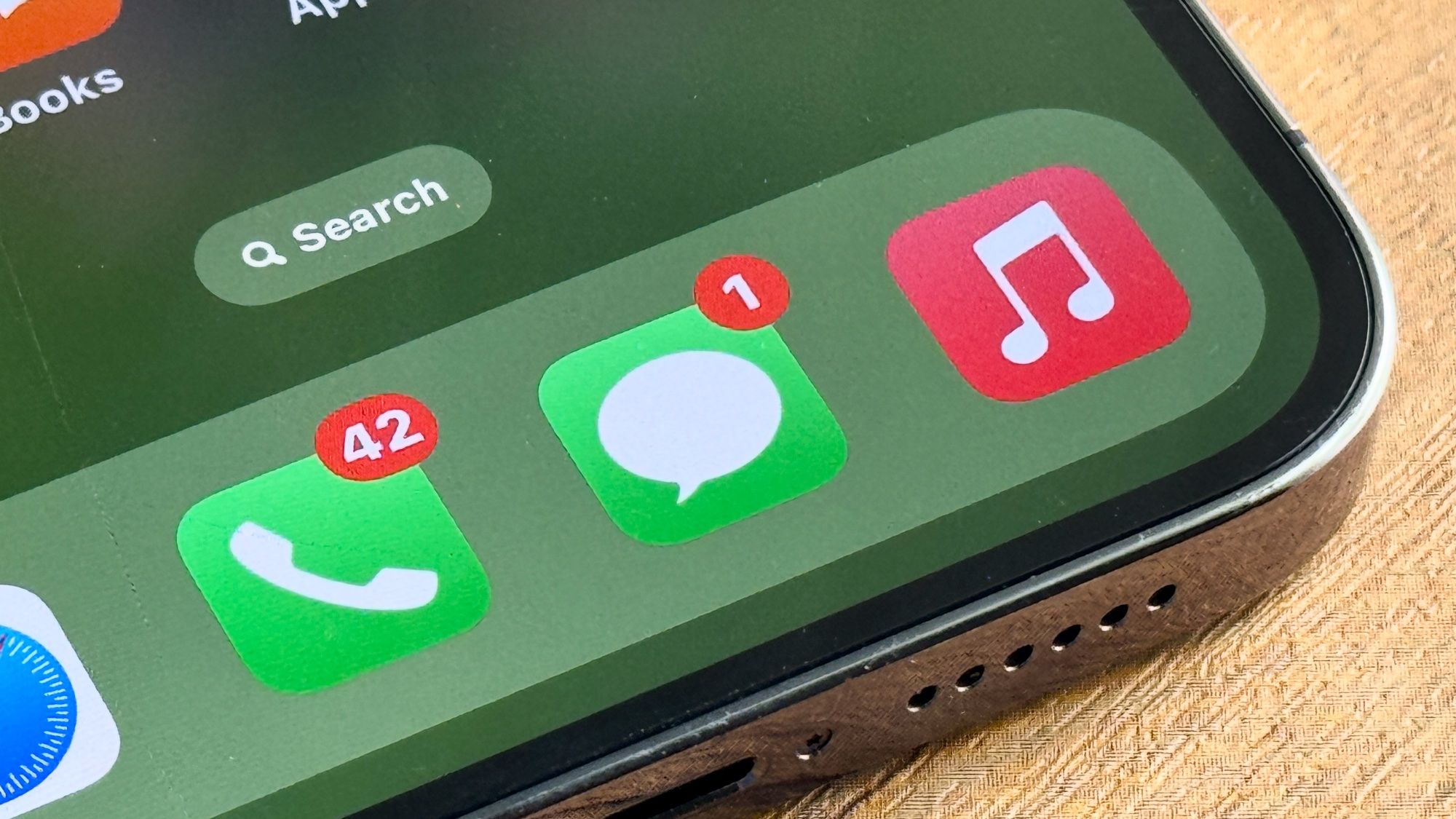
First thing's first, you'll need to open up the messages app
2. Select a conversation or start a new one
Next up you'll need to select one of your existing conversations within Messages, or start a new one. The latter can be achieved by tapping the pen & paper icon in the bottom right corner