(Image credit: Maxim Ilyahov from Unsplash)
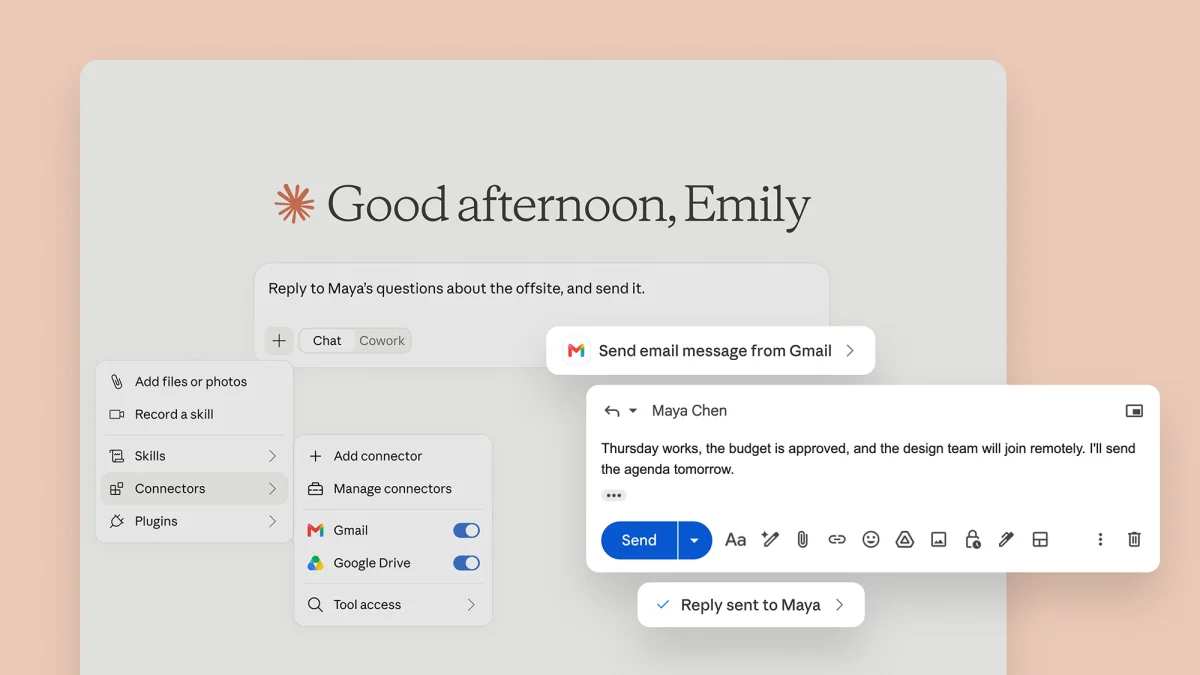
I've written before about how my inbox stresses me out. At the same time, I'm a newsletter junkie and subscribe to so many that I never have time to them all. From AI news and tech analysis to other topics I care about like parenting and wellness, I simply can't read them as fast as they pile up.That's why I eventually had hundreds of unread newsletters sitting in my inbox. I wasn't ready to unsubscribe because the content was genuinely useful. I just didn't have time to read all of it.That's when I decided to give the job to Claude. Using Claude's email connector and scheduled tasks, I created a morning briefing that automatically scans my newsletters, pulls out the biggest stories and delivers a short digest before I start work. Now, instead of spending an hour bouncing between emails, I can catch up in just a few minutes and dive into the full newsletters only when something deserves a closer look.The entire setup took less than five minutes. Here's how to do it.What you'll need
(Image credit: Future)Before getting started, make sure you have the Claude desktop app as well as a Claude plan that supports email connectors and scheduled tasks. The most affordable one is Claude Pro, which is $20/month. You'll also need a Gmail or Microsoft 365 account. Once that's ready, here's how to build your own daily briefing.Step 1. Connect your email. Open Claude and head to Settings > Connectors. Enable your preferred email provider, then authorize Claude to read your inbox. Claude only accesses the mailbox you've connected and you'll be asked to grant permission during setup.Step 2. Create a scheduled task. Start a new conversation with Claude. Ask it to create a recurring task, for example: "Create a recurring task that runs every weekday at 7:30 a.m. and prepares my morning newsletter briefing." Claude will guide you through creating the automation.Step 3. Allow background access. If you want the digest waiting for you each morning, make sure the email connector is allowed to run without asking for approval every time. Depending on your Claude settings, this may appear as Always Allow for the connected email service.Step 4. Give Claude clear instructions. Rather than simply asking Claude to summarize your inbox, give it specific rules about what to read, what to ignore and how to organize the results.The exact prompt I useHere's the prompt I use: You are my personal editor. Every morning, review emails received during the previous 24 hours. Identify newsletters, editorial digests, recurring publications and Substack emails. Ignore receipts, promotions, shipping notifications, personal email and calendar invites. Read the full contents of each newsletter instead of relying on preview text. Combine overlapping coverage from multiple newsletters into a single summary. Select the five stories that matter most. Present everything as a clean markdown briefing that takes less than three minutes to read. Link to the original article or newsletter when available.Why I think it's worth setting up