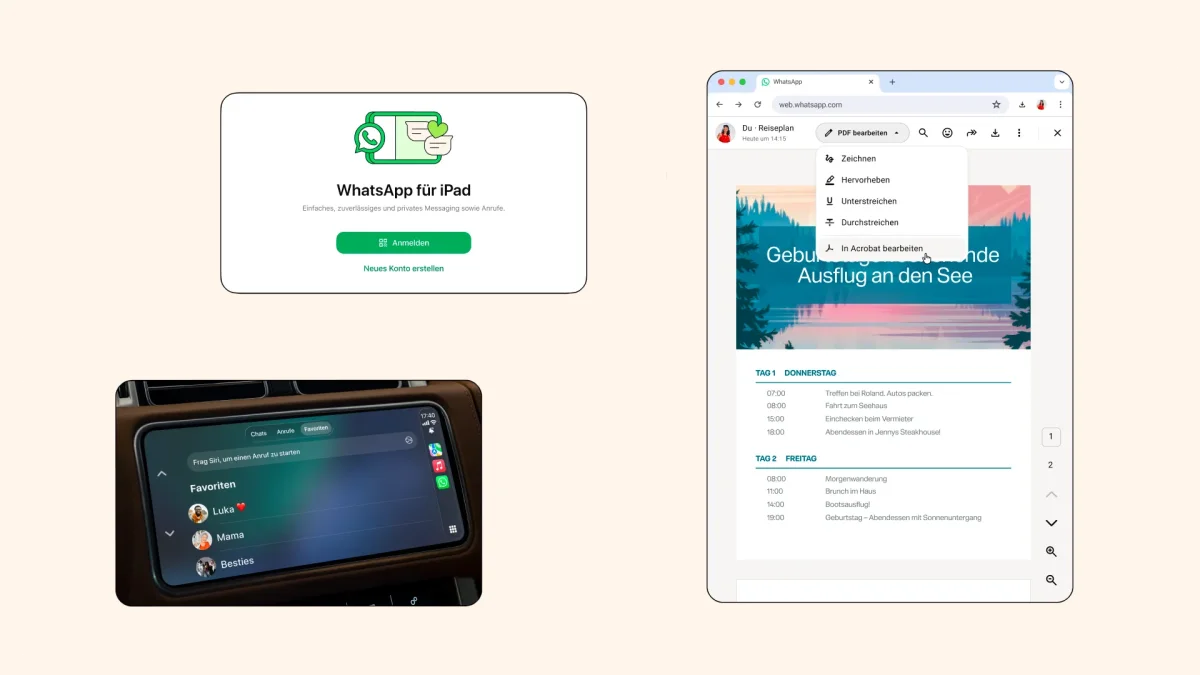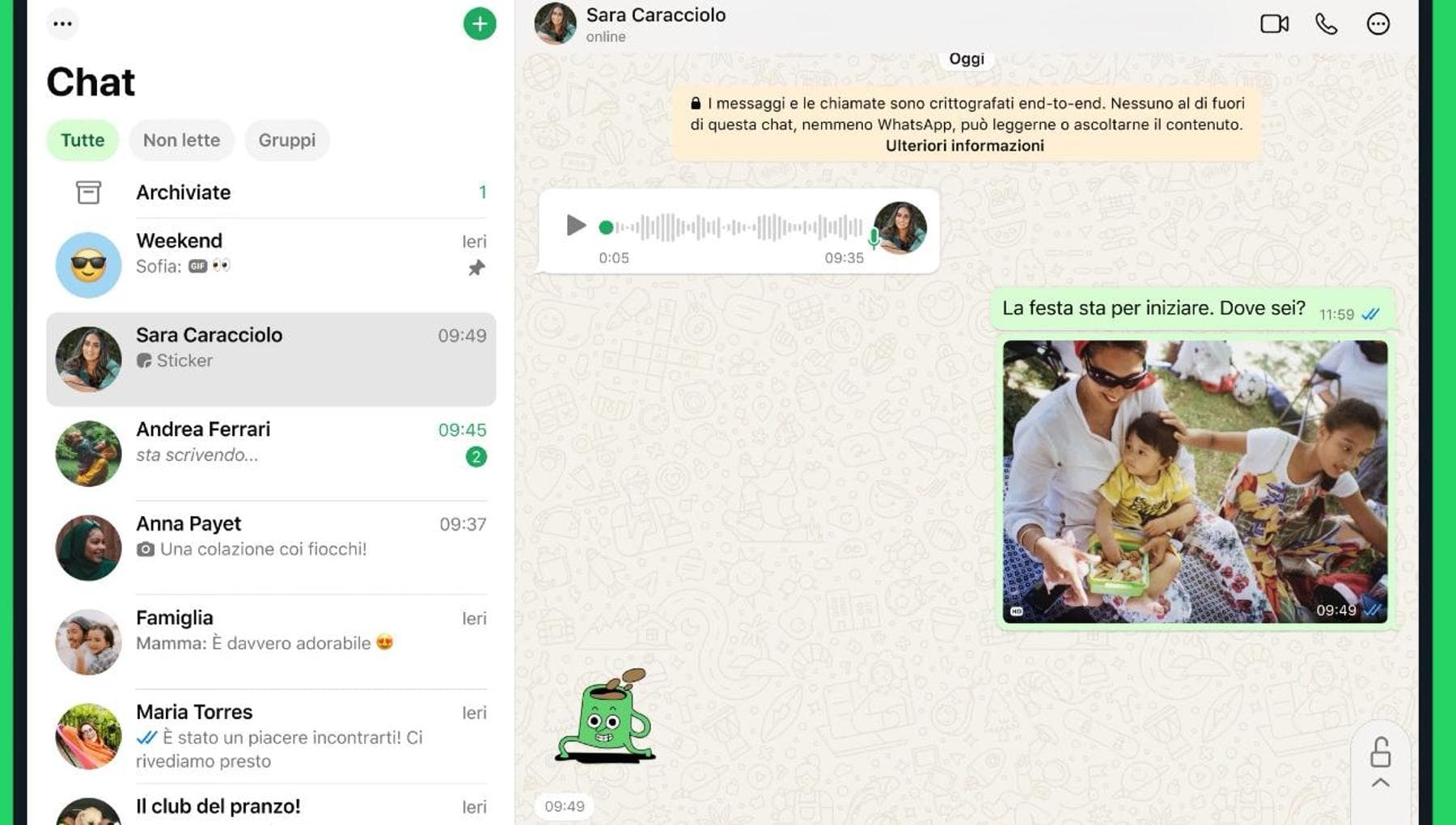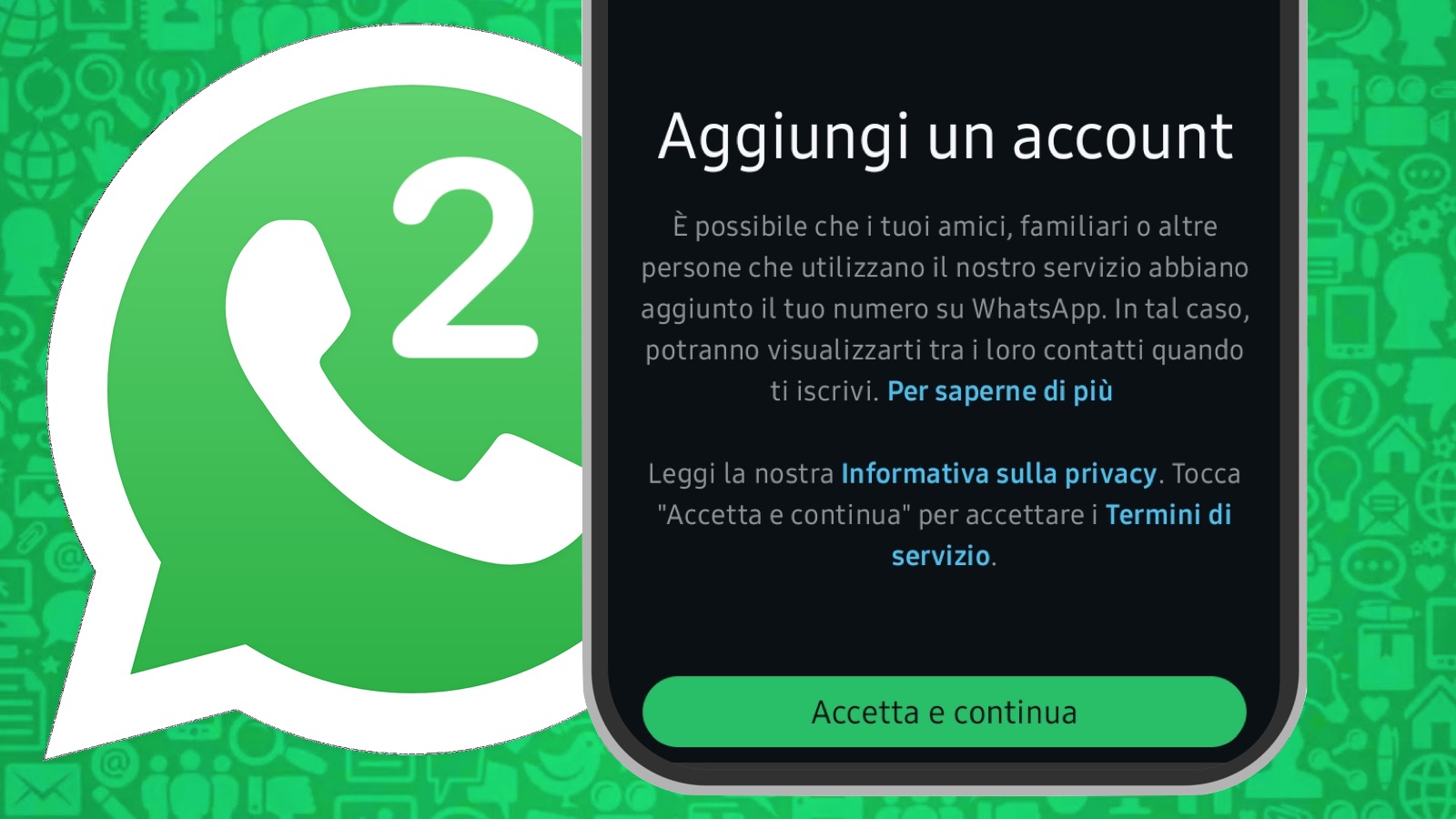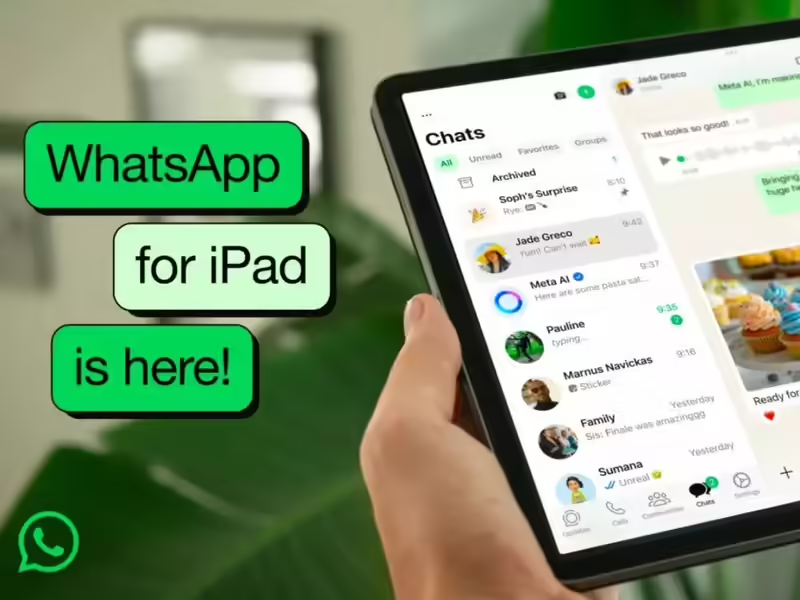
WhatsApp is reportedly rolling out an option that lets some iPad users make the tablet their primary device, rather than keeping it tied to an iPhone or Android phone as a companion screen. The new choice is useful for people who work mainly from an iPad, have a phone under repair or want WhatsApp to run independently on a tablet. It is also easy to get wrong. Selecting “make this device primary” transfers the account away from the current phone; it does not add another full WhatsApp login. Most people who want WhatsApp on both their phone and iPad should keep the phone as the primary device and link the iPad instead.WhatsApp has had a native iPad app since May 2025, with support for calls, screen sharing, Stage Manager, Split View, Magic Keyboard and Apple Pencil. Until now, its normal setup model treated the iPad as a linked device. The reported rollout changes that for some users, allowing the iPad to be registered with a phone number as the account’s main device.There is an important limit: WhatsApp has not yet published a matching public announcement or updated every help page to reflect iPad primary-device support. WABetaInfo reports that the change is rolling out gradually in WhatsApp for iPadOS version 26.25.74. That means the option may not appear on every iPad immediately, even after an app update.Key takeawaysChoose companion mode when you want WhatsApp on both your phone and tablet. Your phone stays in charge of the account.Choose primary-device setup only when you deliberately want the iPad to become the account’s main WhatsApp device. Your current primary phone will be signed out, according to the reported rollout. Android tablets already support primary-device registration. WhatsApp is now reportedly testing a clearer “choose an option” screen so users can decide between linking the tablet and transferring the account. Do not delete WhatsApp from your existing phone before confirming that your chats, groups and security settings are available on the tablet.An active phone number remains essential. WhatsApp still registers accounts through a phone number and verification process, even when the iPad or Android tablet becomes the main device. First, decide what you are trying to doThe new setup choice sounds small. It is not.A linked iPad is an additional screen for an account whose home remains on a phone. A primary iPad takes that home address away from the phone and places it on the tablet.That creates two very different use cases.What you wantBest optionWhat happens to the phoneUse WhatsApp on your iPad while continuing to use it normally on your phoneLink the iPad as a companion deviceThe phone remains primary and stays signed inMove your main WhatsApp account to an iPad because you work mainly from the tabletSet up the iPad as the primary deviceThe phone is signed out and can later be linked backUse WhatsApp on an Android tablet but keep the phone as your main deviceLink the Android tabletThe phone remains primaryStop using a phone as the main WhatsApp device and move to an Android tabletRegister or transfer to the Android tabletThe tablet becomes primaryWhatsApp’s long-standing linked-device system supports a primary phone plus up to four linked devices, including tablets, desktops and web browsers.For most people, companion mode is the sensible choice. It keeps your phone as the account’s anchor, gives you access to your chats on a larger display and avoids turning an ordinary tablet setup into an account migration.Primary-device support is aimed at a smaller but real group: people whose iPad has become their main computer.Before you start: five things to checkDo these before you touch the setup screen.1. Update WhatsApp from the official app storeOn iPad, open the App Store, search for WhatsApp Messenger and install the latest available version. Avoid APK sites, modified apps or unofficial “tablet editions”. WhatsApp’s native iPad app is available through Apple’s App Store.On an Android tablet, use Google Play Store or the manufacturer’s approved app store where Google Play is unavailable. WhatsApp’s official Android-tablet help guide assumes the standard mobile app setup flow.An updated app does not guarantee the new iPad primary-device option. WhatsApp often enables features gradually through its servers. If you only see a QR code, your iPad still has companion-device setup available.2. Keep access to the phone number on the accountWhatsApp accounts are registered through a phone number. You may be asked for a six-digit code sent by SMS or another approved verification method.This matters more than the device itself. Your SIM can remain inside a phone. The iPad does not need a SIM slot or cellular plan to become the primary WhatsApp device. But you must still be able to receive and verify the registration code associated with your number.Do not begin an account transfer when travelling without access to your SIM, when your number has been deactivated, or when you are unsure which number is registered with WhatsApp.3. Make sure you can unlock the existing phoneA transfer or new setup may require confirmation from the current device, account credentials or a verification code. Have the phone charged and close by, even if your goal is to stop using it as the primary WhatsApp device.4. Review linked devices before moving anythingOn an iPhone, open WhatsApp, then go to Settings > Linked Devices. On Android, open WhatsApp, tap the three-dot menu and choose Linked devices. This is where WhatsApp displays devices connected to your account and lets you remove unfamiliar sessions.If you see a desktop, browser or tablet you do not recognise, unlink it before starting the migration. A device you do not recognise is not a minor housekeeping issue. Treat it as a possible account-security concern.5. Do not erase the old phone yetYou may be moving the primary account. You are not necessarily moving every local file, backup setting or media folder in exactly the way you expect.Wait until you have confirmed that chats are accessible, your groups appear correctly, two-step verification remains enabled and your contacts are behaving normally on the new main device. Then, and only then, decide what to do with the old phone.How to link WhatsApp to an iPad and keep your phone as the main deviceThis remains the best route for most users.A linked iPad gives you a larger screen, calls, messaging and synced chats, while keeping your phone as the primary device. WhatsApp says its iPad app uses multi-device technology to keep chats, calls and media in sync across devices with end-to-end encryption.Step 1: Install and open WhatsApp on the iPadDownload WhatsApp from the App Store and open it.You should see a setup screen with a QR code or an option to link an existing account. Do not enter your phone number if your goal is only to add the iPad as a companion.Step 2: Open Linked Devices on the primary phoneOn an iPhone:Open WhatsApp.Tap Settings or your profile picture.Tap Linked Devices.Tap Link a Device.Unlock the phone with Face ID, Touch ID or the device passcode if asked.On Android:Open WhatsApp.Tap the three-dot menu in the top-right corner.Tap Linked devices.Tap Link a device.Verify your identity if WhatsApp asks you to do so.WhatsApp’s official guidance uses this route for pairing additional devices.Step 3: Scan the QR code on the iPadUse the phone’s WhatsApp scanner to scan the QR code displayed on the iPad.The iPad will begin synchronising your chats. Do not close the app or force-restart either device during this stage. The time required can vary depending on account activity, network quality and the number of chats and media files involved.Step 4: Confirm that your iPad is linkedOpen WhatsApp on the iPad and check three things:recent chats appear in the correct order;you can send and receive a test message;calls and notifications work as expected.Then return to Linked Devices on your phone. The iPad should appear in the list.This is also where you can disconnect the iPad later. WhatsApp allows linked devices to be removed from the primary phone.Why companion mode is still the safer choiceCompanion mode is the correct setup when:you use your phone every day;the iPad is shared with family members;you want to avoid signing the phone out;your iPad is mostly for work, study or travel;you want a fallback device if the tablet is misplaced.It is familiar, low-risk and already works well for most households.How to make an iPad your primary WhatsApp deviceThis option is being reported as a staged rollout. You may not see it yet.WABetaInfo says eligible iPad users can register a WhatsApp account directly on the tablet, using a phone number and verification code or an existing passkey where supported. The report says the iPad becomes the primary device and the previous primary phone is signed out.Because WhatsApp has not yet issued a detailed official how-to for this new iPad path, the screen labels may vary. The process should be treated as an account transfer, not a routine link.Step 1: Update WhatsApp and open the app on the iPadInstall the latest WhatsApp version available to you from the App Store.Open the app. If the feature has reached your account, you should see an option that resembles register with phone number, set up as primary device or transfer account rather than only a QR-code linking screen.If you do not see such an option, do not uninstall and reinstall the app repeatedly. Use companion mode or wait for the rollout.Step 2: Select the primary-device or registration routeChoose the option that clearly says the iPad will become the main device.Read the warning screen before proceeding. The important point is whether WhatsApp tells you that your existing phone will be signed out. If that is not what you intend, stop and use companion mode instead.Step 3: Enter the phone number currently attached to your WhatsApp accountEnter the active mobile number used by your existing WhatsApp account, including the correct country code.Do not use a secondary number unless you intend to create a separate WhatsApp account. The number determines the account you are moving.Step 4: Complete verificationWhatsApp may ask for a six-digit verification code sent to your registered number. It may also offer passkey verification where available, according to the reported rollout.Never share this code with another person. WhatsApp’s verification code is an account key. Anyone asking for it through a call, message or alleged customer-support chat should be treated as a potential fraudster.Step 5: Wait for the account to appear on the iPadOnce verification is completed, WhatsApp should activate the account on the iPad and sign out the former primary phone. The reported change is designed to make the tablet the account’s main device rather than a linked screen.At this point, test the essentials:can you send a message;can you receive a message;do your groups appear;is your profile picture and About section correct;are privacy settings still configured as intended;is two-step verification still active;can you make a voice or video call?Step 6: Re-link the old phone only if you want it backIf you still want access to WhatsApp on the old phone, install or open WhatsApp there and use the linking process rather than trying to register the same number again immediately.Remember: one account can have one primary device. Registering the same number as a fresh primary account on another device can shift the account again.How to set up WhatsApp on an Android tabletAndroid tablets are different because WhatsApp already supports direct account registration on them.WhatsApp’s official Android-tablet guidance says users can open WhatsApp, tap the three-dot menu, select Register new account, choose the country and enter a phone number.The change now being tested is not the arrival of primary-device support itself. WABetaInfo says WhatsApp is testing a clearer setup screen that lets users choose between linking the tablet as a companion device and transferring the account to it as the primary device.Option A: Link your Android tablet to the phoneChoose this when you want the phone to remain the account’s main device.Install WhatsApp on the Android tablet.Open the app and choose the option to link an existing account.A QR code should appear on the tablet.On the primary phone, open Linked Devices.Tap Link a Device.Scan the tablet’s QR code.Wait for chats to synchronise.The practical result is the same as companion mode on iPad: the tablet is an additional WhatsApp screen, not the account’s home.Option B: Register or transfer WhatsApp to the Android tabletChoose this when you want the tablet to become the main WhatsApp device.Open WhatsApp on the Android tablet.Tap the three-dot menu.Select Register new account.Select the country and enter the phone number tied to the WhatsApp account.Complete the verification process.Follow WhatsApp’s on-screen instructions for transferring or restoring the account.Confirm that chats, groups and privacy settings are available before erasing or resetting the former phone.WhatsApp’s official support documentation confirms direct registration on Android tablets. The newer “choose an option” setup screen remains a test for some users, so it may not yet appear in the stable app.What changes when a tablet becomes primary?The largest change is independence.A companion tablet remains associated with the primary phone. WhatsApp’s linked-device system is designed to keep the account operating across several endpoints, but the account’s main identity remains on the phone. WhatsApp’s Help Centre says linked devices include iPad, web, desktop and wearables, while Android tablets can be primary devices.A primary tablet becomes the main endpoint for the account. The old phone is no longer the device that anchors registration.WABetaInfo says the reported iPad primary-device option may also remove limitations around live-location sharing, broadcast lists and Business Flows that applied when the iPad was only a companion device. WhatsApp has not publicly documented these changes in an official support article, so treat them as reported rollout details rather than guaranteed feature availability for every user.Which option should you choose?User typeRecommended setupWhyStudent with an iPhone and iPadLink the iPadYou keep the phone active and gain a larger study and messaging screenProfessional who works mainly from a keyboard-equipped iPadConsider primary iPad setupThe tablet may be your real daily computerFamily with a shared iPadLink the iPad cautiously, or avoid itShared devices create privacy risks even with Chat LockSomeone whose phone is being repairedPrimary iPad setup may help, if the rollout is availableIt can keep the account running without relying on the damaged phoneBusiness owner using one number for customer messagesKeep the primary device under controlled ownershipAccount access, SIM control and staff turnover need careful handlingAndroid-tablet owner who rarely uses a phoneRegister the tablet as primaryWhatsApp already supports this route officiallyUser who wants WhatsApp on every deviceKeep one primary phone or tablet and link the restThis is the cleanest account structureThe security settings to check immediately afterwardsA WhatsApp transfer is a good moment to inspect security, not merely to celebrate a larger display.Turn on two-step verificationOpen WhatsApp settings and look for Account > Two-step verification. Set a PIN you will remember and add a recovery email that you control.The feature does not replace the SMS verification code, but it makes it harder for someone to take over the account with access to your SIM or a stolen verification message.Review linked devices every few weeksGo to Linked Devices and remove browsers, desktops, tablets or phones that are no longer yours. WhatsApp’s own help material tells users to check the list and unlink devices they do not recognise.This is particularly important after selling a laptop, replacing a tablet or signing in temporarily on an office computer.Use Chat Lock on shared iPadsWhatsApp says the iPad app supports Chat Lock, which can protect private conversations when an iPad is shared with others.Chat Lock is useful. It is not a reason to leave an unlocked iPad around a home, office or classroom. Use a strong iPad passcode and biometric lock as well.Protect the SIM card, not just the tabletYour phone number remains central to WhatsApp account recovery. Use a SIM PIN where appropriate, protect your carrier account and be wary of any unsolicited message asking for a WhatsApp code.A stolen iPad is inconvenient. A compromised phone number can become an account-takeover problem.What to do if the primary-device option does not appearDo not assume something is broken.The iPad option is reported as a gradual rollout. WABetaInfo says it is reaching some users through WhatsApp for iPadOS version 26.25.74, rather than appearing as a universal public launch.Try these steps:Update WhatsApp through the App Store.Restart the iPad once.Check whether you are seeing a QR-code-only setup screen.Use companion mode if you need WhatsApp immediately.Avoid deleting the app from your primary phone merely to force the option.Wait for WhatsApp to enable the rollout for your account.There is no safe workaround that turns a companion-only iPad into a primary device before WhatsApp offers the option.Common problems and the least risky fix“I chose primary device by mistake. Can I keep WhatsApp on my phone?”Yes, but do not immediately start registering the number again in a panic. The phone can be linked back as a companion device, or you can intentionally transfer the primary account back later.First, confirm that the account works on the iPad. Then decide whether you want the phone as a linked device or the primary device again.“The SMS verification code is not arriving.”Check that:the number and country code are correct;the SIM has network signal;you have not requested several codes in quick succession;your phone can receive standard SMS messages;you are not using a number that has been disconnected or transferred.Do not ask someone else to receive the code for you. It should go only to the number attached to your own account.“My chats have not appeared on the tablet.”Do not uninstall WhatsApp from the old device immediately. Give the initial sync time, use a stable Wi-Fi connection and follow any in-app transfer or restore instructions presented by WhatsApp.If chat history matters for legal, work or personal reasons, pause before continuing. WhatsApp’s transfer and backup behaviour can vary by operating system, account state and available backup. Do not assume that every file, media attachment or old chat will appear instantly.“I have lost my phone.”If your phone is lost but you still control the number, primary iPad setup could be useful once the feature reaches you. Secure the SIM through your carrier first, especially if the lost phone was unlocked or could receive SMS codes.Then re-register the WhatsApp account on a device you control. WhatsApp’s account-transfer process requires an active number for verification.“My iPad is shared with family. Should I make it primary?”Usually, no.A primary WhatsApp device holds the account’s most sensitive communication. Companion mode is safer because it keeps the phone as the main personal device and lets you remove the iPad easily through Linked Devices if the arrangement stops working.Why this change mattersWhatsApp has spent years as a phone-first service, even as many users moved real work onto tablets and laptops.The native iPad app closed part of the gap in 2025 by adding multitasking, calls, screen sharing and keyboard support. Primary-device setup, if rolled out widely, closes a more fundamental gap. It accepts that the iPad is sometimes the main computer, not a display attached to an iPhone.For Indian users, the practical appeal goes beyond convenience. Students use iPads as their main study devices. Retail teams use tablets at counters. Creators use them for editing and client coordination. Professionals increasingly carry a tablet with a keyboard instead of a laptop. WhatsApp becoming more independent on the iPad reflects how those users already work.The best route still depends on one question: do you want another WhatsApp screen, or do you want to move the account?Answer that before you select anything.FAQCan I use WhatsApp on an iPad without an iPhone?Yes. WhatsApp has offered a native iPad app since May 2025, and it can be linked to an existing account through WhatsApp’s multi-device system. WhatsApp is now reportedly rolling out direct primary-device registration for some iPad users, though it is not yet available to everyone.Will making my iPad the primary WhatsApp device log me out of my phone?According to WABetaInfo’s report, yes. Making the iPad primary transfers the account and signs out the old primary phone. You can later link the phone back as a companion device.Is it better to link an iPad or make it the main WhatsApp device?Link the iPad if you use your phone normally and simply want WhatsApp on a larger screen. Make the iPad primary only if you want the tablet to become your account’s main device, such as when the iPad is your daily computer or your phone is unavailable.Can an Android tablet be the primary WhatsApp device?Yes. WhatsApp’s official help guidance says users can register a new account directly on an Android tablet. WhatsApp is also reportedly testing a setup screen that makes the choice between linking and transferring clearer.How many devices can I link to my WhatsApp account?WhatsApp says you can link up to four additional devices to one primary account.Do I need a SIM card inside the iPad?No. You need access to the phone number used for WhatsApp verification, but the SIM does not need to sit inside the iPad. An active number is required to register the account.Does WhatsApp still use end-to-end encryption on iPad?WhatsApp says its iPad app uses multi-device technology that keeps messages, calls and media end-to-end encrypted across platforms and devices.end of article
How to make your iPad your main WhatsApp device without losing your chats
WhatsApp is reportedly rolling out iPad primary-device support. Learn how to link an iPad safely, transfer your main account, set up Android tablets and avoid losing access.
3,509 words~16 min read