(Image credit: Sanuj Bhatia / Tom's Guide)
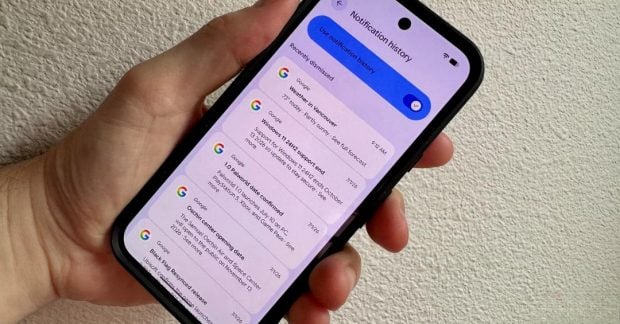
Your phone can do a surprising amount of things, and not just the stuff that gets mentioned in the marketing. There are countless features hidden behind layers of settings menus, to the point where it's pretty difficult to stumble upon them by accident. But this doesn't mean that they're any less useful than the features that are constantly in your face.One of those features is the Accessibility Button, which activates a menu containing a bunch of key phone features. We're talking about things like controlling volume and brightness, taking screenshots, checking notifications, and so on. The idea is that, if you have accessibility issues that prevent you accessing those core features the "normal" way, you can instead utilize a dedicated on-screen menu.The best part is that the accessibility button isn't just for a select group of people. It's available to everyone, and it could prove useful in certain cases — like driving, when you can't afford to be messing about with your phone for more than half a second.
1. Open Accessibility settings
The first thing you'll need to do is open up Accessibility settings, which can be found by heading to Settings and scrolling down and tapping Accessibility.