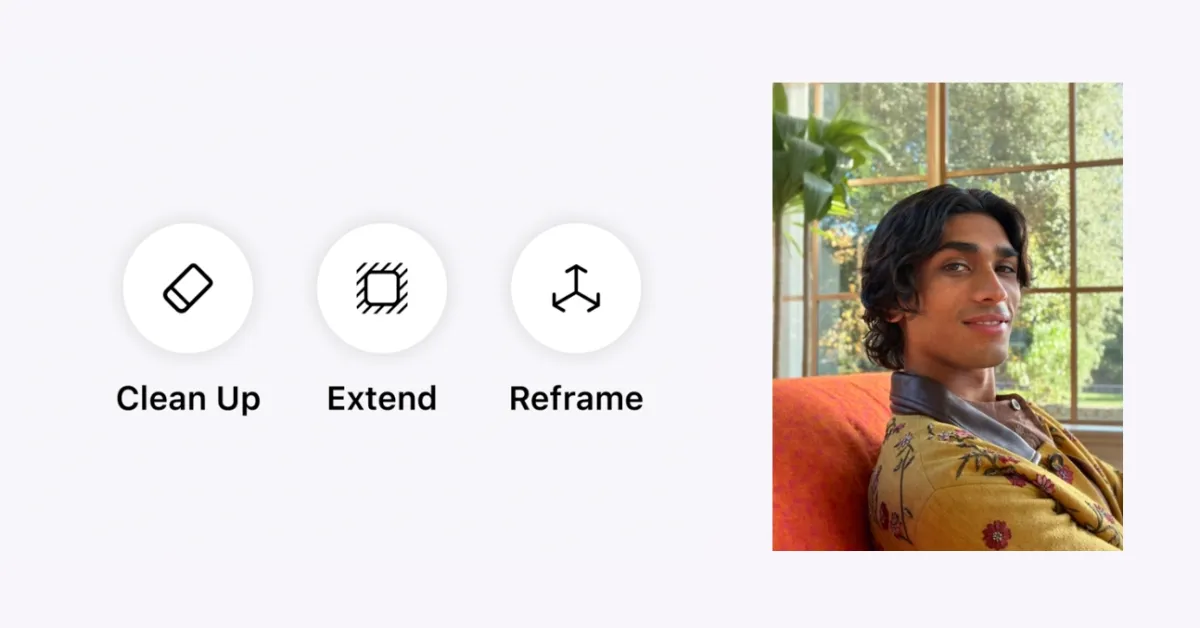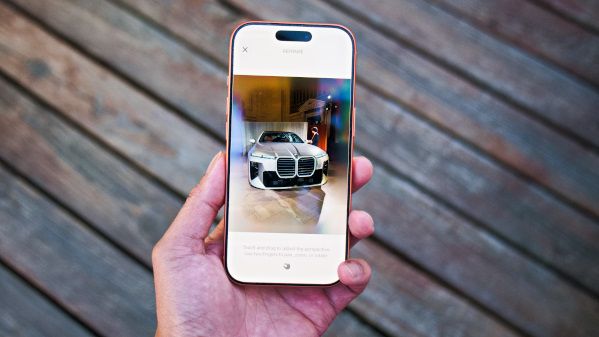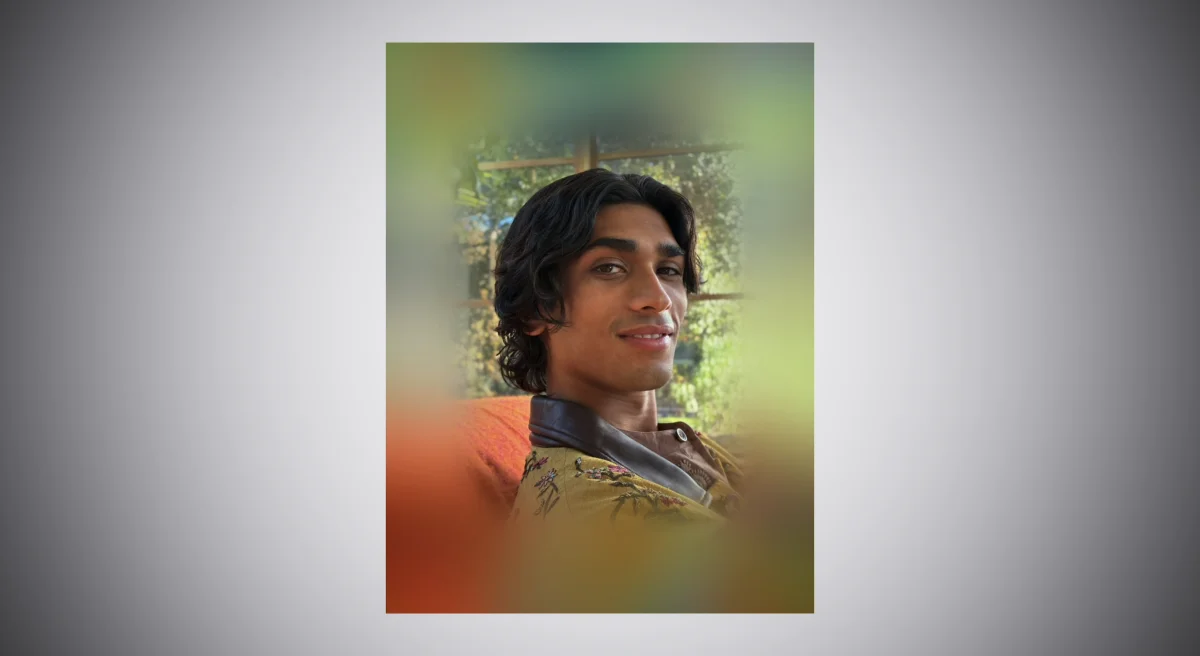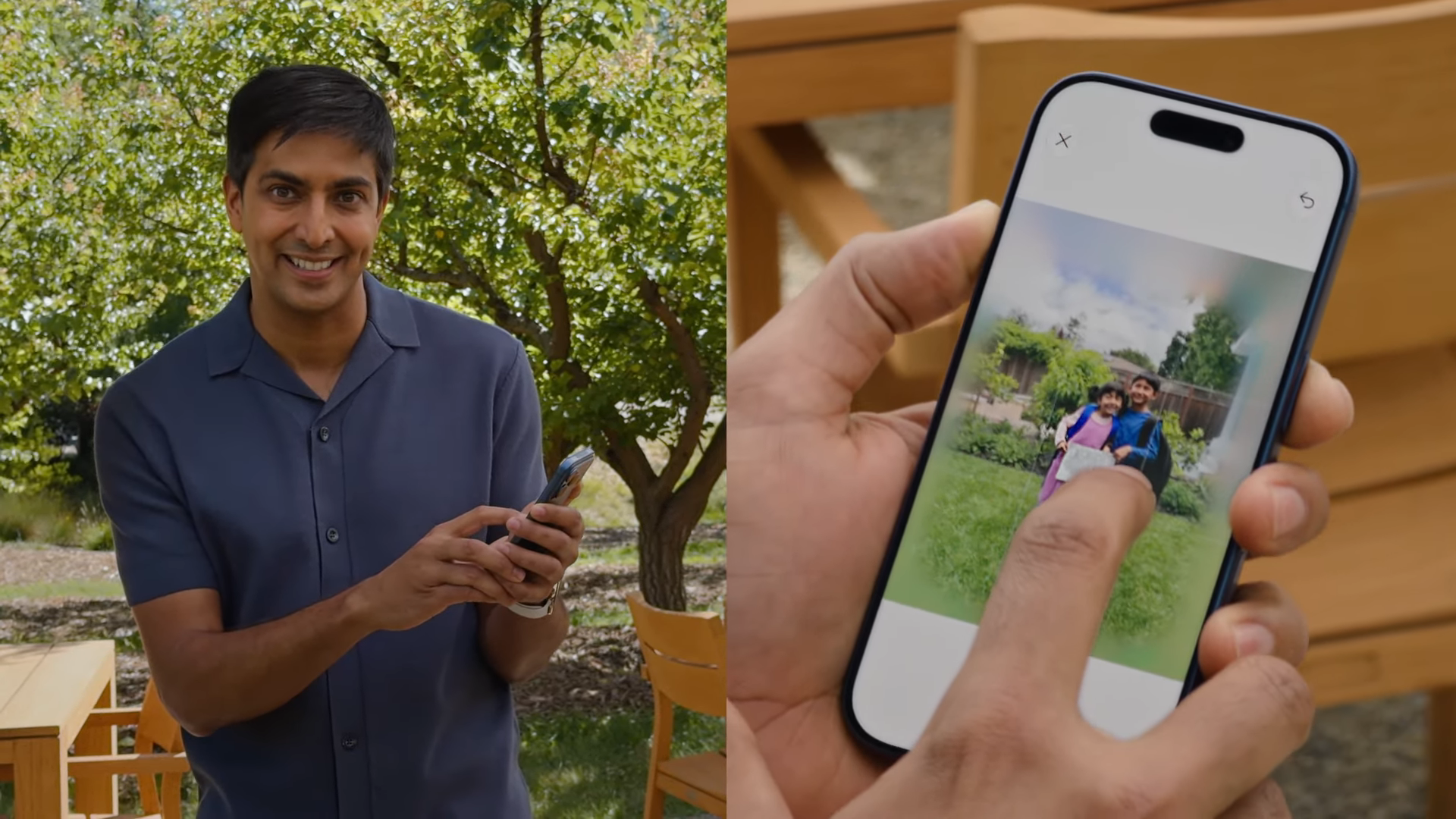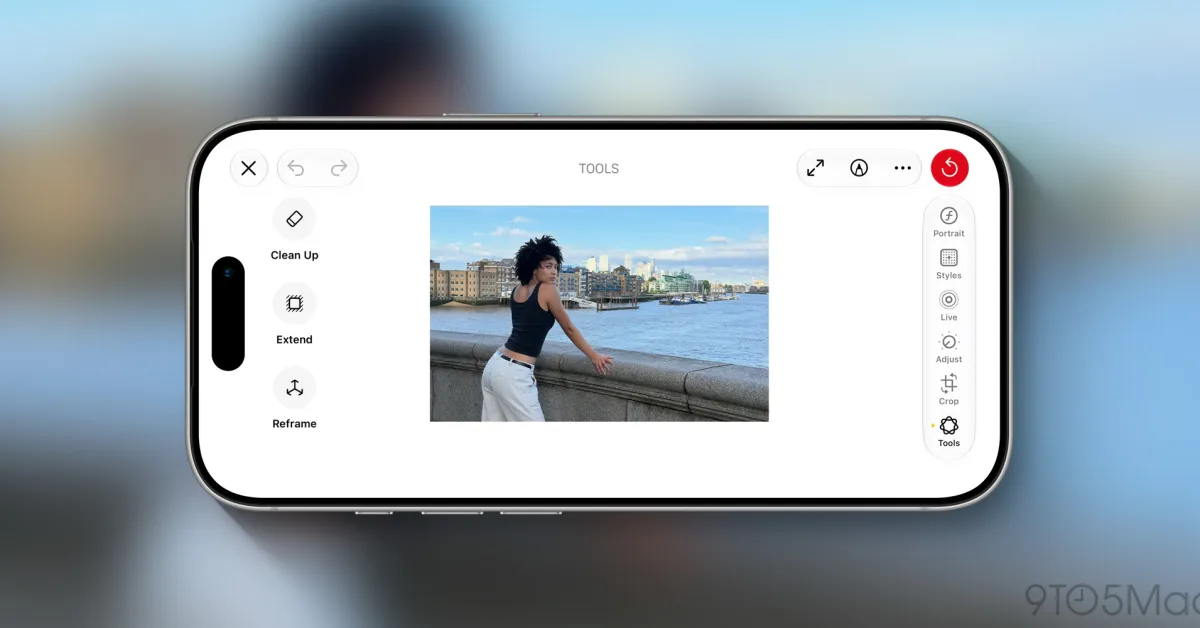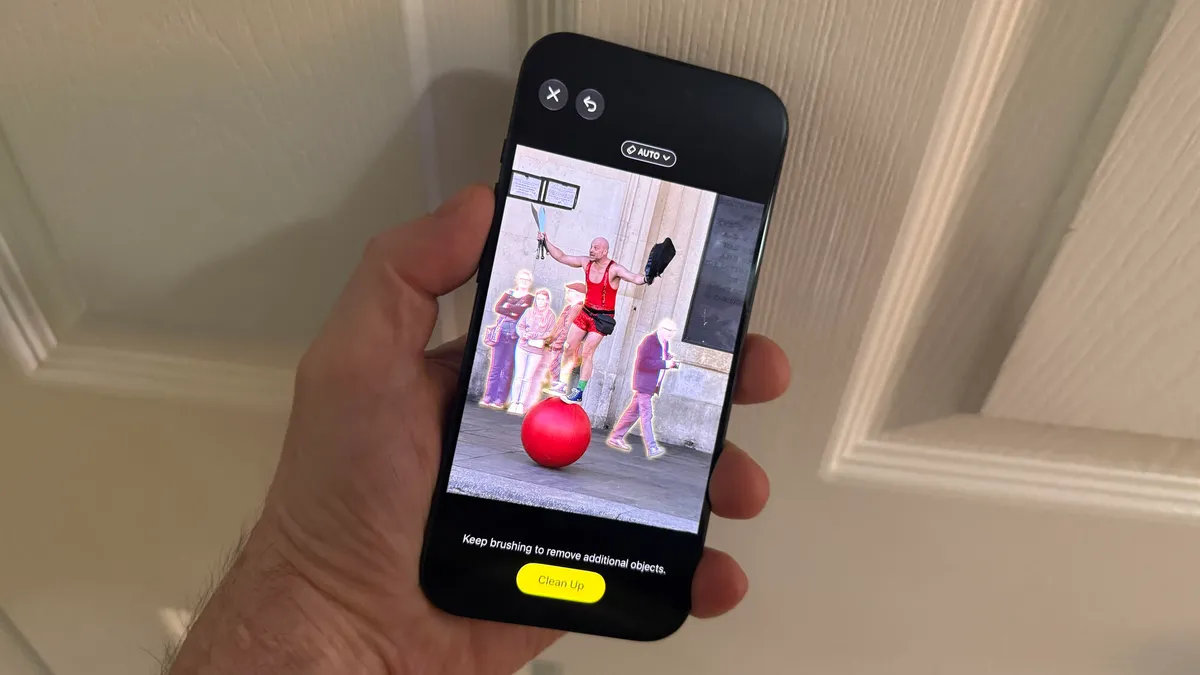
Lance Whitney/ZDNETFollow ZDNET: Add us as a preferred source on Google.ZDNET's key takeawaysThe iOS 27 developer beta offers three AI photo editing tools.The improved Clean Up tool cleanly erases an item from a photo.The Reframe and Extend tools can change the framing or view of a photo.AI has increasingly seeped into popular photo editors, including Apple's Photos app. At WWDC on Monday, Apple unveiled several AI-powered updates for the app that aim to help you edit, refine, and alter your photos. The skills are accessible in the first iOS 27 developer app, now available for anyone with a supported iPhone and a developer account.Also: The biggest announcements at Apple WWDC 2026 First up are improvements to the Clean Up tool. Introduced with iOS 18.1, Clean Up tries to cleanly remove unwanted people and objects from your photos, replacing the empty space with the surrounding area. In the past, Clean Up was a bit hit-or-miss. But with iOS 27, the tool is supposed to work more effectively and accurately.Next up is a new tool called Extend. With this one, you can expand a photo to surround the subject with more space. AI automatically fills in the extended area based on the background.Finally, another new tool, Reframe (aka Spatial Reframing), lets you shift the angle or perspective of a photo, almost as if you're repositioning the camera's view.How to try AI-powered photo editing toolsI tried all three tools on several photos to see how they worked, and here are my impressions. Before we proceed, though, let's get a couple of things out of the way.As the first developer beta, iOS 27 is likely to be unstable and unsuitable for everyday use. That's why I strongly suggest you install this only on a spare iPhone and not on your primary device. I use an iPhone 15 Pro to test new features, especially AI-powered ones. That's because Apple Intelligence supports only the iPhone 15 Pro and Pro Max, as well as the entire iPhone 16 and 17 lineup.Also: iOS 27's Shortcuts upgrade makes automations easy to build - and will save me so much timeIf you still want to give the beta a try, go to Settings on your supported iPhone, select General, and then tap Software Update. Select the Beta Updates option, then choose iOS 27 Developer Beta. Wait for the update to download and install. Restart your phone, and you can then dive in.Also, I love photography and snap a lot of photos, especially when my wife and I take our various treks both in the US and abroad. I try to capture the best image and scene possible when I take a photo. But that doesn't mean my photos can't use some tweaking in the editing room.However, I'm not a big fan of using AI to manipulate my photos. Improving the color, brightness, contrast, and other attributes? Yes, definitely. But turning to AI to alter the original photo seems a bit like cheating, as if I'm attempting to rewrite history. Still, I have used Clean Up to erase unwanted items in certain photos. It does come in handy for removing glare, reflections, and other intrusive elements, so I'm always game to give these tools a shot.The improved Clean Up toolFirst, I tried the improved Clean Up tool. Here, I chose a photo of a street performer in London; I wanted to remove the passersby. For this one, open the Photos app and pick a photo with a distracting person or object you wish to remove. Tap the three-lined editor icon at the bottom, select Tools, and then tap Clean Up.Also: Apple's new Siri AI comes with hidden costs that power users should know ofOn my end, Clean Up automatically highlighted all of the passersby. Taping each one allowed me to remove them all. The process did seem more seamless and accurate than in the past. The AI cleanly erased all the people except the performer and filled in the background quite effectively. Screenshot by Lance Whitney/ZDNETExtend for extra breathing roomNext, I opened a different photo and segued to the Extend tool. I picked a photo of myself that was tightly framed and one to which I wanted to add some breathing room. Selecting the Extend icon from the editing bar told me to pinch to zoom out or adjust the crop to add more to the scene. I zoomed out and moved myself to the lower-left corner of the frame. The photo was extended to show more of the surrounding area. The effect looked good, so I didn't find any significant fault with it. Screenshot by Lance Whitney/ZDNETReframe for a new perspectiveFinally, I tried the Reframe tool. Here, I chose a photo of a statue for which I wanted to adjust the angle. After I moved the image and tapped Reframe, the AI repositioned it. By tapping the photo, I could see the before and after images. I liked the reframed version because it gave the statue's face a more sideways glance. So this one also worked effectively. Screenshot by Lance Whitney/ZDNETMy conclusionsWhat did I think of the three AI tools? Despite my resistance to using AI to manipulate a photo, I did find the tools useful and fun to try. I like the Clean Up and Reframe Tools the most, while Extend didn't thrill me as much. Still, I'd likely play with these tools the next time I want to enhance a photo. And since this is just the first developer beta, I look forward to seeing how Apple might fine-tune them even further.
I tested iOS 27's new AI photo editing tools as a skeptic - and the results surprised me
The new developer beta of iOS 27 offers three AI-powered skills to tweak and enhance your photos. Are they worth using?
924 words~4 min read