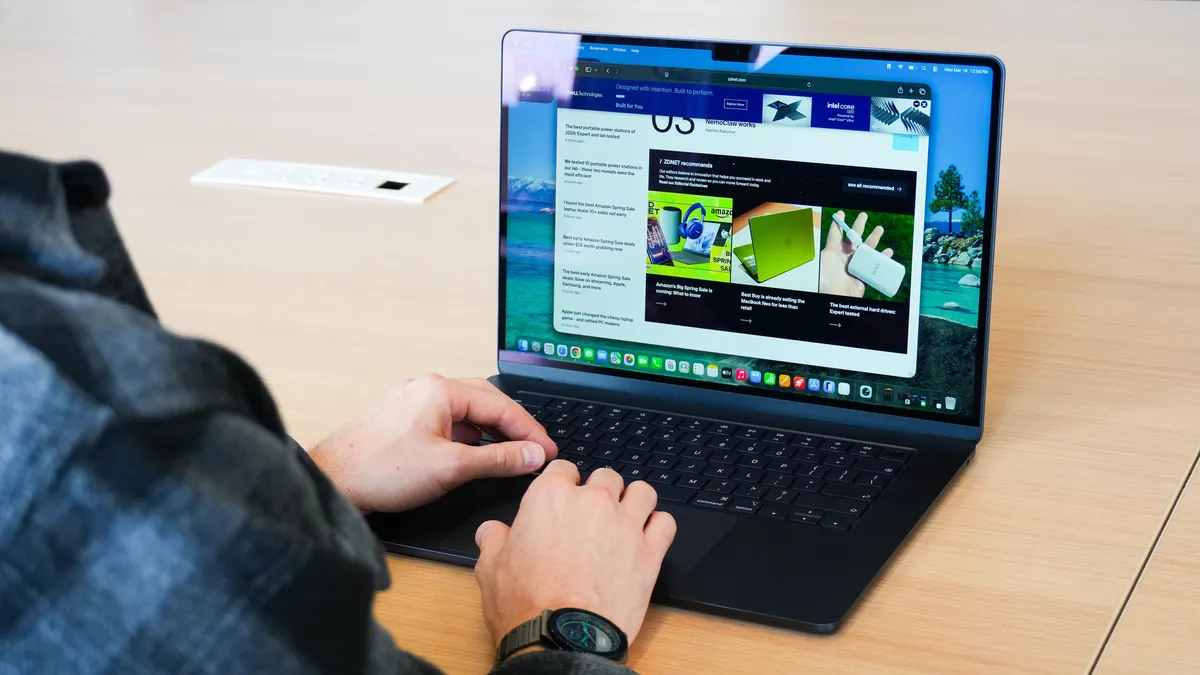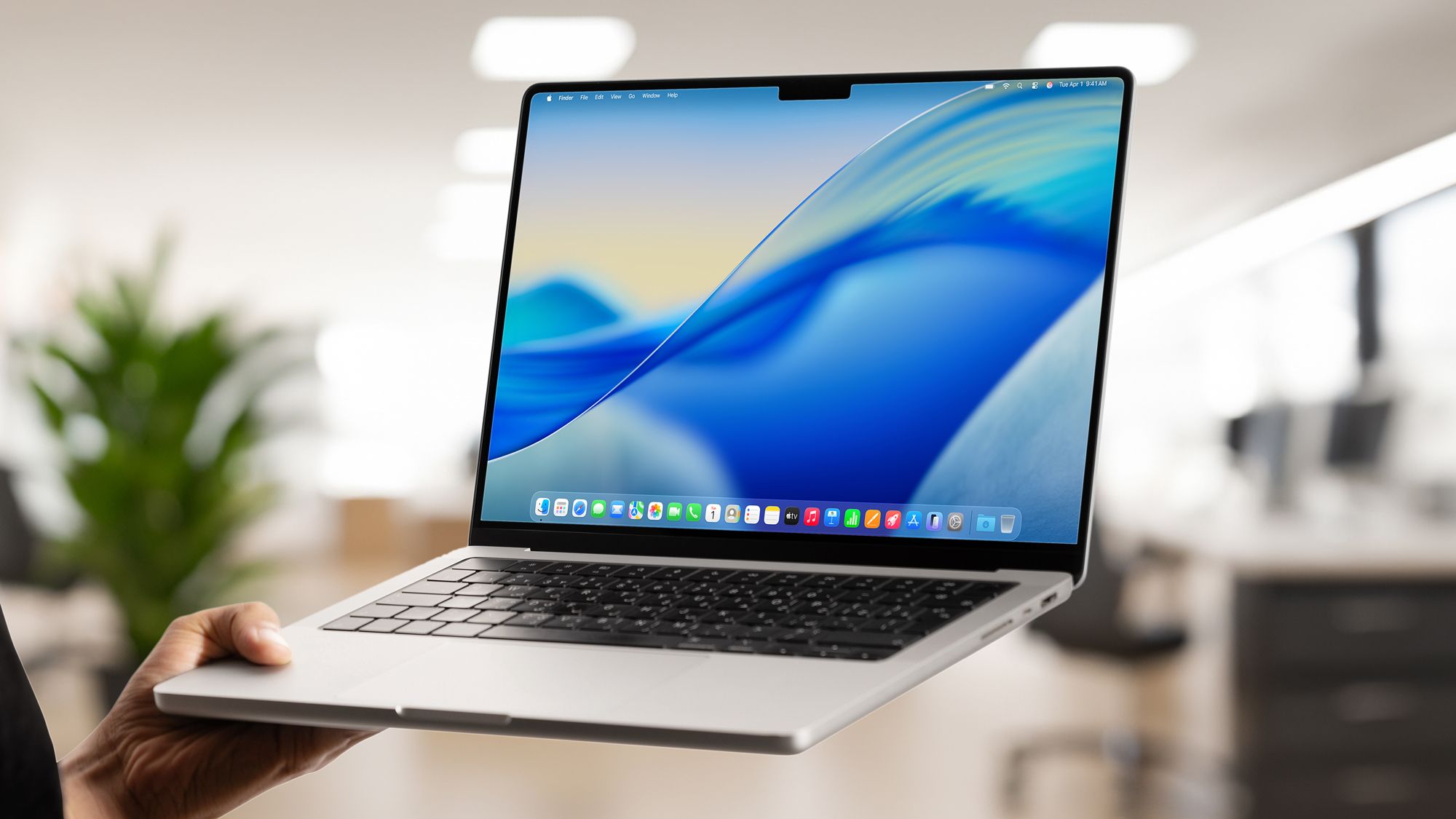
(Image credit: Shutterstock/Apple)
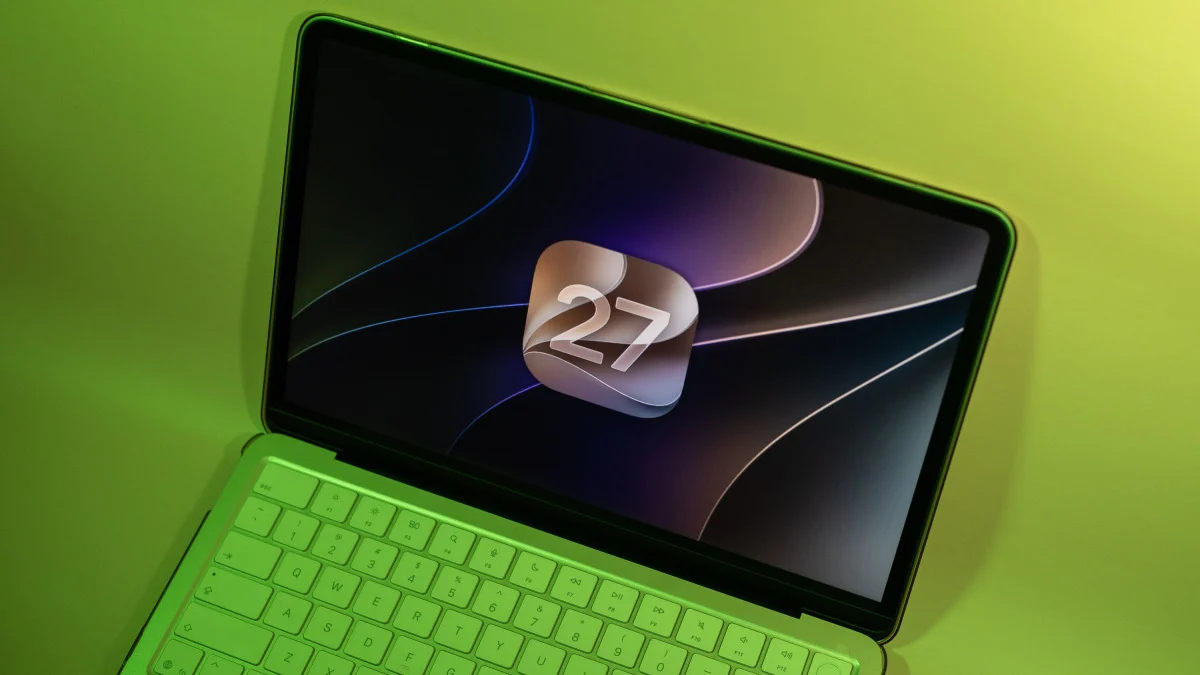
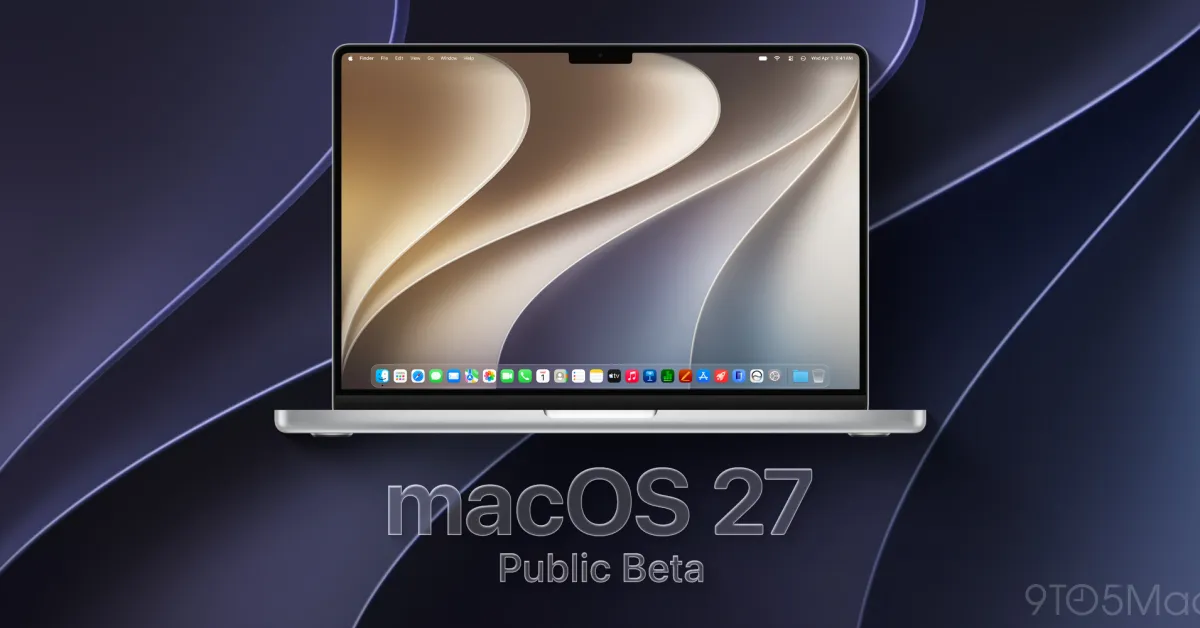
WWDC 2026 kicks off today, and Apple's macOS 27 announcement will be the big moment. If you want to test the new OS immediately instead of waiting months for the final release, the developer beta arrives the same day. It's likely to be rough around the edges, but it gives you months of early access to new features.The process is simple. Three settings changes and a restart, and you're running macOS 27 before most people even know it exists. Just understand what you're signing up for: beta software crashes, apps break, and stability isn't guaranteed.Here's how to download the developer beta if you're ready to jump in now.Before you do anything, back up your Mac Before installing any beta software, back up your entire Mac using Time Machine. This backup ensures you can restore your Mac to a stable OS release if something goes wrong with the beta installation.To do this, connect an external drive and open System Settings, click "General," then select "Time Machine" and toggle it on. Let the backup complete before proceeding.
How to enroll and install MacOS 27 developer beta
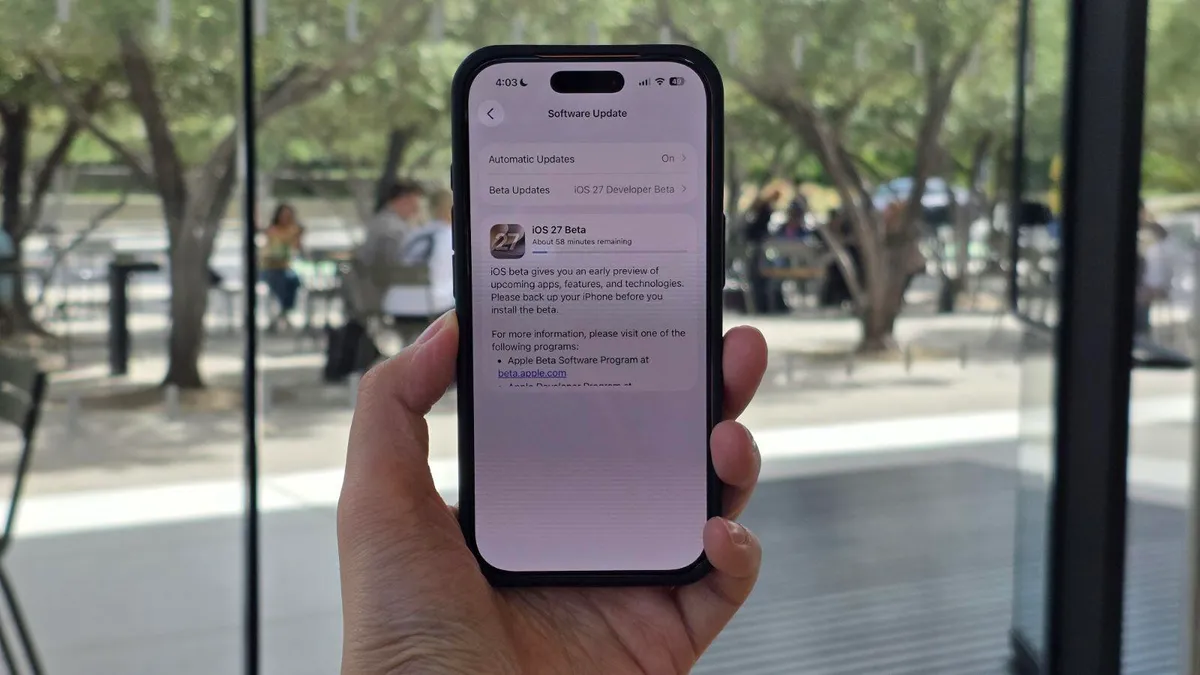
If you haven't already, you'll need to register as an Apple developer first to have access to the beta software. Open System Settings and click "General." Then select "Software Update" and Click "Beta Updates" in the menu.You'll see options for different beta programs. Select "macOS 27 Developer Beta" when it appears. Developer betas require an Apple Account, but anyone can enroll in the program, you don't need a paid developer membership.Click "Done" after selecting the developer beta. Your Mac will check for available updates and display macOS 27 when it's ready. Then begin the download. Your Mac will download the beta automatically and prompt you to restart. Follow the on-screen instructions and let your Mac restart when needed.