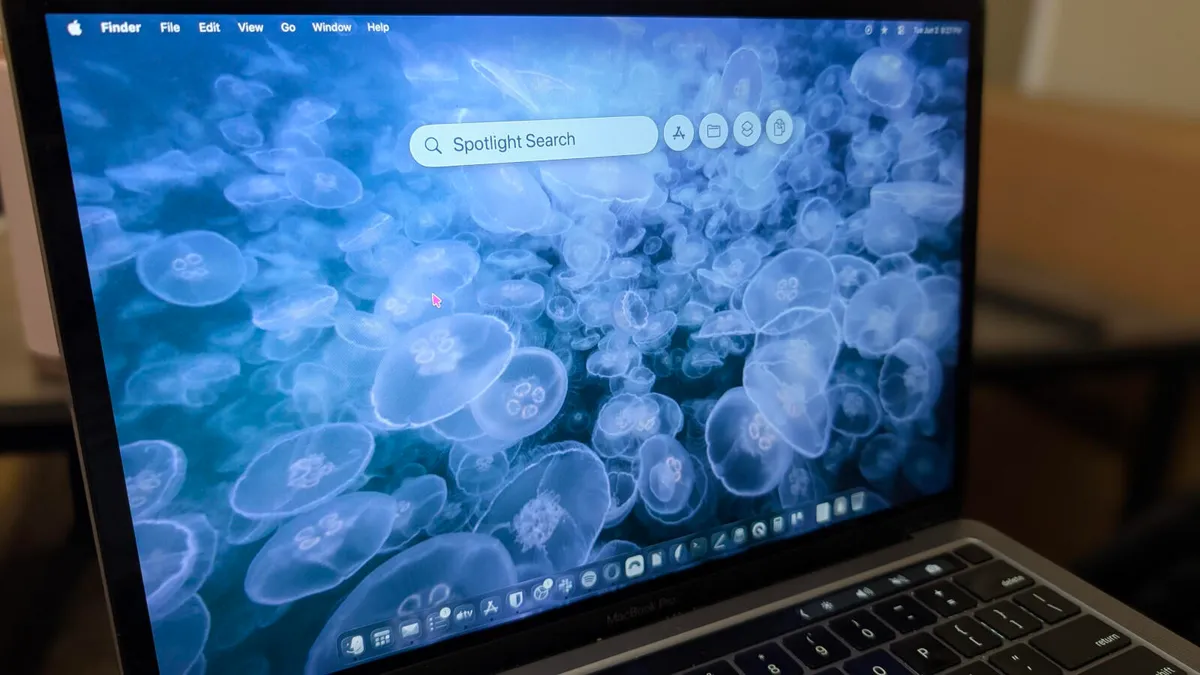
Aerospace completely revolutionized my workflow after 15 years of using macOS the way Apple intended. I no longer hunt for apps and windows in Mission Control or drag them around spaces to organize. I can open as many windows as I need and have them all under my fingertips. And instead of swiping around to find one, I instantly teleport to where they are.
This incredible software is technically aimed at advanced users. It’s installed from the command line and offers extensive configuration options. For basic use though, you don’t need to configure it at all, and if you have opened the Terminal application before and know what running a command means, you should be good to go. Rest assured, I will not show you how to configure Aerospace with Vim, or show you how to create an elaborate but useless dashboard! Just the essentials to get you started.
How to set up Aerospace
Aerospace is a menu bar application, but you can’t download it from an App Store or get it as a DMG file. You need a package manager. Go to the Homebrew website and follow the installation guide. Make sure to accurately follow the on-screen instructions. This may include any of the following:
A prompt to enter your password. When you type passwords in Terminal, you will not see stars or anything. Just make sure you’re typing the correct one and hit Enter.