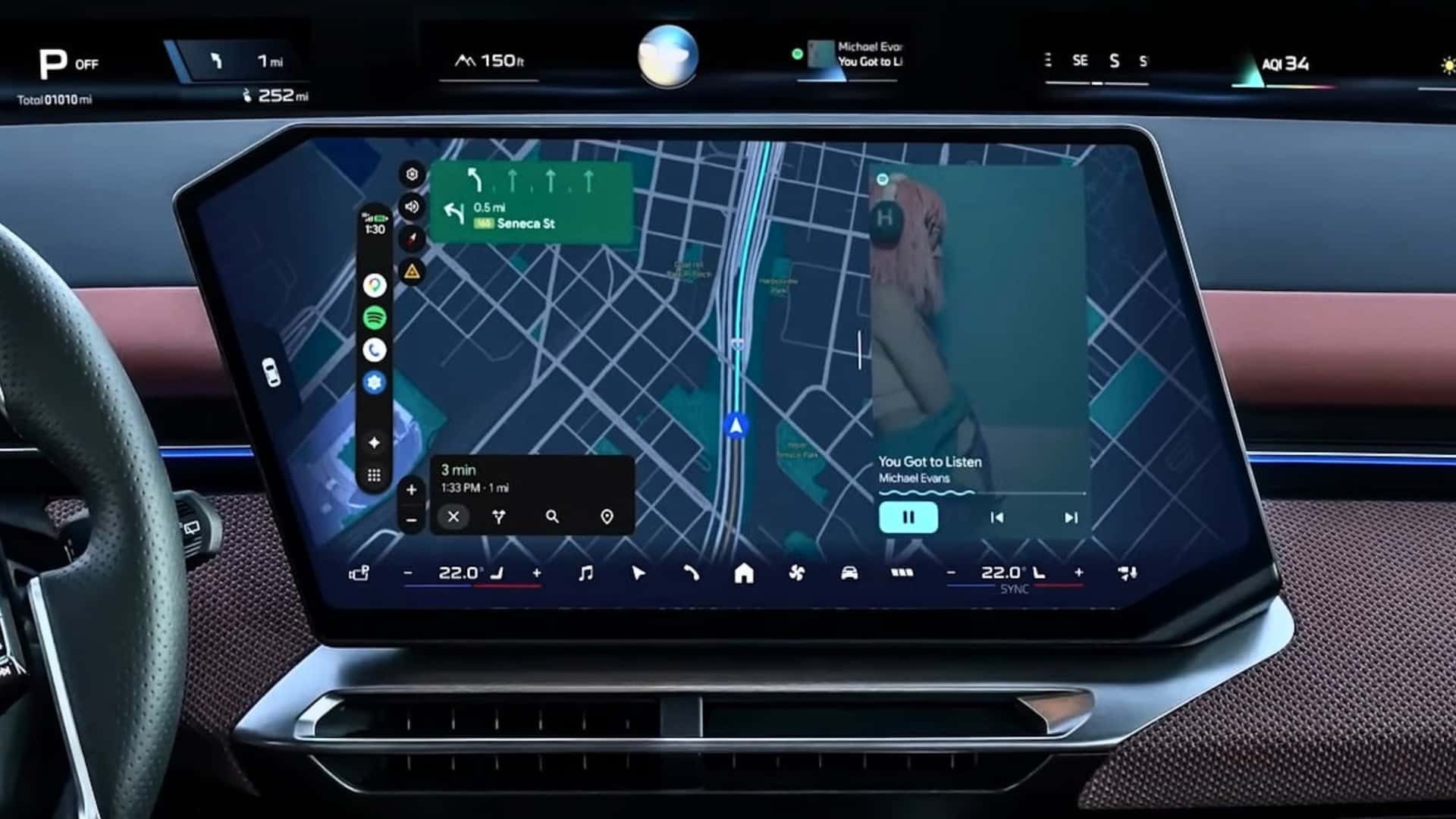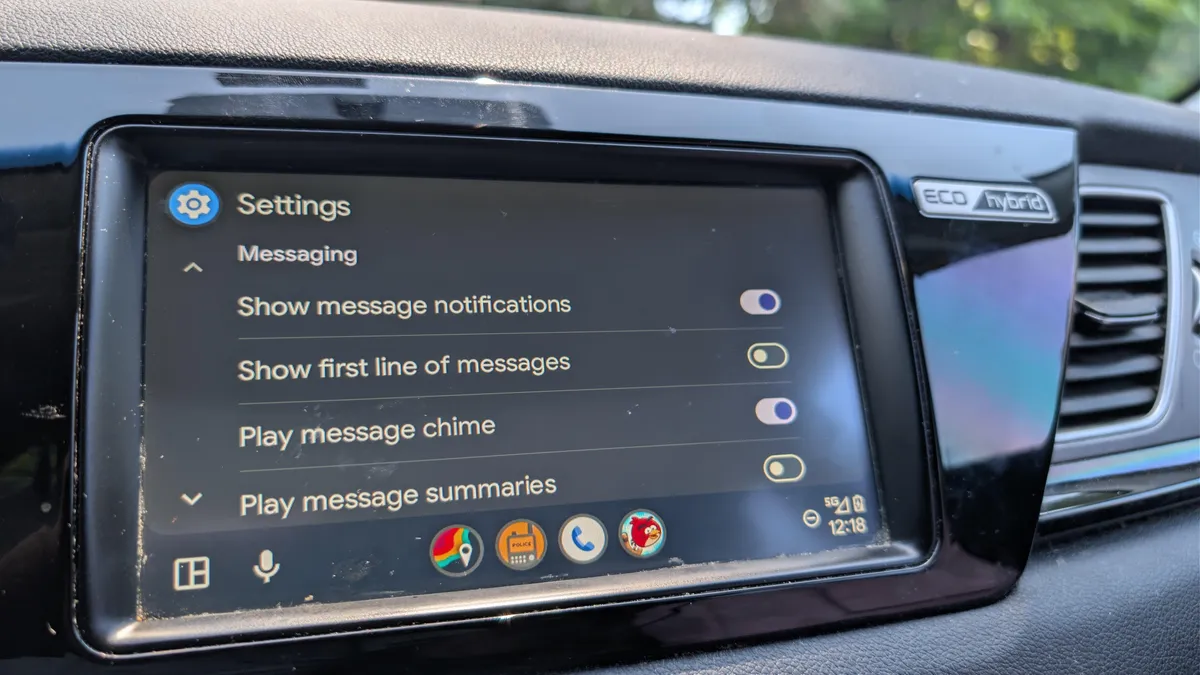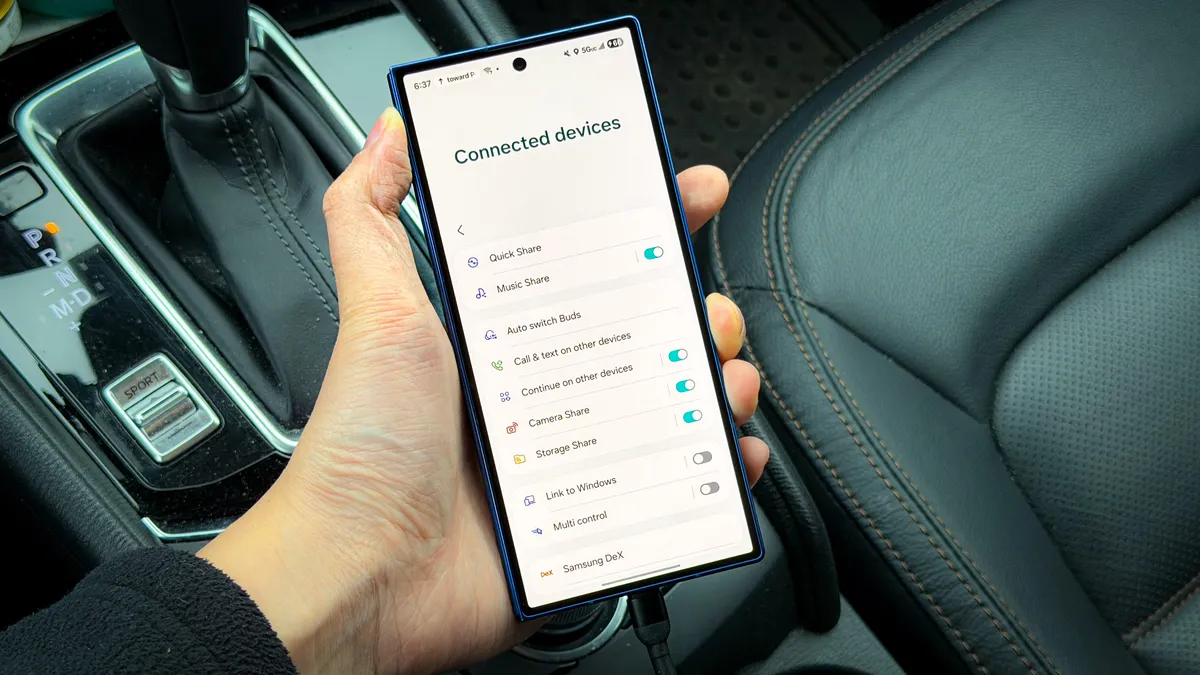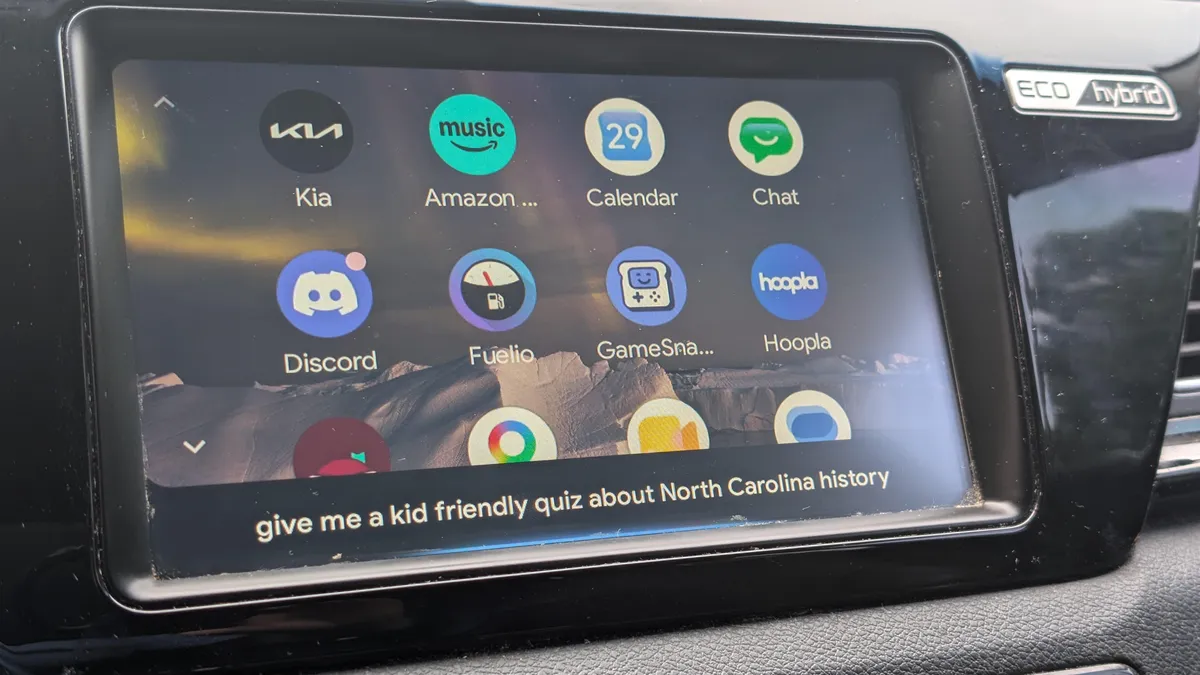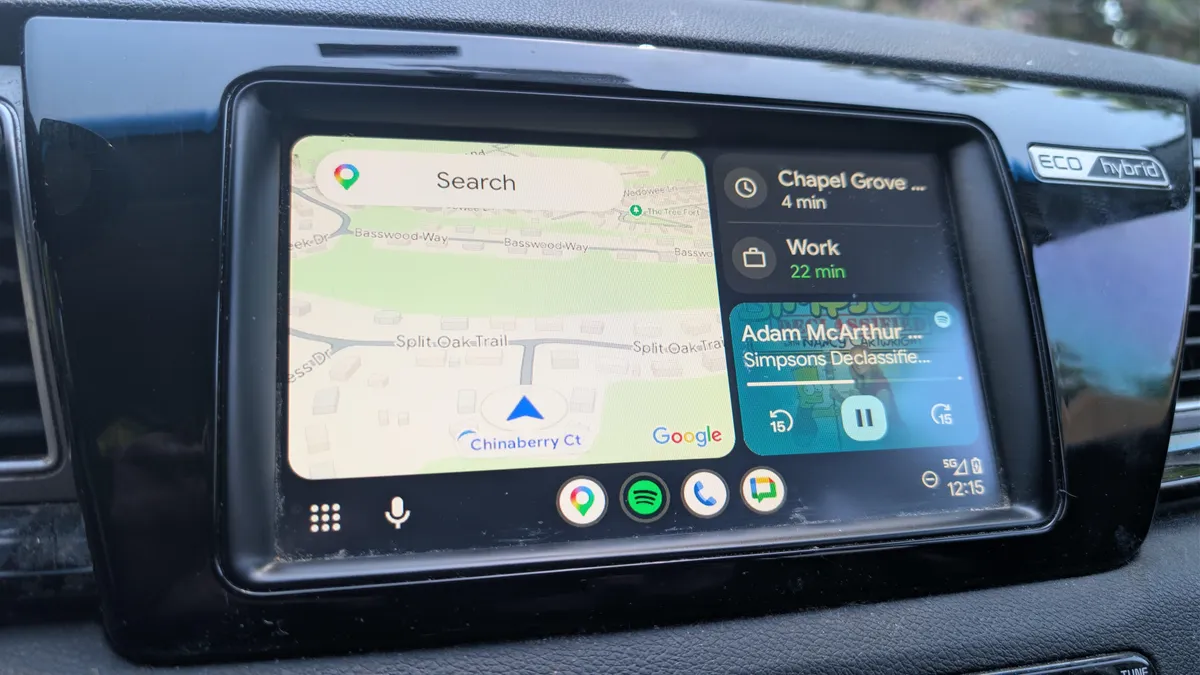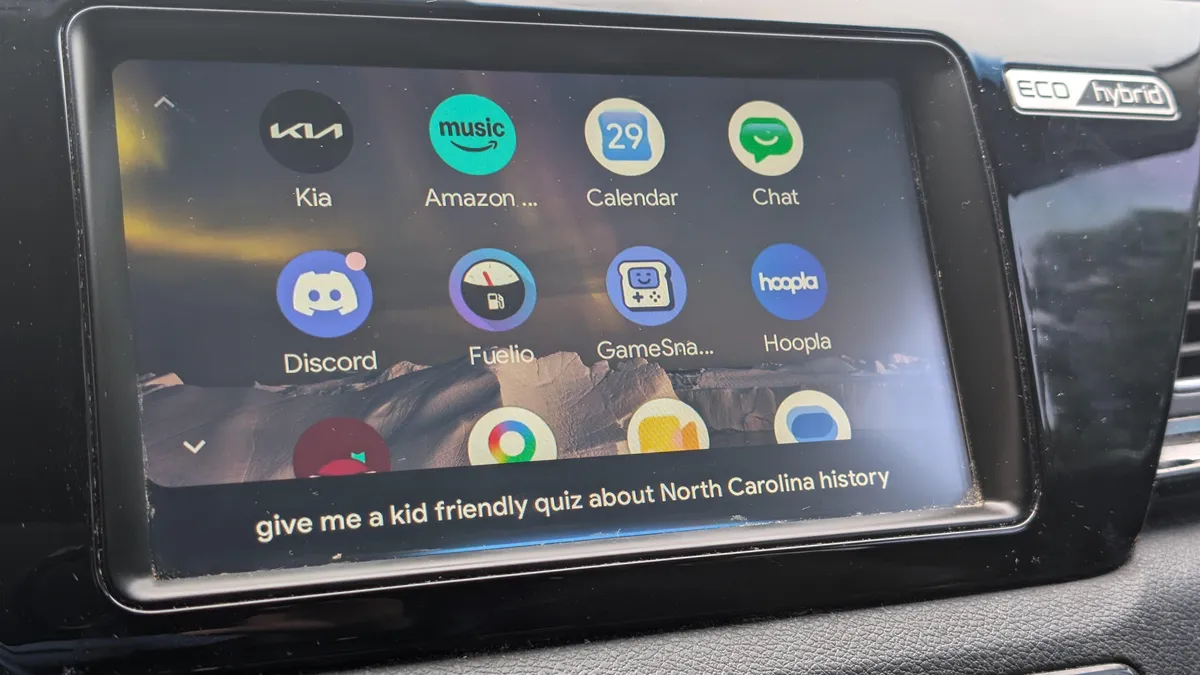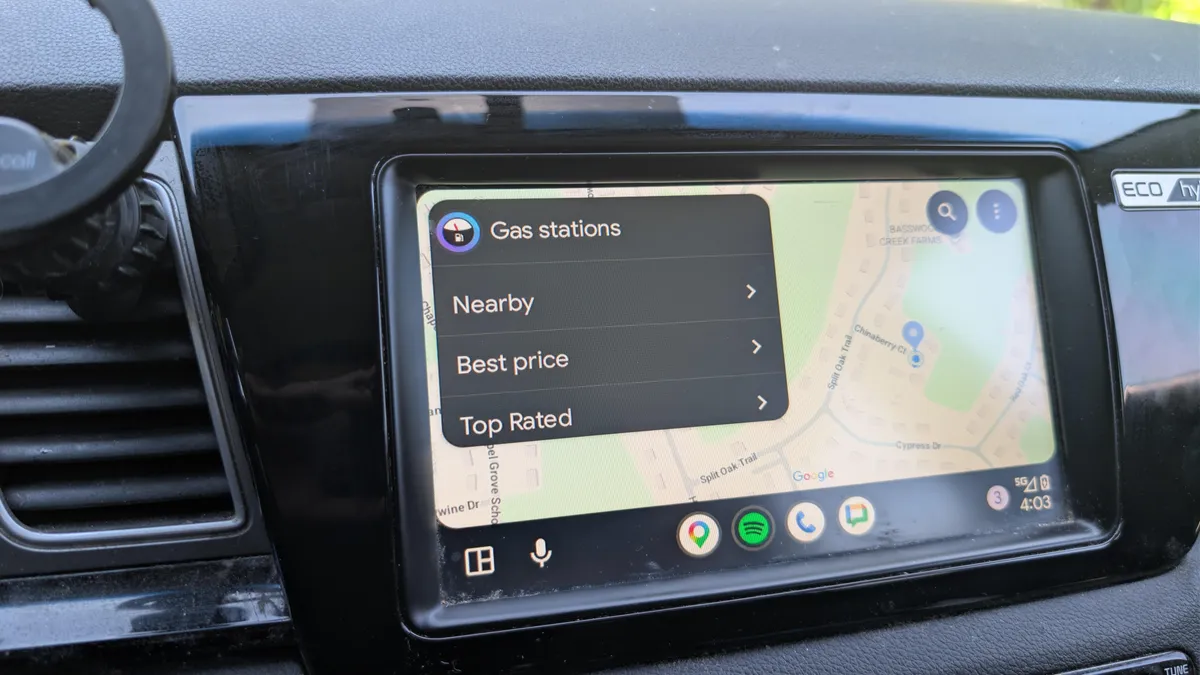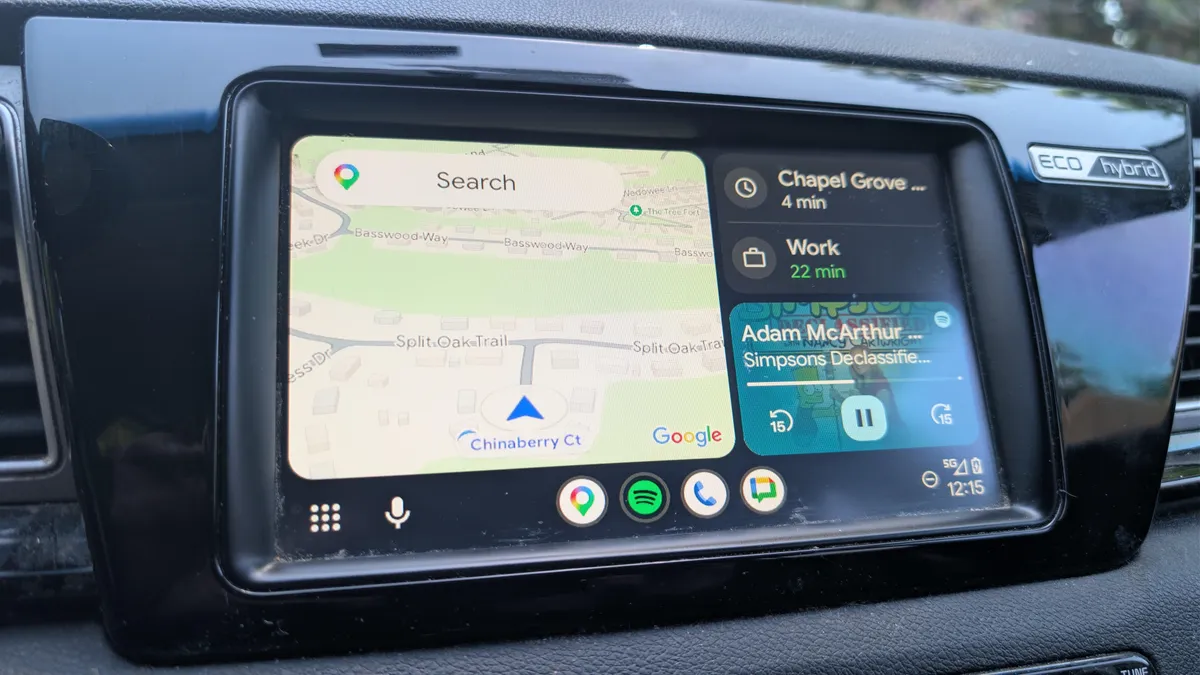
Artie Beaty/ZDNETFollow ZDNET: Add us as a preferred source on Google.ZDNET's key takeawaysAndroid Auto has several safety features you should use.Using split-screen and voice controls keeps you focused.Turning on Do Not Disturb was the single biggest help.Android Auto is designed to help keep your hands off your phone and your eyes on the road, but that doesn't mean it's totally distraction-free. In fact, getting preoccupied with your car's screen can be just as dangerous as glancing at your phone.Also: 6 Android Auto apps I wish I found sooner, because they make every drive easierFortunately, Android Auto has several built-in safety features to make your daily drive a little safer while still letting you control your navigation, music, and more. I've used these options myself, and while I can't say I necessarily enjoy them all, they have helped me stay more focused on my drive.When convenience equals safetyHere's a look at four safety features you should be using if you're not already. 1. Automatically launch Android AutoThis is foremost a convenience option, but it's also a safety setting. If you don't have Android Auto set to automatically connect and launch, you should. If you're using your phone to fire up Android Auto while driving, that's time your eyes aren't on the road. If you auto-launch, things like your maps and music are ready immediately.2. Split-screen viewIf you're using navigation and playing music or a podcast, you'll want to make sure you're taking advantage of one of the best Android Auto upgrades in recent years -- split-screen mode. Instead of bouncing back and forth between apps, split-screen lets you see all your important information at once.Also: I tested Gemini on Android Auto and now I can't stop talking to it: 5 tasks it nailsTo get started using split screen mode, just tap the multi-window icon in the bottom left. By default, navigation will be closer to the driver, and media will be on the opposite side, but you can change this in settings to have media closer to you. This is especially useful in cars that have wide landscape displays. 3. Voice controlsEven though I have an array of Alexa devices around my house that control multiple lights, fans, and locks, I was never much of a fan of voice controls in my car. It was just easier to reach for a button instead of fighting with an assistant that didn't understand me. The more I use voice controls, though, especially with Gemini, the easier it is to avoid reaching for the display. 4. Do Not DisturbThis mode is definitely the least fun to enable, but it's had the biggest impact on cutting out distractions. With Do Not Disturb turned on, I'm not getting notifications every few minutes from social media, text messages, and more. I still get calls from preset contacts, but 95% of digital noise is gone. Also: Android Auto runs faster and smoother now thanks to my 4 easy tweaksYou can set this up yourself by going to your phone's settings and searching "Driving." You can set this mode to engage only when connected to your vehicle's Bluetooth, so it doesn't kick in while you're riding in another car.
4 Android Auto settings I always turn on for a safer ride
Using Android Auto can be as dangerous as using your phone while driving. Fortunately, these built-in safety features make your daily drive a little safer
530 words~2 min read