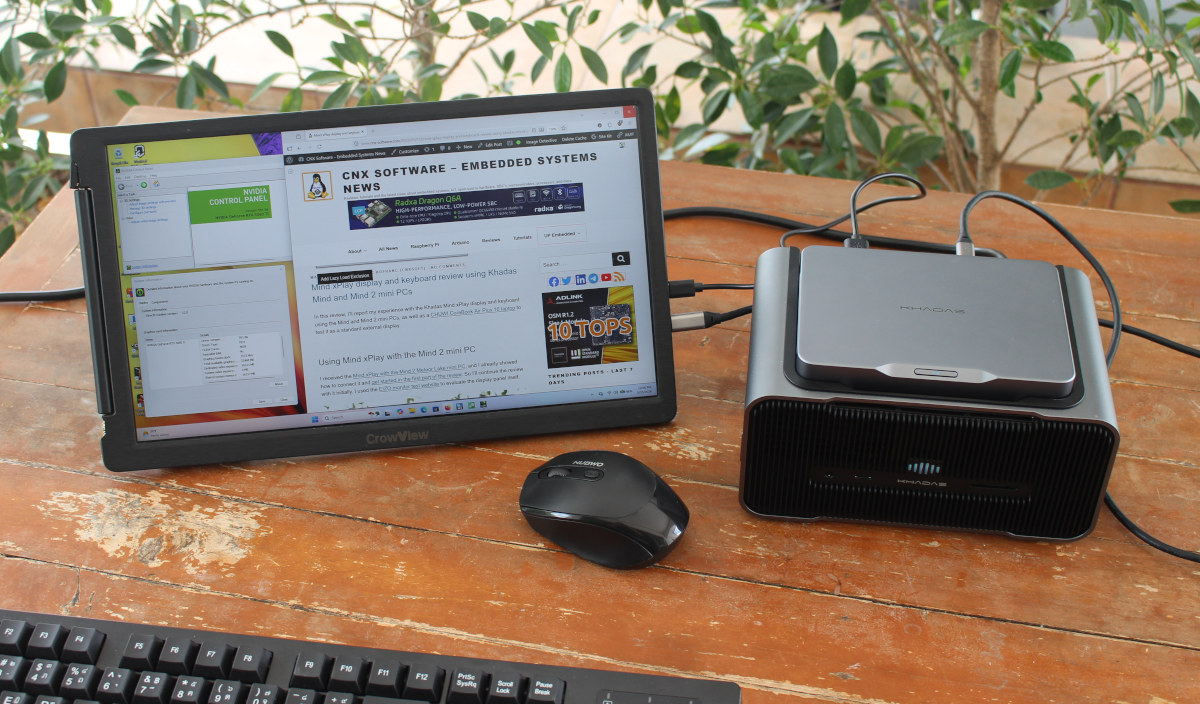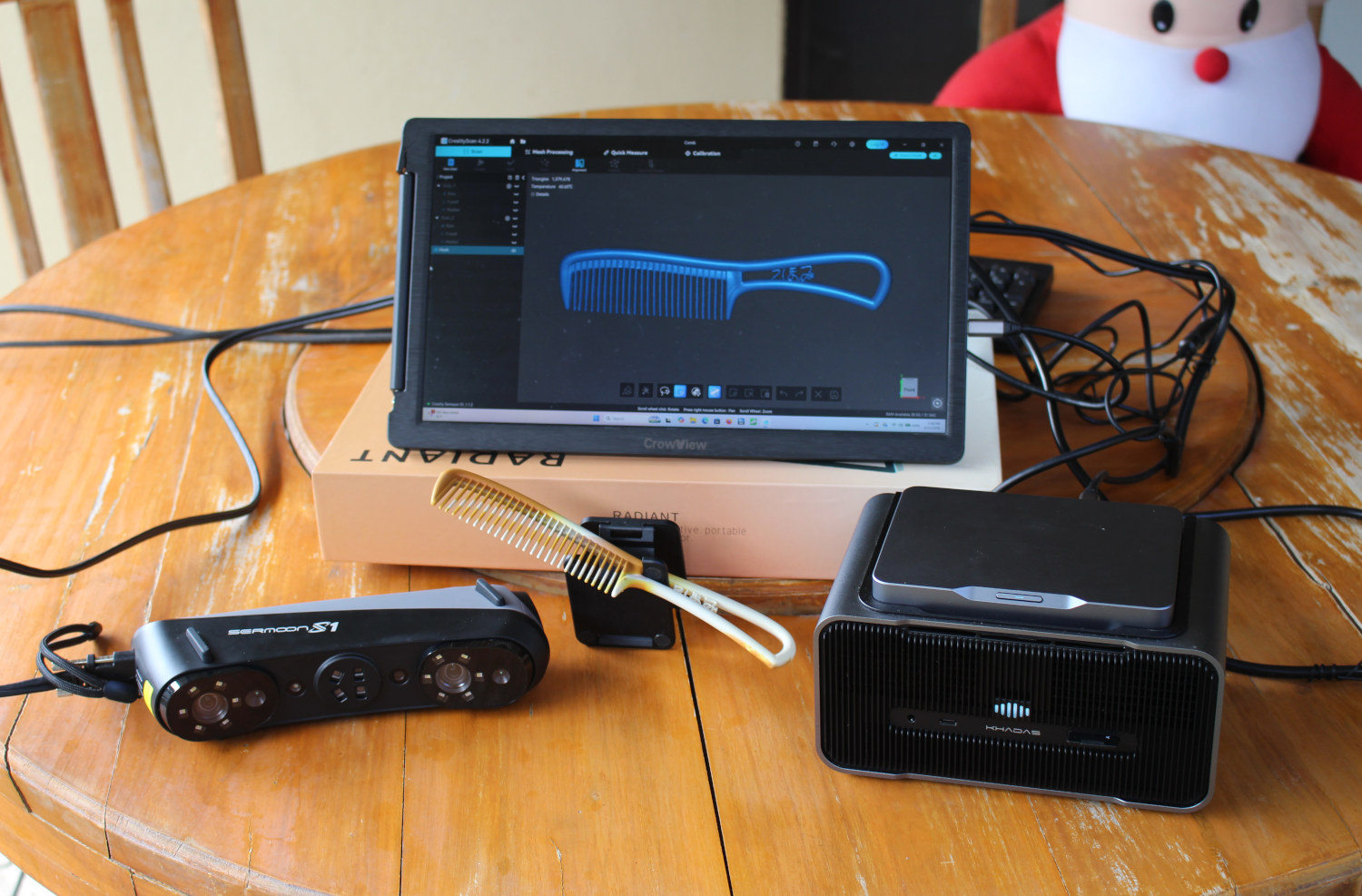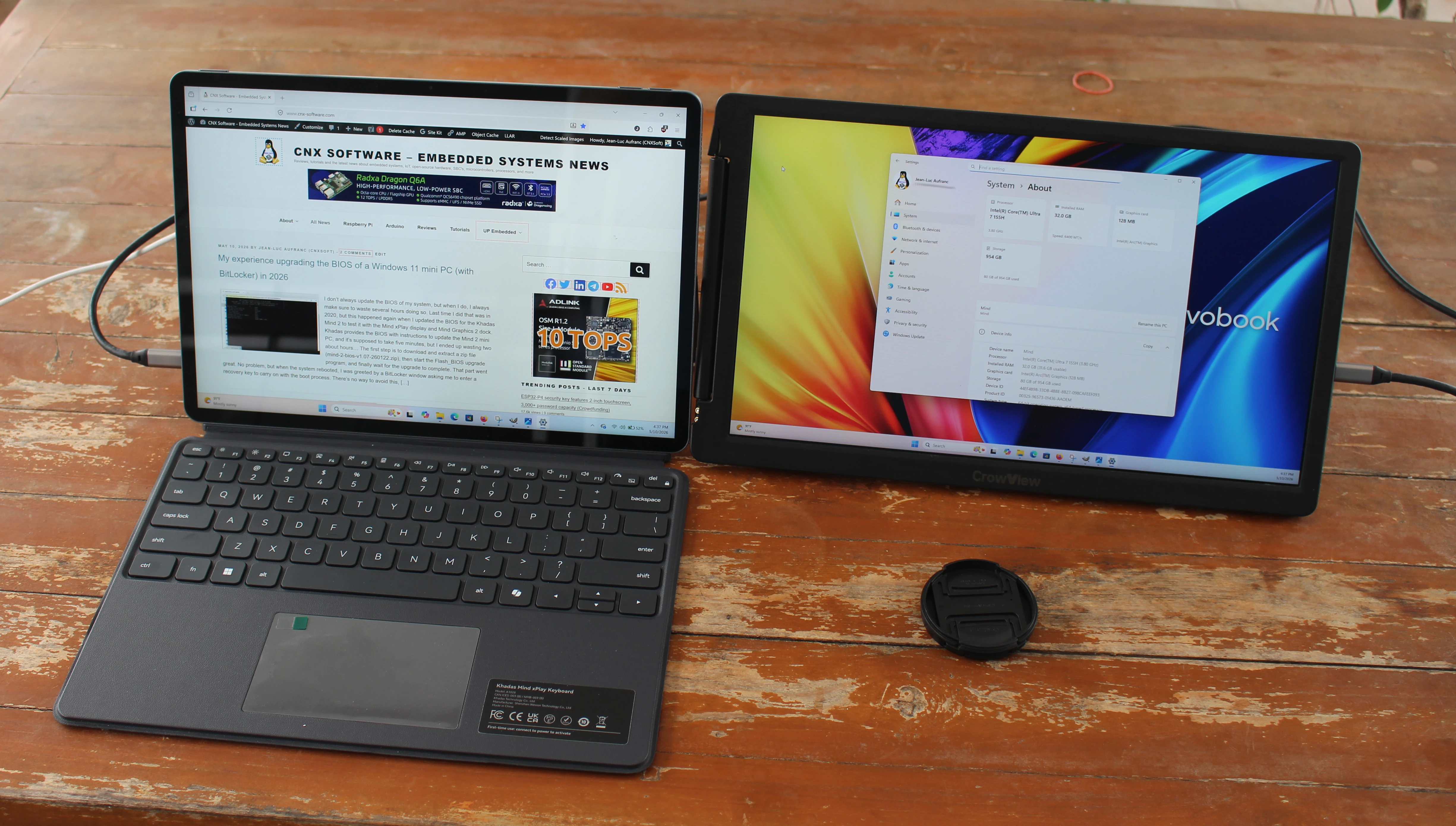
In this review, I’ll report my experience with the Khadas Mind xPlay display and keyboard using the Mind and Mind 2 mini PCs, as well as a CHUWI CoreBook Air Plus 16 laptop to test it as a standard external display.Using Mind xPlay with the Mind 2 mini PCI received the Mind xPlay with the Mind 2 Meteor Lake mini PC, and I already showed how to connect it and get started in the first part of the review. So I’ll continue the review with it initially. I used the EIZO monitor test website to evaluate the display panel itself.I went through all 13 tests, including dead pixel and gradients tests. The pattern above looks fine too, so I compare the Mind xPlay monitor to the 16-inch display of the ASUS Vivobook 16 to find differences. Both were set to maximum brightness.The xPlay delivers noticeably more vibrant colors than my laptop screen. The biggest difference comes from its glossy panel against my laptop’s matte display, as it boosts perceived contrast and saturation, although it also introduces some reflections, which can be distracting. Resolution is quite higher too at 2880 x 1920. As a side note, regular reader Tkaiser noted that a color gamut of 100% sRGB is “pretty small/limited color space”. The latter depends on what you do with the display; it’s fine for office tasks, web browsing, and YouTube video playback, but photo/video editing and HDR gaming would benefit from a wider color space.The Mind xPlay comes with a 2MP webcam, which I tested with webcamtest.com…… and used the microphone test there as well.I also played an allegedly copyright-free YouTube video to test the built-in speakers.The recording does not really do justice to the speakers, as they sound better in real-life than in this video. When going to Windows Sound settings, I also noticed “Mono audio” was enabled, and disabling it further improves sound quality.I also followed up by playing a stereo test YouTube video to confirm left and right speakers are independently controlled.The handle on the back can be opened up to 120 degrees, as shown in the photo below.However, in this position it lifts the keyboard a bit, and it’s easy to unintentionally disconnect the keyboard from the display when you are typing, unless you are really gentle with the keys…As a reminder, the Mind xPlay does not include a touchscreen, so you need another input device, either the xPlay keyboard or your own keyboard and mouse.While the Mind 2 comes with a built-in battery, it’s quite small and only designed to allow the user to carry the mini PC between rooms or switch accessories. The xPlay features a much higher capacity 4,150 mAh battery for the display itself and the Mind 2 mini PC. So I tested battery life with the brightness set to maximum.I started at 12:40 with a 100% charge. A few minutes later, at a 98% charge, we were told it should last 3h48.I changed the settings to make sure the display is always on, and let the mini PC idle for one hour. The charge level was 75%, at which point I started playing a YouTube video. At the two-hour mark, the charge was at 38%, and at 15:16, it dropped to 20%, and a pop-up showed up telling us the battery was running low. The battery lasted about 2h40 to this point, which means you can expect about 2 to 3 hours of battery life per full charge.The Khadas xPlay display comes with two USB-C ports. a USB-C input port (top) for power and video data when connecting it as a standard display, and a USB-C output (bottom) to connect peripherals. With the Mind 2, the xPlay’s battery can be charged through the USB-C input port on the xPlay or the mini PC itself. I mention that because the first-generation Mind Play can’t charge the xPlay, so users need to use the USB-C input on the display itself.The first time I connected a 14-inch Crowview portable display to the USB-C output port, it was powered for a short time, and then showed “no cable”. So I decided to upgrade the BIOS of the Mind 2 as Khadas recommends it, even though my device is brand new. After that, the Crowview worked normally, connected through the xPlay.You can also add additional displays using the USB-C and HDMI ports of the Mind 2. The USB-C output port is not only for external display, and you can connect other peripherals, for example, a USB NVMe SSD enclosure. I also moved the white power cable from the Mind 2 to the xPlay to show another way to power the combo.Mind xPlay with Mind mini PC in Windows 11 and Ubuntu 24.04Let’s now switch from the Mind 2 to the Mind mini PC. We can do that as the computers are running and the display is powered. No need to turn off anything since all three devices are battery-powered for this purpose.One of the first tests I did was connecting the Crowview monitor, since I initially had an issue with the Mind 2. This worked out of the box with the Mind without even updating the EC (Embedded Controller) firmware.I still update the latter following the instructions on the Khadas website. Basically, I had to download the zip file, extract it to a USB flash drive formatted with FAT32. Then select it in the BIOS (press Esc to enter the BIOS), and type the following commands to start the ITE Flash Utility:
Mind xPlay display and keyboard review using Khadas Mind and Mind 2 mini PCs - CNX Software
In this review, I'll report my experience with the Khadas Mind xPlay display and keyboard using the Mind and Mind 2 mini PCs, as well as a CHUWI CoreBook
2,198 words~10 min read