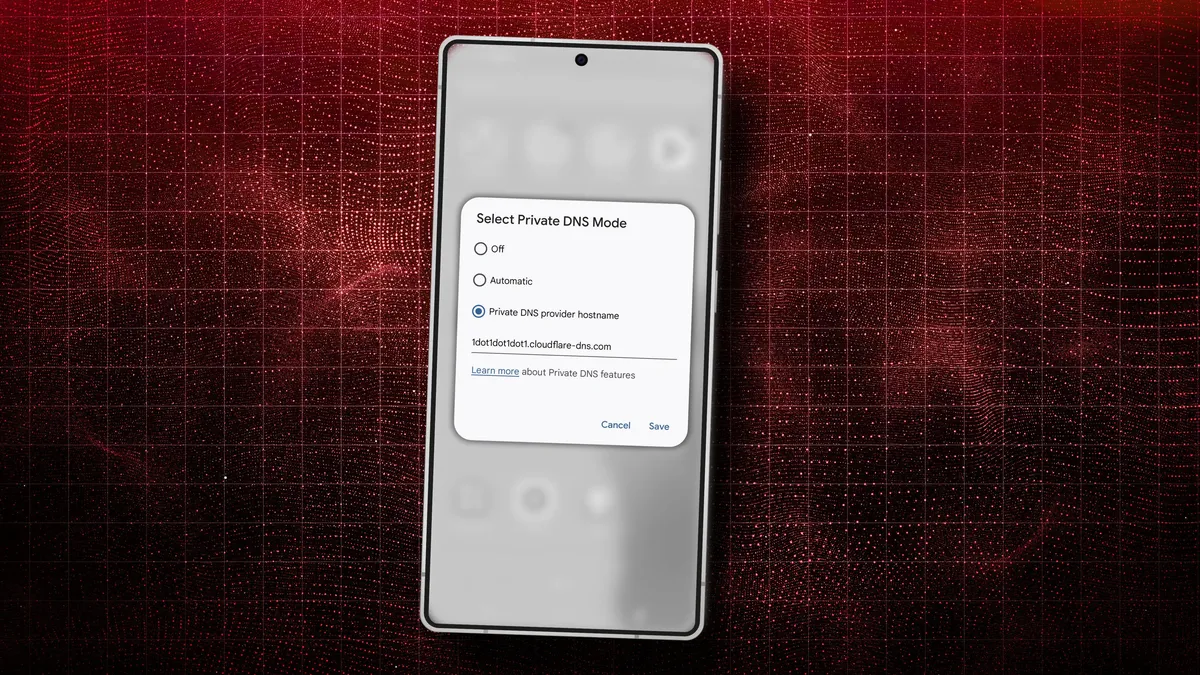
Jack Wallen / Elyse Betters Picaro / ZDNETFollow ZDNET: Add us as a preferred source on Google. ZDNET's key takeaways Private DNS encrypts your web traffic to prevent ISP tracking.It improves both privacy and online security.It's simple to turn on, but disabling it puts your data at risk.Nearly everything you do on your desktop, laptop, phone, and tablet begins with a Domain Name System (DNS) query. Essentially, DNS turns domain names (such as ZDNET.com) into an IP address so web browsers and apps know where to get the information you want.Also: My 6 favorite DNS services - and why they're a must for securityWithout DNS, you'd have to type 34.149.132.124 every time you wanted to go to ZDNET.com or 74.125.21.102 to go to Google.com. Even by simply running a Google search, DNS is at work. The problem is that standard DNS isn't encrypted, meaning all your queries are sent over the network as plain text. Why is non-encrypted DNS a problem? Let's say you're on a public network -- like a coffee shop -- and you start searching for things on your Android device. Or maybe you have to access a CMS or another work tool, and you don't want the public to know the address you're typing. If someone else is on the same network and has the skills, it could intercept your non-encrypted search queries (or the URLs you visit) and know exactly what you're looking for. Also: This silent Android feature scans your photos for 'sensitive content' - how to disable itThat's where Private DNS mode comes into play. Once you enable this feature, all of your DNS queries are encrypted, so bad actors won't be able to view them -- even if it captures those packets. In other words, Private DNS mode should be an absolute must for anyone who values privacy and security. But how do you enable Private DNS mode on Android? It's actually pretty simple. Let me show you how. How to enable Private DNS mode (on Android version 11 or newer) If you're using Android version 11 or newer, the old method of Private DNS no longer works. Instead of handling this process manually, you have to install an application created by Cloudflare called 1.1.1.1 + WARP. Once you've installed that app, it will open, and you'll see a slider marked Disconnected. Tap that slider, and it will enable the service. Also: Your Android phone's most powerful security feature is off by default and hidden - turn it on now The Cloudflare WARP app makes it easy to enable Private DNS on Android, starting with version 11. Jack Wallen/ZDNETThere's a caveat to using the app. If it is disabled and you need to re-enable Private DNS, you won't find the app in your app drawer. Instead, you'll have to search for it in the Google Play Store and tap Open from there. I'd like to think Cloudflare could fix this little annoyance, but until it does, you at least know how to access the app. If, on the other hand, the app is running, you'll see a notification entry that, when tapped, will open the app. How to enable Private DNS mode (on Android versions older than 11) What you'll need: An Android device running version 10 or older. I'm using a Pixel 9 Pro (which means I now have to use the new method), but pretty much every modern Android phone is capable of enabling Private DNS. Open the Settings app (either from the notification shade or the app drawer) and then tap Network & internet. If you're using a Samsung Galaxy device, you'll go to Settings > More Connection Settings.
How to turn on Private DNS Mode on Android - and why it's a must for security
Unencrypted DNS can expose your browsing, but Android's Private DNS keeps it private. Here's how to enable it.
1,003 words~5 min read