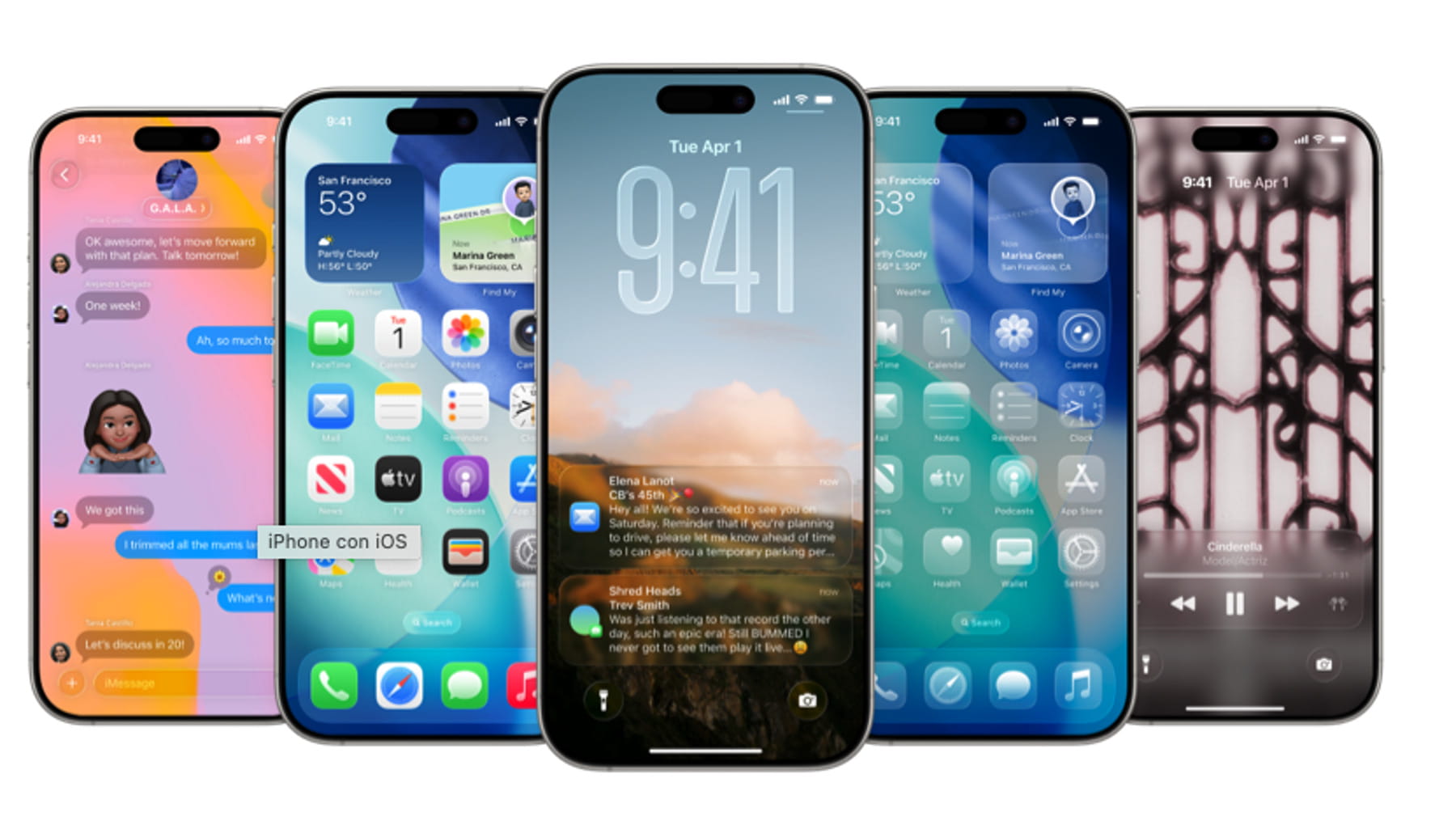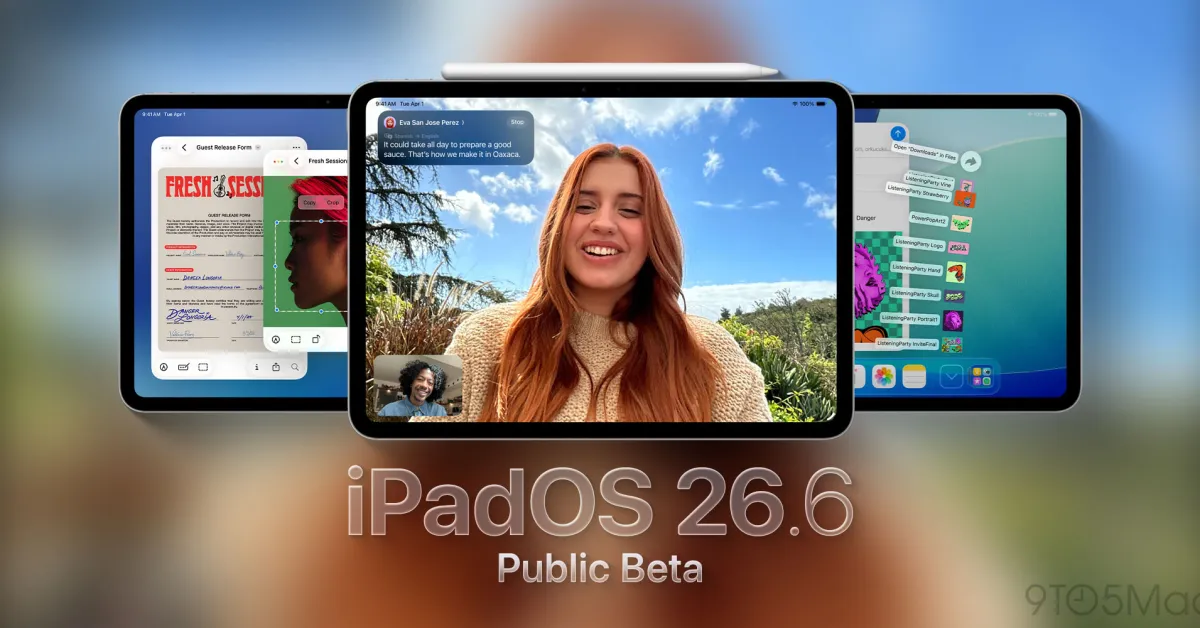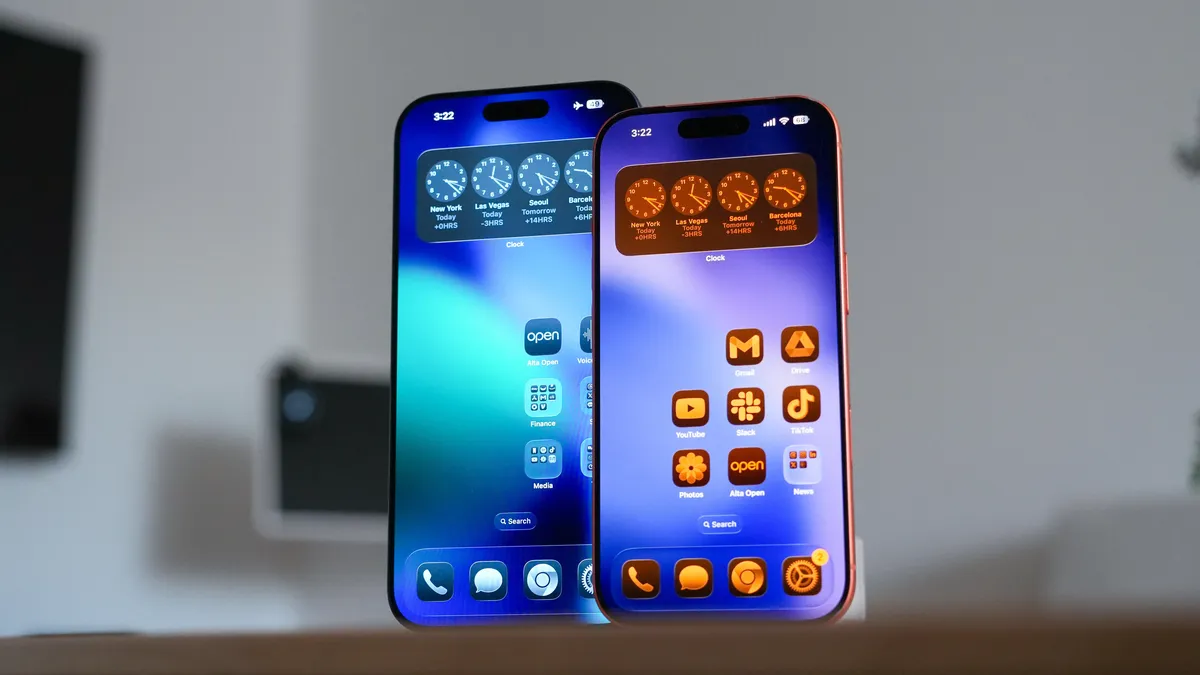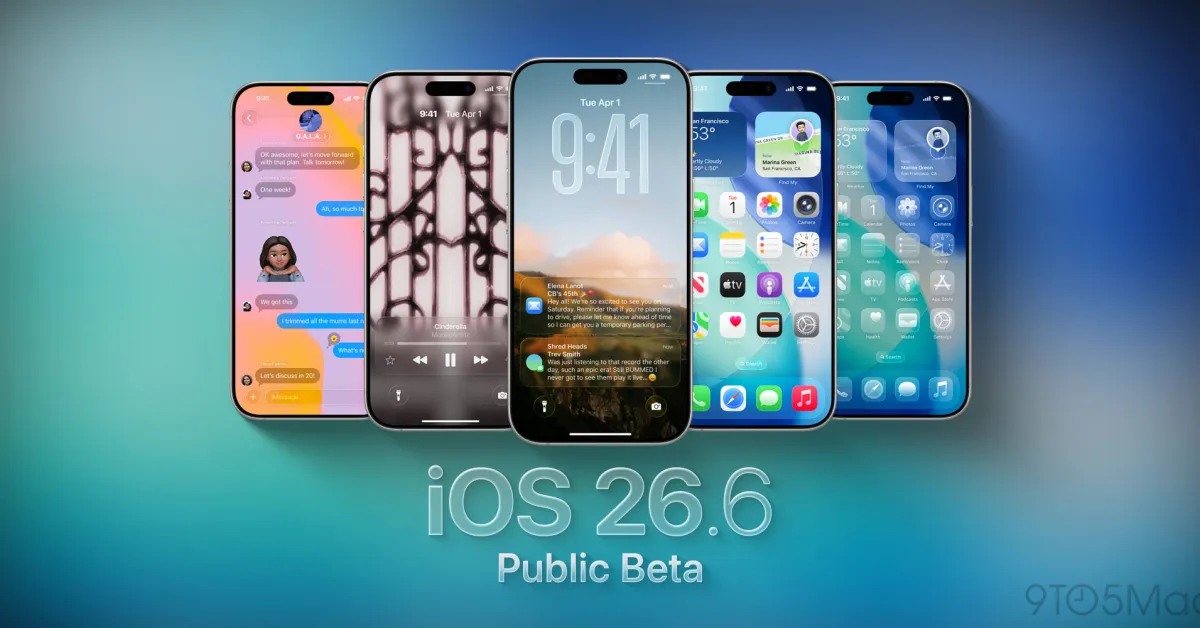
People with Apple developer accounts have had all the fun with the iOS 26 beta so far (and yes, if you missed it, there’s a new naming system now), but now that the public betas are out, anyone can try the new features.Setting up the public beta is slightly less involved than setting up the developer beta but just as free. And if you’re looking for help with the iPadOS 26 beta, you’re in the right place: the setup process is the same.You should understand what you’re getting when you try a beta, though. For one, you won’t get all the new features at once; many of them will come later. Also, the fun of trying early features comes with the thrill of potential stability issues and excessive battery drain. And it’s rare these days, but Apple’s betas can break things, so be sure to back up your data before installing the beta.What new features does iOS 26 have?There’s a new design language called Liquid Glass, which means that you won’t be looking at a lot of items on your screen, but rather looking through them. There’s already some negative feedback on it, so Apple has made some changes from the developer version. Other improvements include updates to group chats, a call screening feature, and live translation, among others.Which devices support iOS 26?iOS 26 and iPadOS 26 will work with these devices:iPhoneiPhone 16EiPhone 16iPhone 16 PlusiPhone 16 ProiPhone 16 Pro MaxiPhone 15iPhone 15 PlusiPhone 15 ProiPhone 15 Pro MaxiPhone 14iPhone 14 PlusiPhone 14 ProiPhone 14 Pro MaxiPhone 13iPhone 13 MiniiPhone 13 ProiPhone 13 Pro MaxiPhone 12iPhone 12 MiniiPhone 12 ProiPhone 12 Pro MaxiPhone 11iPhone 11 ProiPhone 11 Pro MaxiPhone SE (second-gen or later)iPadiPad Pro (M4)iPad Pro 12.9-inch (third-gen and later)iPad Pro 11-inch (first-gen and later)iPad Air (M3)iPad Air (M2)iPad Air (third-gen and later)iPad (A16)iPad (eighth-gen and later)iPad Mini (A17 Pro)iPad Mini (fifth-gen and later)How to install the iOS 26 public betaGetting set up to run the beta is a straightforward process. (And, as mentioned at the top, all of these steps work for iPadOS 26, too.)First, make sure you’re on at least iOS / iPadOS 16.4 by going to Settings > General > About and checking your iOS version.You’ll need to be signed up for the Apple beta program. If you’re not, visit this link and click Sign up — and be sure to use the same Apple ID as the device you want to run the beta on. Once you’ve signed up, you can click on the tab for the OS you want to run a beta of (26 in this case), and you’ll see details on doing so.Next, you’ll need to start the update. Visit Settings > General > Software Update. If you’re not new to beta updates, you may immediately see the iOS 26 Beta (or iPad OS 26 Public Beta) selection. In that case, you can skip the next two steps. Otherwise...Look for a new Beta Updates option and tap it. Check for the list of updates for your Apple ID — if you don’t see the one you want, tap the ID and pick Use a different Apple ID.Choose iOS 26 Public Beta (or iPadOS 26 Public Beta).Go back to the previous screen and tap Update Now (or Update Tonight if you’d rather wait).And you’re done!Follow topics and authors from this story to see more like this in your personalized homepage feed and to receive email updates.Barbara KrasnoffWes Davis
How to install the iOS 26 public beta
Try new iOS 26 features before they’re released!
574 words~3 min read