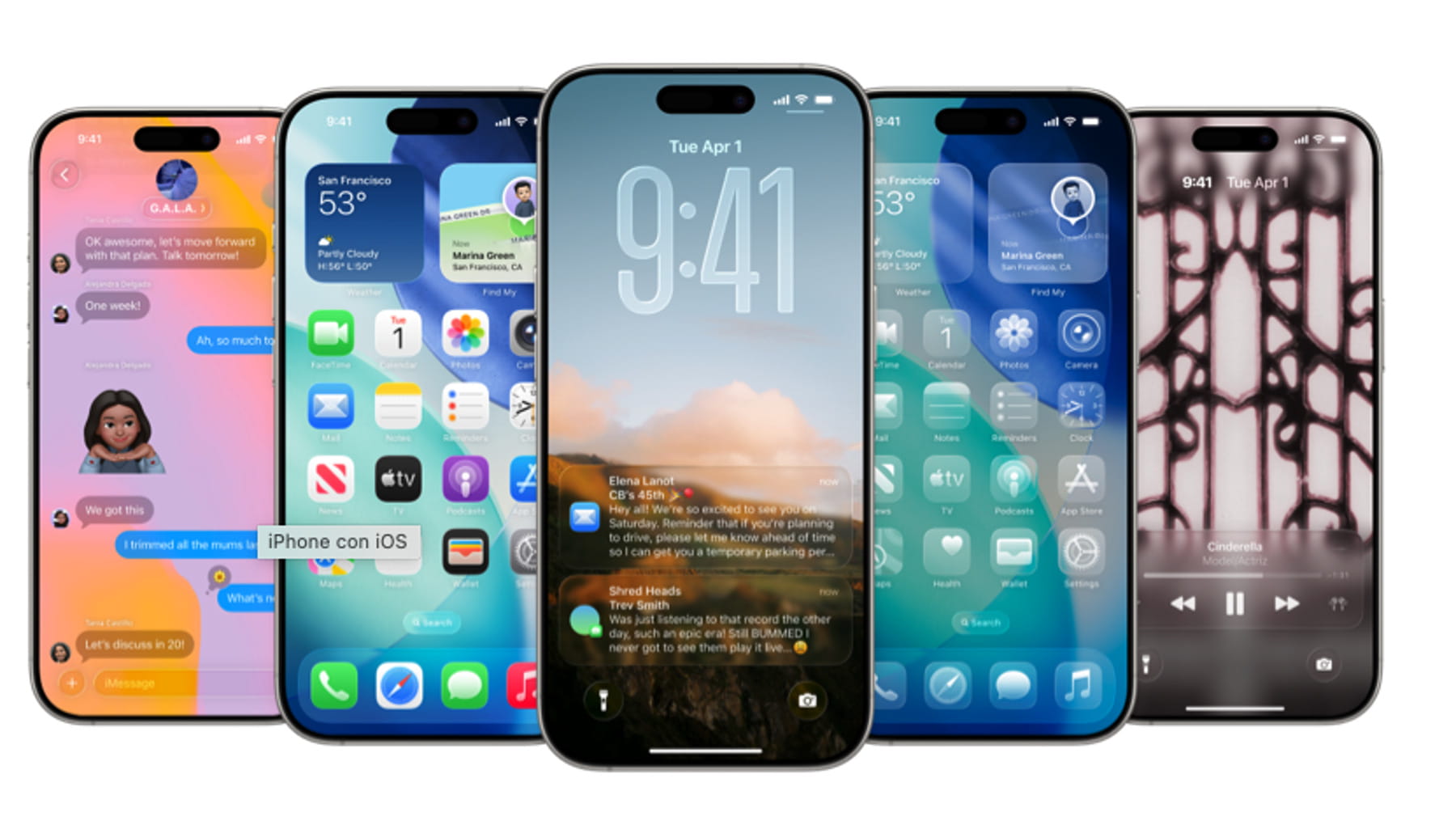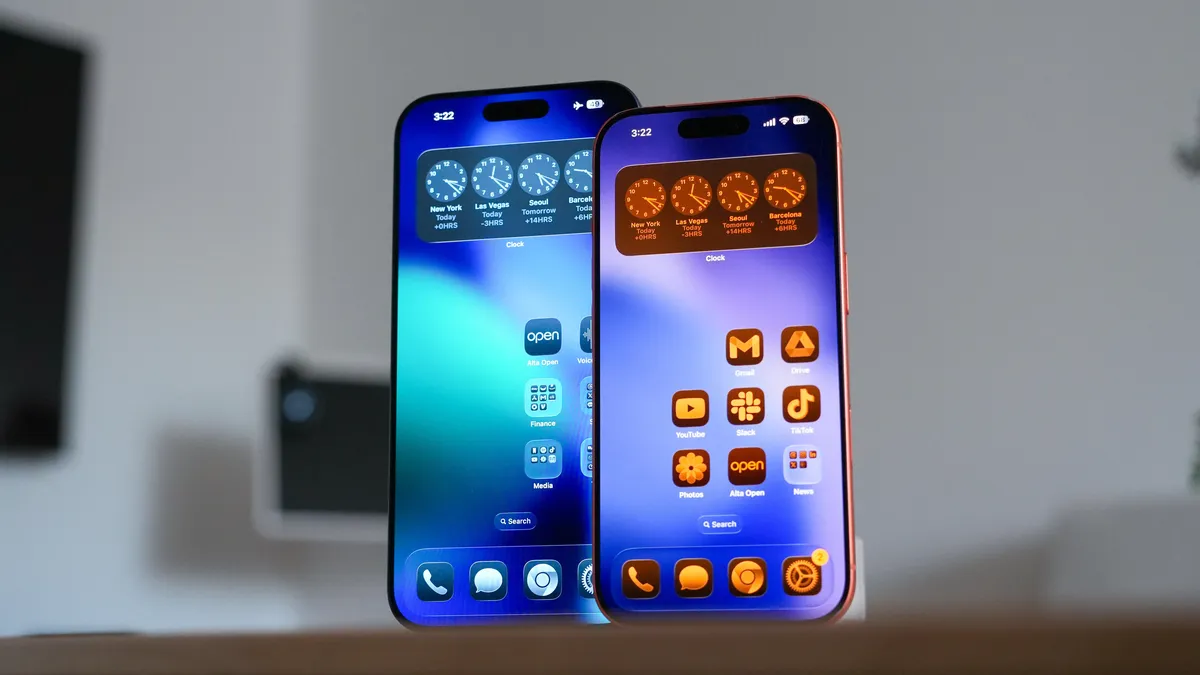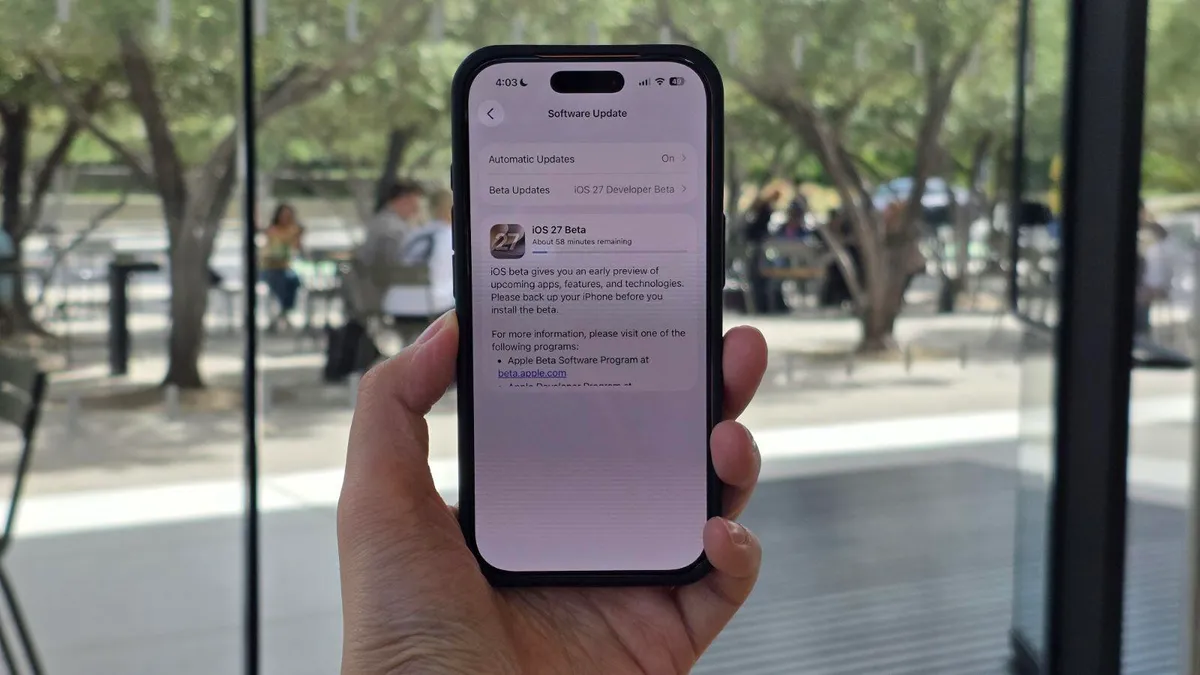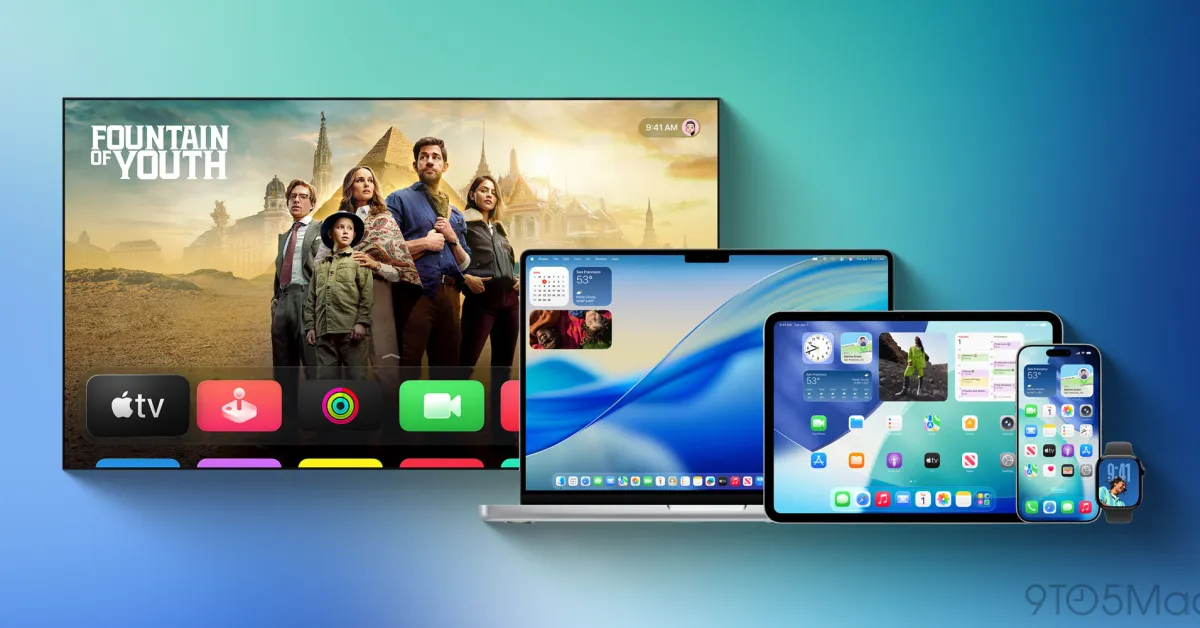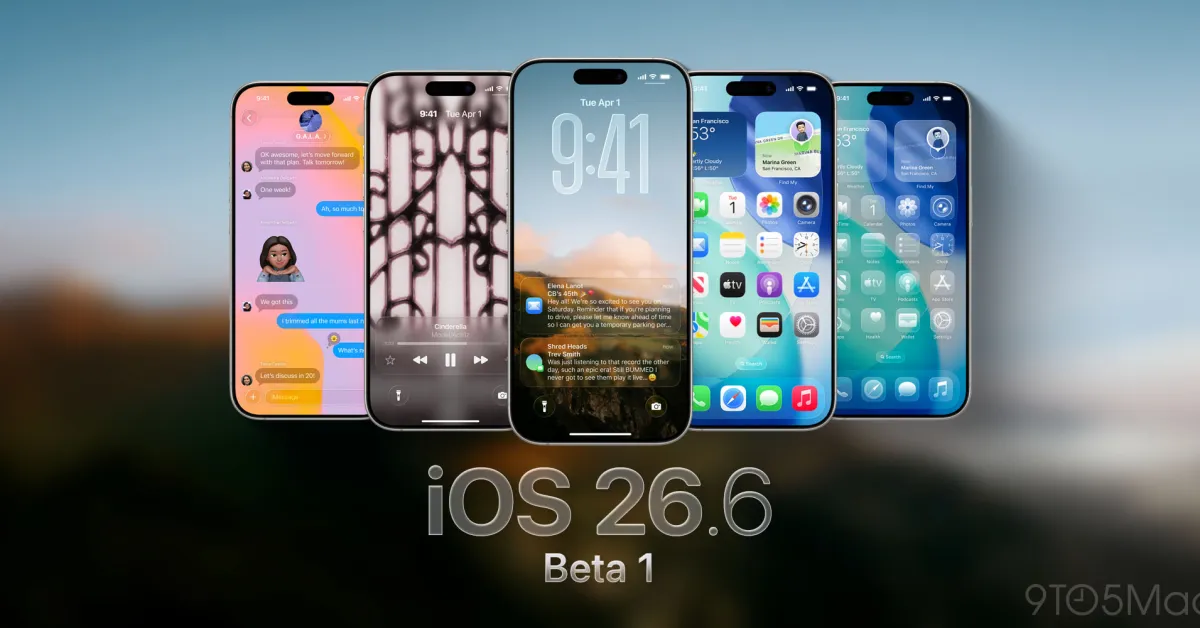
The most recent presentation of Apple’s WWDC event has come and gone, during which Apple introduced the developer beta of the newly renamed iOS 26 — which is accessible to everyone, non-developers included, for free. If you want to try out an early version of the new OS, we’ve got directions on how to install it on your iPhone or iPad.Before we get started, a word of warning: beta software — especially early developer beta — is inherently unfinished and may contain bugs. Think carefully before installing either on any device you depend on. They also may not include all of the features that will be in the final release. Your experience may differ from others depending on the apps you use. And finally, if you do decide to install it, we suggest backing up your device’s data in case things go badly.What features come with the new OS?Besides a new naming scheme — each update will now be named for the year it will be used — the new operating systems have a number of interesting new features, not the least of which is Liquid Glass, a shiny new (and transparent) look for the OS that may take some getting used to. There are also new windowing features for iPadOS, some new Messages updates, a new Games app, and an easier way to access the AI assistant.Which devices support iOS 26 and iPadOS 26?According to Apple, iOS 26 / iPadOS 26 will work on the following devices.iPhoneiPhone 16eiPhone 16iPhone 16 PlusiPhone 16 ProiPhone 16 Pro MaxiPhone 15iPhone 15 PlusiPhone 15 ProiPhone 15 Pro MaxiPhone 14iPhone 14 PlusiPhone 14 ProiPhone 14 Pro MaxiPhone 13iPhone 13 MiniiPhone 13 ProiPhone 13 Pro MaxiPhone 12iPhone 12 MiniiPhone 12 ProiPhone 12 Pro MaxiPhone 11iPhone 11 ProiPhone 11 Pro MaxiPhone SE (second-gen or later)iPadiPad Pro (M4)iPad Pro 12.9-inch (third-gen and later)iPad Pro 11-inch (first-gen and later)iPad Air (M3)iPad Air (M2)iPad Air (third-gen and later)iPad (A16)iPad (eighth-gen and later)iPad Mini (A17 Pro)iPad Mini (fifth-gen and later)How to install the iOS 26 developer betaApple has made it easier than ever to install beta releases of iOS and iPadOS. Here’s what you do. (These instructions are for iOS, but iPadOS is pretty much the same.)First, make sure that your iPhone is running iOS 16.4 or later (by running Settings > General > About).If you’re not signed up yet for the developer beta, you can sign up here by scrolling down to Start Your Enrollment.Once you’ve signed up, enable Developer Mode in Settings > Privacy & Security. If you don’t see the Developer Mode toggle, you may need to first connect it to a Mac running Xcode. (Instructions from Apple are here.)Now go back to Settings > General > Software Update. You should see a Beta Updates option right under Automatic Updates. Select Beta Updates and check to make sure the correct Apple ID is at the bottom of the screen. If not, tap on the ID and select Use a different Apple ID.Select iOS 26 Developer Beta (or iPadOS 26 Developer Beta) under Beta Updates.Once that is done, go back one screen to Settings > General > Software Update. You should see your beta update there; select Download and Install and follow the instructions from there.Follow topics and authors from this story to see more like this in your personalized homepage feed and to receive email updates.Barbara Krasnoff
How to install the iOS 26 and iPadOS 26 developer betas
Be the first on your block to see what’s new in iOS 26.
560 words~3 min read