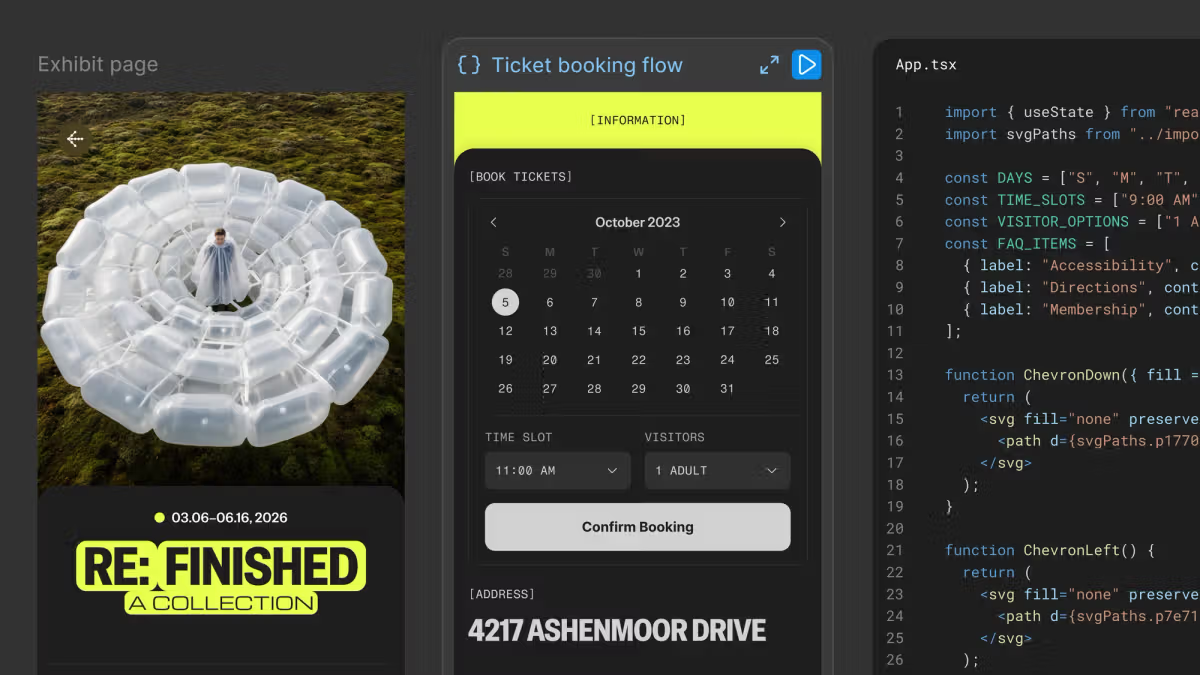
Welcome to Workflow Lab, where we present a sample workflow using Figma products and tools.Workflow fact sheet:Figma products: Figma Design, FigJamTools: Figma MCP server, Code Connect, use_figma, generate_diagram, search_design_system, generate_figma_design, get_variable_defsTeam: Product designer, design systems lead, software engineerQuestion to solve: What if your coding agent’s output could be production-ready sooner?The engineering team at Radicle, a fictional STEM learning app, is moving faster than ever. Work that used to take weeks now takes days, or even hours. Still, this speed isn’t getting them very far; their AI-generated code strays from design specs more often than not. The team gives their coding agent screenshots and dev tickets to work from, but it’s not enough to get the outputs right, and the team gets stuck reworking them.What if the first AI pass came back closer to production-ready? Given more design context to work from—like approved components and tokens documented in Figma—a coding agent can match your intent in fewer prompts. In this example workflow, a developer at Radicle uses Figma dev tools to give their coding agent better context so it can generate better code. Follow along to see how the developer keeps a new feature’s design and code in lockstep, from the first wireframe to final review.The problemThe Radicle team wants to refresh the inbox where students can message instructors and fellow students. First, they plan to add a new bulk-update flow, which will have three surfaces: a toolbar, a modal, and a toast (a temporary notification). The toolbar will let a user select all their messages, delete them, or mark them unread; the modal will ask them to confirm or cancel the action; and finally, the toast will show if the action was successful, with an option to undo it.The team’s designer creates each screen in Figma Design, and the developer on the project feeds these designs into their coding agent. They get code back fast—but the UI is off. The icons don’t match, the modal’s spacing is uneven, and the toast is missing its failure state. The developer could spend the afternoon reworking it. Instead, they take a step back and start over with Figma’s dev tools.Radicle's new inbox toolbar lets a user select all messages, mark them unread, or delete them.Planning before promptingBefore writing any code, the developer outlines the intended behavior of the screens, states, and transitions that define the new bulk-update flow. They feed the outline to their agent, along with the PRD and the code for the components that make up the inbox today. Using the generate_diagram tool with Figma’s MCP server, the developer then creates an editable diagram in FigJam that illustrates the flow across three surfaces:The toolbar’s “select-all” option checks off every messageThe “delete” option opens the confirmation modalThe toast’s “undo” button refreshes the dashboard to its previous stateThe diagram provides additional context the agent can build from while also giving the team something to react to before development begins. The developer shares the FigJam with their design counterpart and a design systems lead, who both leave feedback directly on the diagram instead of a Slack thread.Giving the agent a system to build fromOnce everyone signs off, the developer feeds the FigJam diagram to their coding agent through Figma’s MCP server, which gives the agent access to the components, tokens, and layouts in Radicle’s design system.If the developer just had a screenshot to work from, they’d be digging through the codebase for the right component, or pinging the designer to clarify details: whether that 12 px gap is the right spacing token, whether the button is the secondary one already in the repo, or if the modal is a new pattern or something the team already shipped. Instead, those answers are all in the file through Figma’s MCP server giving the agent all the design context it needs.The developer feeds the agent the FigJam diagram along with Radicle’s Figma library, giving the agent access to the right components, variables, and layouts.Connecting the design system to codeKnowing which component to use isn’t the same as knowing how it’s built. That part comes from Code Connect, which Radicle’s design systems lead sets up. Starting in Figma, they connect the library to the team’s GitHub repo so each component points at the file that implements it. Then, they write template files for components like buttons, icons, and modals in the codebase, mapping Figma properties to code properties.Now, the developer prompts the agent to build from their Figma selection, and Code Connect identifies which component to import. Instead of burning time and credits writing new code, the agent starts from the implementation blueprint that already exists.Code Connect links the selected Figma variant to its React implementation, giving the agent a component to build with.But the bulk-update selection state is new, so it’s the one piece Code Connect can’t map. Before building it from scratch, the developer prompts search_design_system, which looks across the team’s Figma libraries for an existing selection component. The agent identifies a similar one from a feature the team shipped a few months ago. From there, the agent finds that component in the codebase and adapts it for the bulk-update flow. The result is on brand and consistent with the rest of the Radicle app, and the agent doesn’t need to invent a pattern the team already built.Catching drift before it happensThe developer moves on to coding the confirmation modal. But while they’re working on it, the design team makes two changes: the modal needs to be a darker brand color, and its button has a new corner radius. The designer publishes the update in Radicle’s library and flags the changes in a ticket. Instead of making the changes manually, the developer asks the agent to check for drift.They prompt get_variable_defs in the coding agent, which returns the variables used in the modal, now reflecting the designer’s changes. The agent compares those against the tokens in code, finds both mismatches right away, and updates the modal.The agent checks for drift, finds the stale repository token, and replaces it with the right color.The path to productionThe developer has finished the toolbar, the message selection states, and the confirmation modal—all three from components the team maintains. That leaves the toast, which was created during the build, and so far only exists in code. It still needs a failure state. The developer prompts use_figma to put the toast on the canvas as editable layers, and the designer adds the missing state with a “retry” action. Then, the design systems lead publishes the new component and maps it to code with Code Connect. The toast now works like everything else in Radicle’s library.From there it looks like any other release. The developer opens a pull request, and the diff is mostly feature logic. Engineers review the code, and the designer checks a preview build.Figma’s MCP server and Code Connect give the agent access to the same system everyone works in, so the team can sweat the details that shape the user experience instead of reworking AI-generated code. More time building means better work, not just faster work.Start giving your agent better context by installing the Figma MCP server and connecting it to your coding agent of choice. Set up Code Connect for the components your team reuses most.Read all our blog posts in the Workflow Lab series to explore other ways of working in Figma.
Workflow Lab: Moving Between Design and Code With Agents | Figma Blog
Coding agents are reshaping how developers build, but they’re only as good as the input they’re given. This workflow explores how context keeps code and canvas in sync.
1,225 words~6 min read