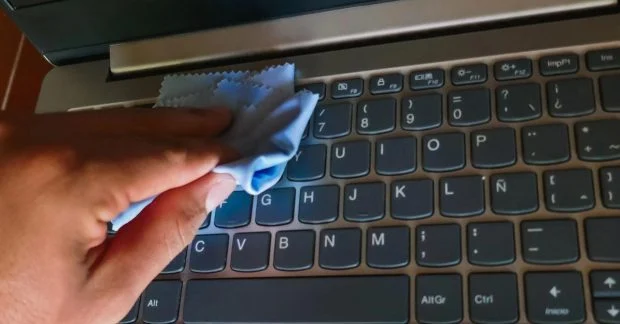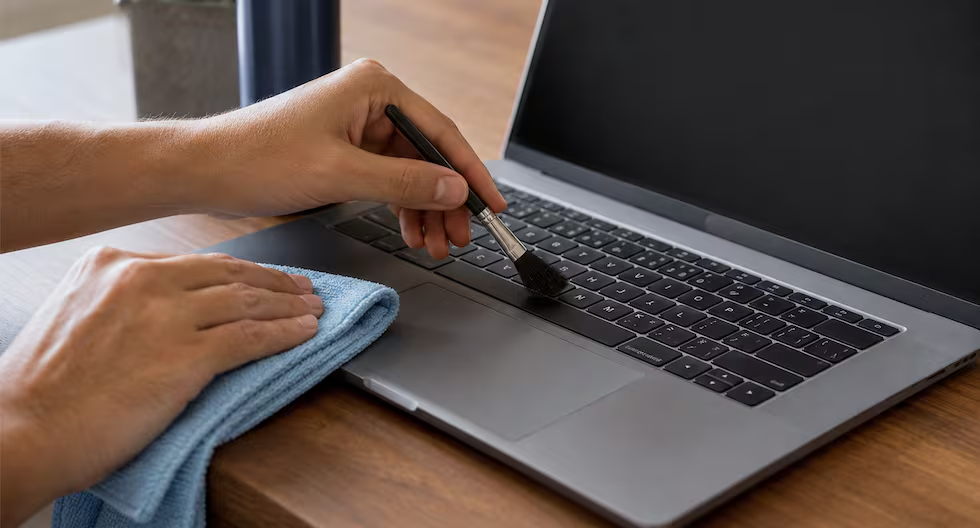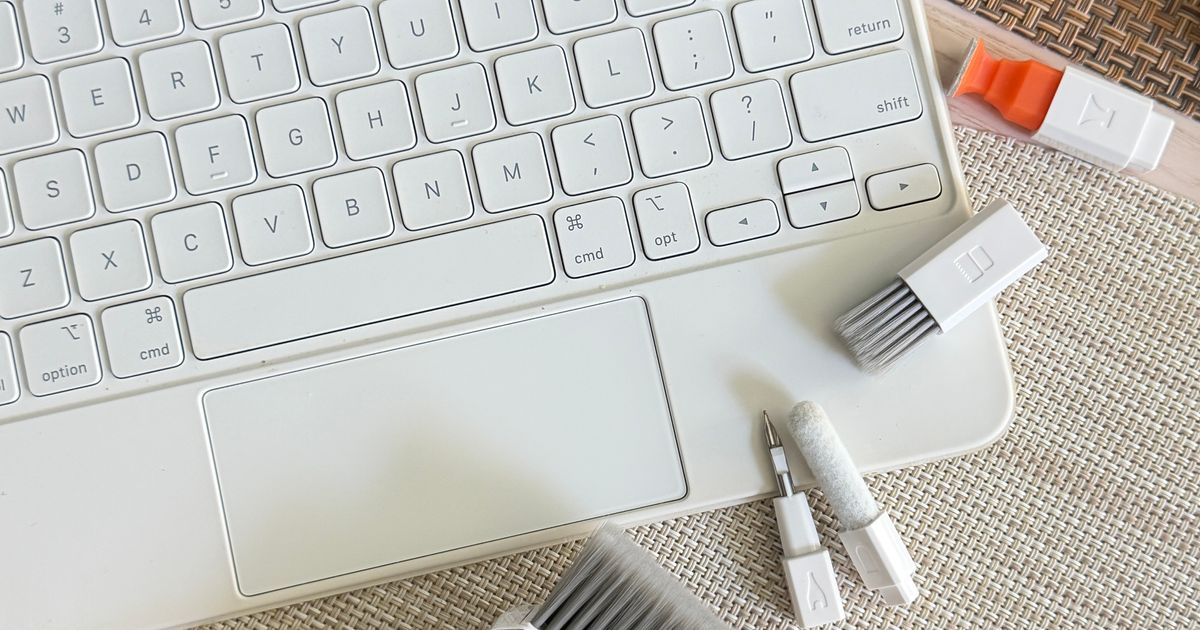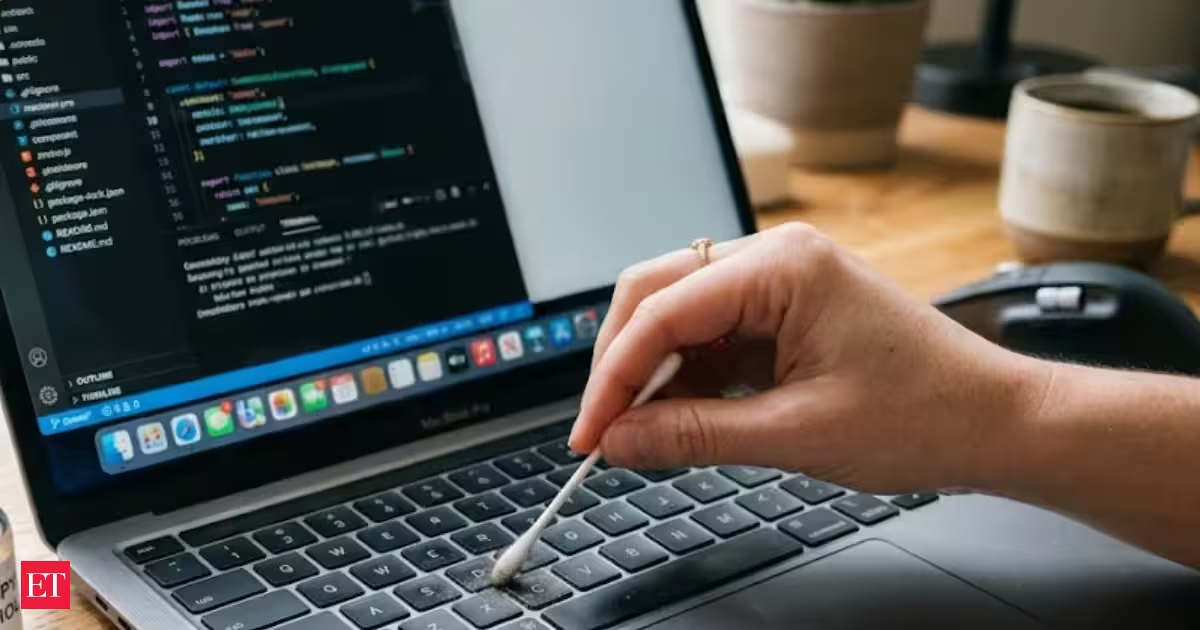
Your laptop may look clean at first glance, but take a closer look and you will probably spot dust hiding between the keys, around the trackpad and in those tiny gaps that seem impossible to reach. The good news? You do not need a cupboard full of fancy cleaning products to give it a quick refresh.A simple cotton swab can be surprisingly handy for tackling those little spots. Here are some easy laptop-cleaning hacks to try at home.Keyboard keys are magnets for dust, crumbs and tiny bits of fluff. Switch off your laptop and unplug it before cleaning. Run a dry cotton swab around the edges of the keys to pick up loose dirt.Read more - Dolly the sheep was named after Dolly Parton, but do you know the reason? Here’s how the world’s first adult-cell clone got its name from the country music legendFor stubborn dust, gently roll the cotton swab rather than pushing it into the gaps. This helps lift the grime without forcing it further underneath the keys.Get grime out of the trackpad edgesThe narrow border around the trackpad can collect skin oils, dust and everyday dirt. Use a clean, dry cotton swab to gently trace the edges.This little trick is especially useful for corners where a regular cloth can struggle to reach.Clean laptop vents carefullyLaptop vents can gather a surprising amount of dust. With the laptop switched off and unplugged, use a dry cotton swab to clean the outer edges of the ventilation openings.Do not push the cotton swab deep inside the vents. You want to lift surface dust, not send it further into the machine.Tackle dirt around USB portsThe areas around USB and other ports can become dusty over time. A dry cotton swab can help clean around the outside edges of the ports.Be gentle and avoid pushing the swab inside the port, as loose cotton fibres or debris could become trapped.Clean the laptop hinge areaThe hinge is another dust-catching spot that is easy to overlook. Open the laptop carefully and use a dry cotton swab along the accessible outer parts of the hinge.Do not force the swab into the hinge mechanism. A light touch is all you need to remove surface dust.Give the speaker grille a gentle cleanIf your laptop has small speaker openings, a dry cotton swab can help collect dust sitting on the surface.Instead of poking the swab into the holes, gently dab or brush across the grille. This is a simple way to freshen up the area without disturbing the speaker components.Clean around the power buttonThe power button and its surrounding edges can collect fingerprints and dust. A cotton swab is perfect for getting into the narrow border around it.Make sure the laptop is switched off before you start, particularly if you are cleaning close to buttons or openings.Remove grime from the laptop logoEven the laptop logo can collect fingerprints and dust, especially on glossy surfaces. Lightly wipe around the logo with a dry cotton swab to clean its edges.For a particularly delicate finish, check the manufacturer's cleaning instructions first.Avoid using too much liquidIt might be tempting to dip the cotton swab into water or cleaning solution, but less is more when it comes to electronics.For most of these quick cleaning jobs, a dry cotton swab is the safest option. If you need a damp cloth for the laptop's exterior, apply the cleaning solution to the cloth rather than directly to the laptop.A cotton swab can handle the tiny jobsThink of cotton swabs as a detail-cleaning tool rather than something for scrubbing your entire laptop. They are particularly useful for those small, awkward areas where dust and grime love to hide.Just remember to switch off and unplug the laptop, avoid pushing anything into ports or vents, and keep moisture well away from the electronics. A few gentle swipes can make your laptop look noticeably fresher without turning cleaning day into a major project.
Cotton swabs to clean laptop: How to remove hidden dust from keys, touchpad, vents and other hard-to-reach corners without damaging your device
Dust and grime can accumulate in laptop crevices and around the keys. Cotton swabs offer a simple way to clean these hard-to-reach areas effectively. Gently trace the edges of the trackpad and ports with dry cotton swabs for a thorough clean. Carefully clean the outer areas of laptop vents and speaker grilles, avoiding deep insertion. This simple method can give your device a quick refresh without the need for complicated tools.
652 words~3 min read