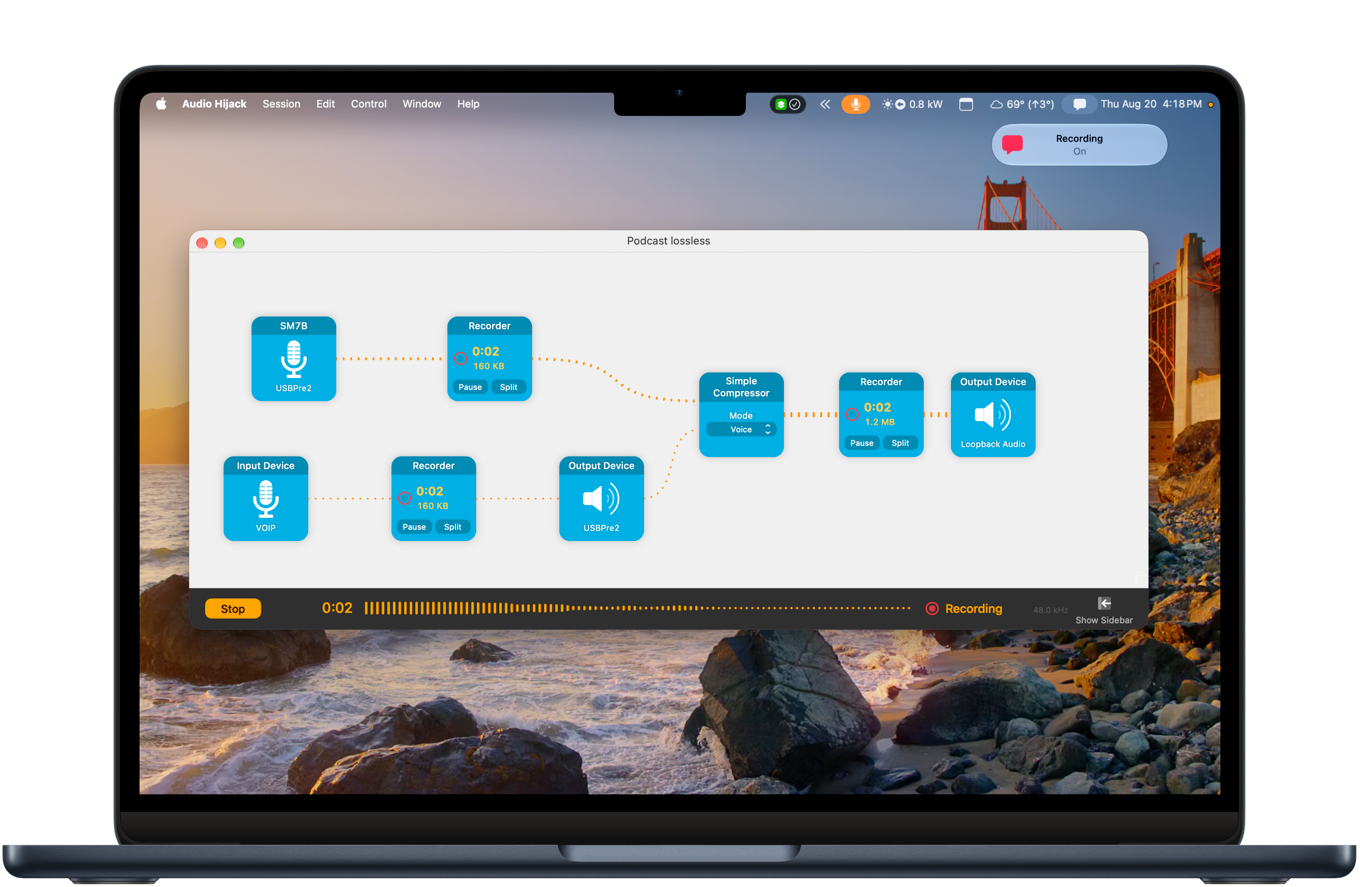
When I was visiting my pal Myke Hurley in London last year, I noticed that he had a second display to the right of his main one. It was large and mounted vertically, and when he recorded a podcast, he kept all his recording information over there. I liked the idea of monitoring my recordings while they were going on, just for extra peace of mind, and a second display seemed like the right way to do it.
If only I had a second display! But I do, of course, because my main Mac is now a MacBook Pro. So I’ve taken to recording podcasts using the “Hurley Method,” with my Audio Hijack windows positioned on the laptop display, off to my left.
It’s nice, but if you know me, I quickly became frustrated by the number of clicks and drags I needed to perform every single time I record a podcast: Open up my laptop, open Audio Hijack, open the list of recording sessions, double-click on the one I’m using right now, then drag the window over to the laptop display.
So today I automated it.
None of my automations work if I haven’t opened the laptop, and while it sits next to my Mac in a nice stand from Twelve South, it’s closed most of the time. So my first step before moving windows to the laptop display is to make sure that the display is available! Fortunately, there’s a command-line command for that: