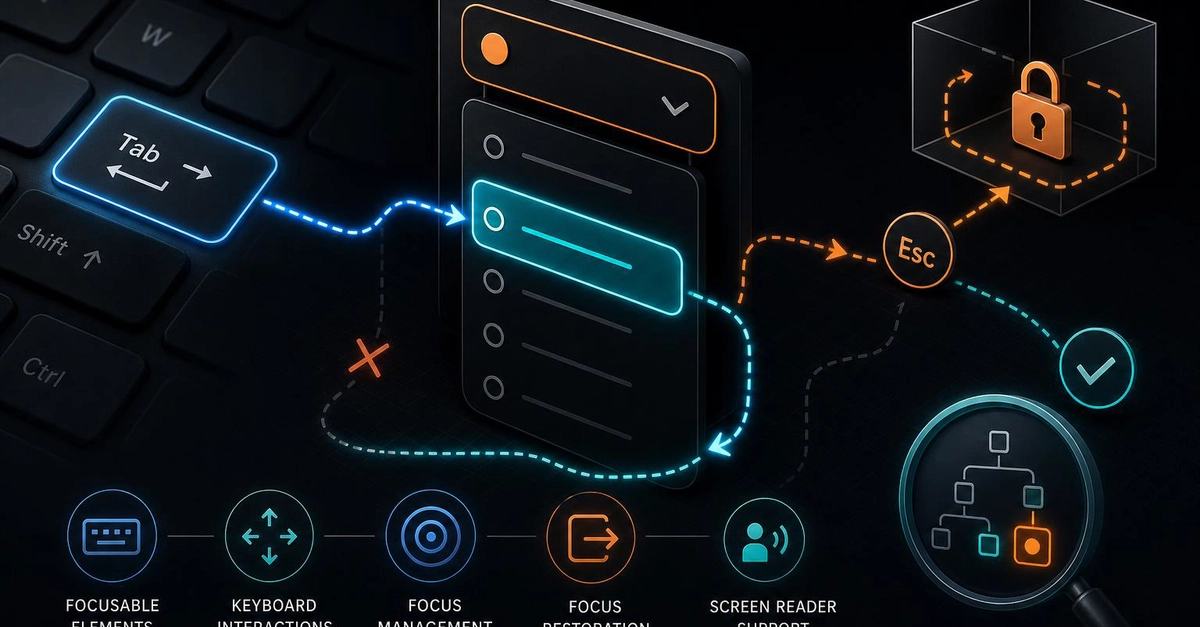
Ever tried tabbing through a custom dropdown or a fancy toggle switch you built, only to find the keyboard focus just skips over it, or worse, gets trapped inside with no way out? I’ve been there, frustrated by a UI that looked perfect but was a nightmare to navigate without a mouse.
Keyboard accessibility can easily slip through the cracks when you roll your own components. Native elements like <button> and <select> come with built-in keyboard behavior and focus handling baked in. Custom stuff? Not so much. You get the visuals, but the focus order, keyboard events, and screen reader cues? That’s all on you.
Let me walk you through the key challenges I ran into, how keyboard focus really works under the hood, and some concrete ways to implement and debug accessible keyboard navigation in custom UI components.
The focus trap: Why keyboard users get stuck or skipped
I once built a custom dropdown with divs and spans for styling freedom. It looked slick, but when I tested keyboard navigation, tabbing would jump right past it. Or sometimes the focus would enter the dropdown, but arrow keys didn’t move selection as expected. Worse, shift+tabbing out of the dropdown was impossible; the focus got stuck inside.