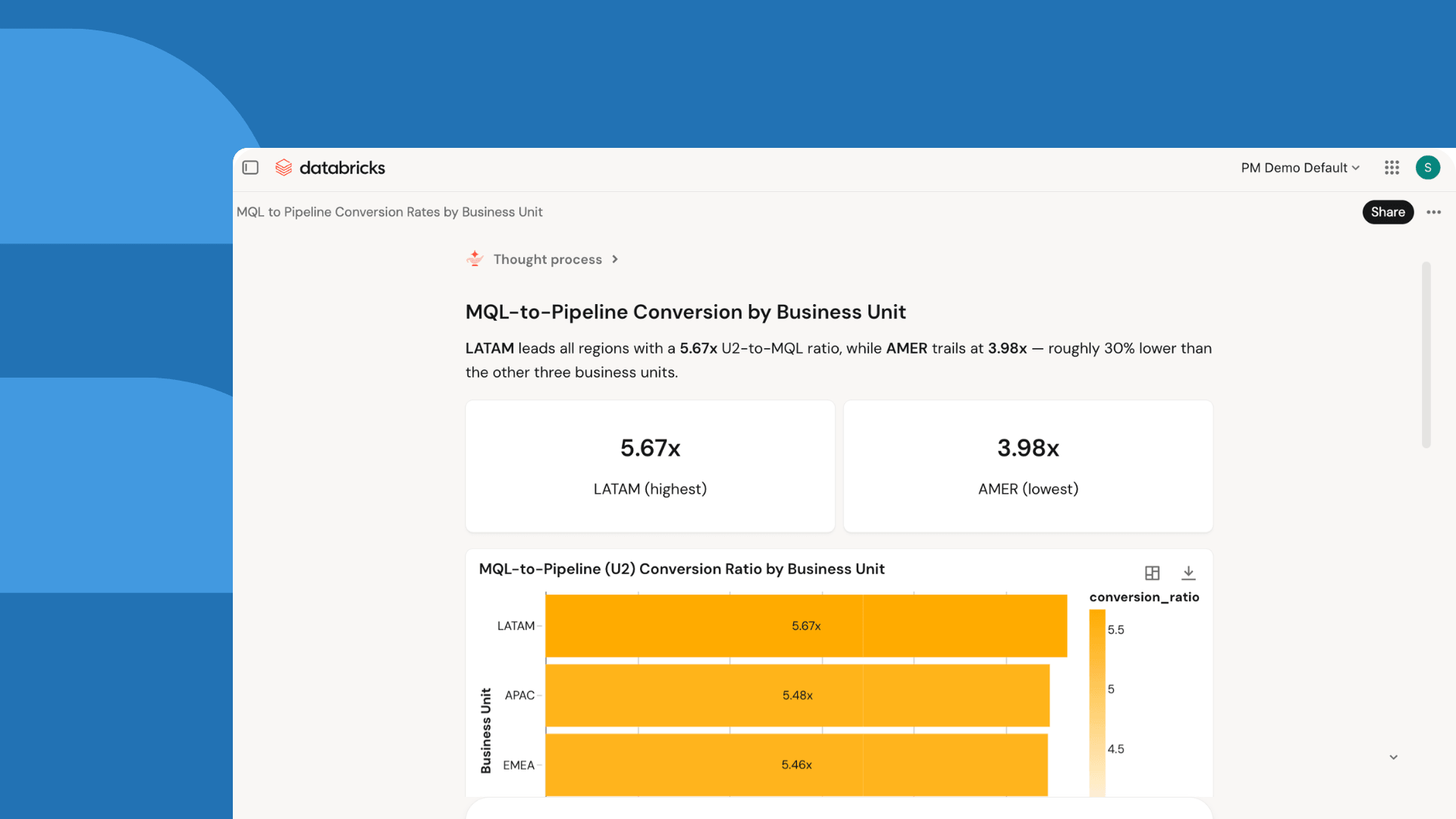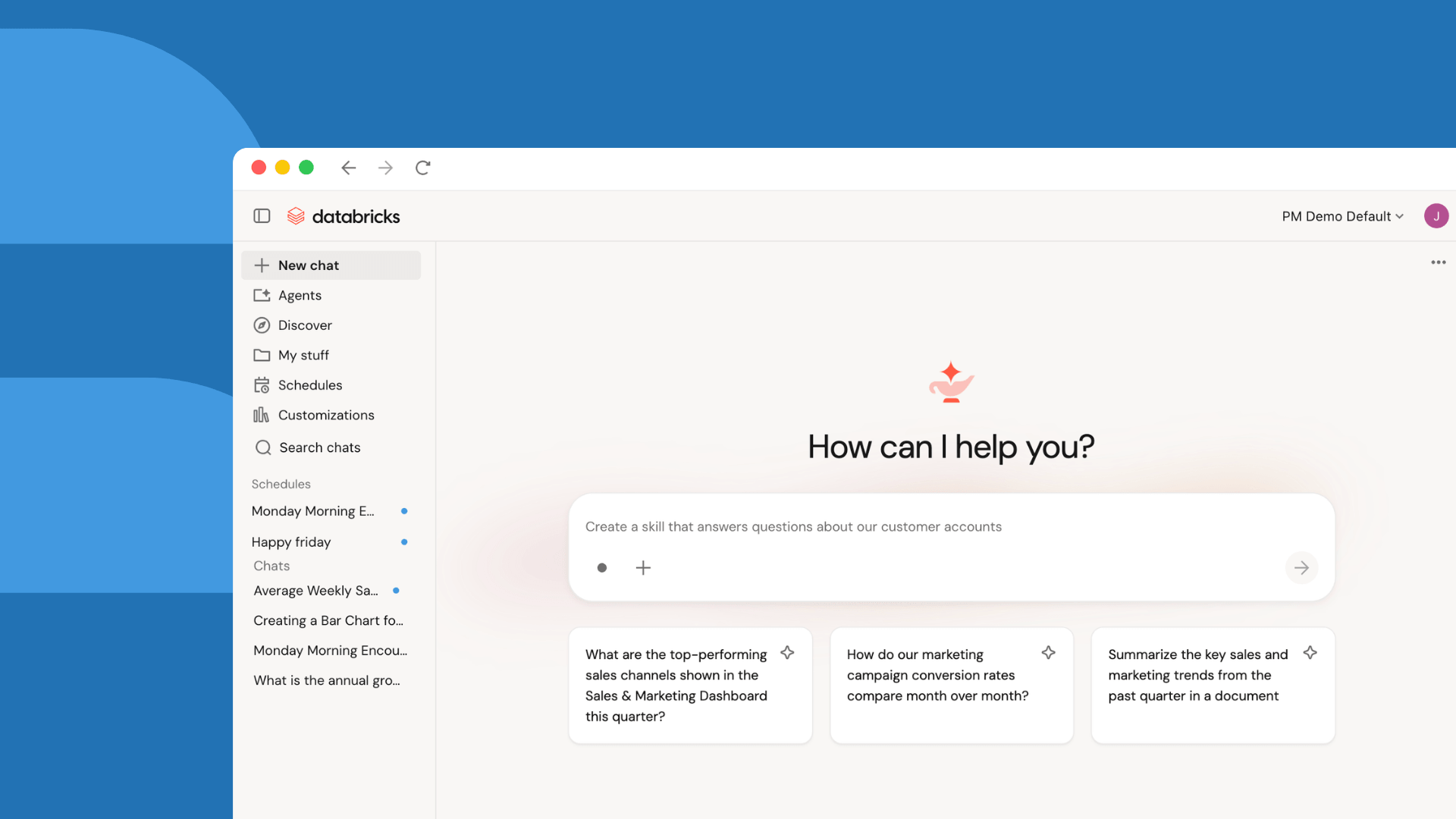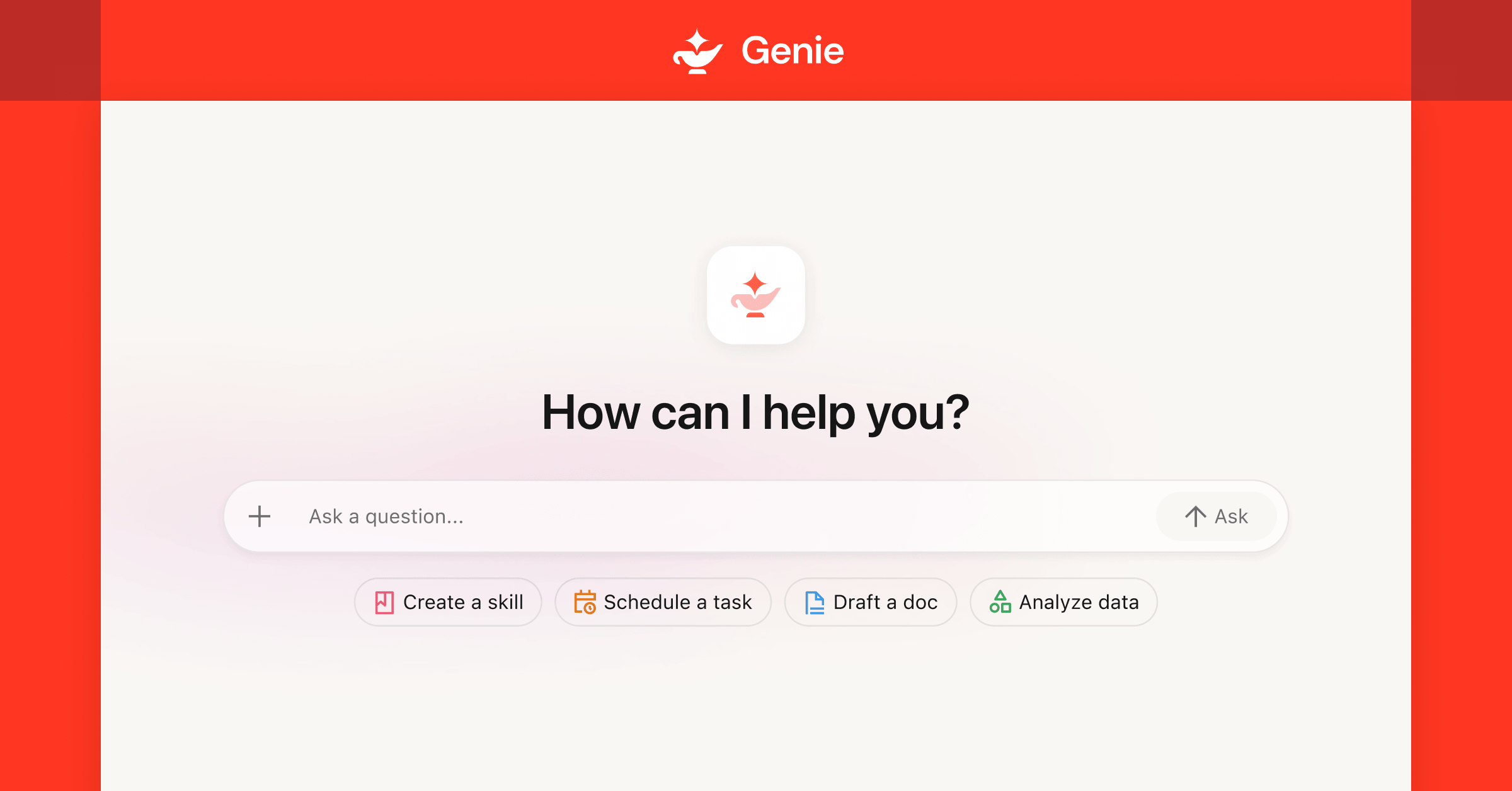
When most people think of AI helping their everyday work, a simple chatbot that answers questions or drafts text comes to mind. This can definitely be helpful for one-off tasks, but it isn’t enough to transform how business users actually get meaningful work done across calendars, CRMs, data warehouses, ticketing tools, and shared documents. Genie One is built for that reality: it’s a data‑smart, agentic coworker that operates across your existing systems, takes autonomous actions, and turns your company’s data into concrete outputs and actions in the tools you already use. Since Genie One is grounded in all of your company data, it innately understands how your business actually runs—which tools to use, which definitions are authoritative, and which rules apply to certain scenarios. In this post, we’ll walk through four practical Genie One workflows that business users can set up in minutes to automate high‑value, recurring work.1. Automated Business Reviews and ReportingAnyone can relate to the slog of spending hours manually compiling updates for regular business reports. Save yourself time by having Genie One assemble your recurring business reviews (e.g. monthly/quarterly reports, scorecards, trends) so you can focus on interpretation and insights instead of manual data pulling.How to do it step‑by‑step with Genie One(If needed) Connect external data sources. If Genie One is missing access to any of the data needed to compile your report (Teams, Slack, Google Drive, Jira, Confluence, etc.), you can connect your sources yourself. This enables connection on a personal level, not for your whole organization. If these aren’t available to you, ask your admin.Identify your standard format. Share a link to your last report with Genie One chat, and type “Use this structure for future responses.”Explain the sections and metrics. Explain your report to Genie One in natural language.Run a test. Now that Genie One knows your format and has access to the right data, run a practice report by telling Genie “run the report for last month.” Schedule your report. Once you’re happy with the output, instruct Genie One: “Run this report every 2 weeks on Thursdays, starting on X date.” Be sure to instruct Genie One with any specific instructions related to time, such as if you want the past 30 days or the calendar month to be reflected in your report. Share as needed. When your report runs, you can copy results into your preferred format, or share the link directly with your team. Over time, you can refine how your report runs: add new metrics, adjust thresholds, or change how visuals are laid out.2. Meeting Prep and Follow‑UpPreparing for meetings and tending to follow-up items can feel like its own full-time job. Save time by using Genie One as a meeting assistant that prepares context and captures next steps, so you spend less time on project management and more time on decisions.How to do it step‑by‑step with Genie One(If needed) Connect calendars and work apps. You’ll need to make sure the right connectors are enabled for Genie One—you can toggle these on directly from your Genie One home screen. If these aren’t available to you, ask your admin. Test the connectors by asking Genie One, “what meetings are on my calendar for today?”Define your meeting briefing template. You can either click [Create skill], or type /create-user-skill. Then, explain what you want before each meeting in plain language. For example, “Give me a brief of all of my meetings for the day. For internal meetings, give me a list of attendees and topics only. For customer meetings, pull any related support tickets that are open, and give me a status of each.”Generate pre‑meeting briefs. When you’re ready to start your day, call your skill by typing “/” into Genie One, and click on your skill from the menu that appears. Then, simply press enter to get a full brief of your meetings for the day. Capture notes and decisions. You can also create a skill to help you follow-up after meetings. To build, share your notes or AI-generated transcript with Genie One (via Google Drive, SharePoint, or text copy-paste) and say: “Summarize decisions, action items, owners, and due dates.” If meeting notes are auto-generated in a tool that's connected, Genie One can search for those and pull them in automatically. Then, tell Genie One “save this as a skill called ‘meeting follow-up’.” Schedule a daily routine. Ask Genie One to run your ‘meeting briefing’ skill every morning, and your ‘meeting follow-up’ skill every evening after your meetings are done. Your results will be sent right to your inbox, so you can review the day ahead and summarize once it’s over with confidence.
Get Started with Genie One: Top AI Cowork Use Cases for Business Users
Learn five practical Genie One workflows business users can set up fast—from reporting and meeting prep to document automation, alerts, and reusable AI agents.
TL;DRAI
Genie One automates business reviews, meeting prep, and document workflows across enterprise data systems. For IT leaders, this marks the shift from Q&A chatbots to autonomous agents—workflow automation is becoming the key enterprise AI GTM lever.
1,391 words~6 min read