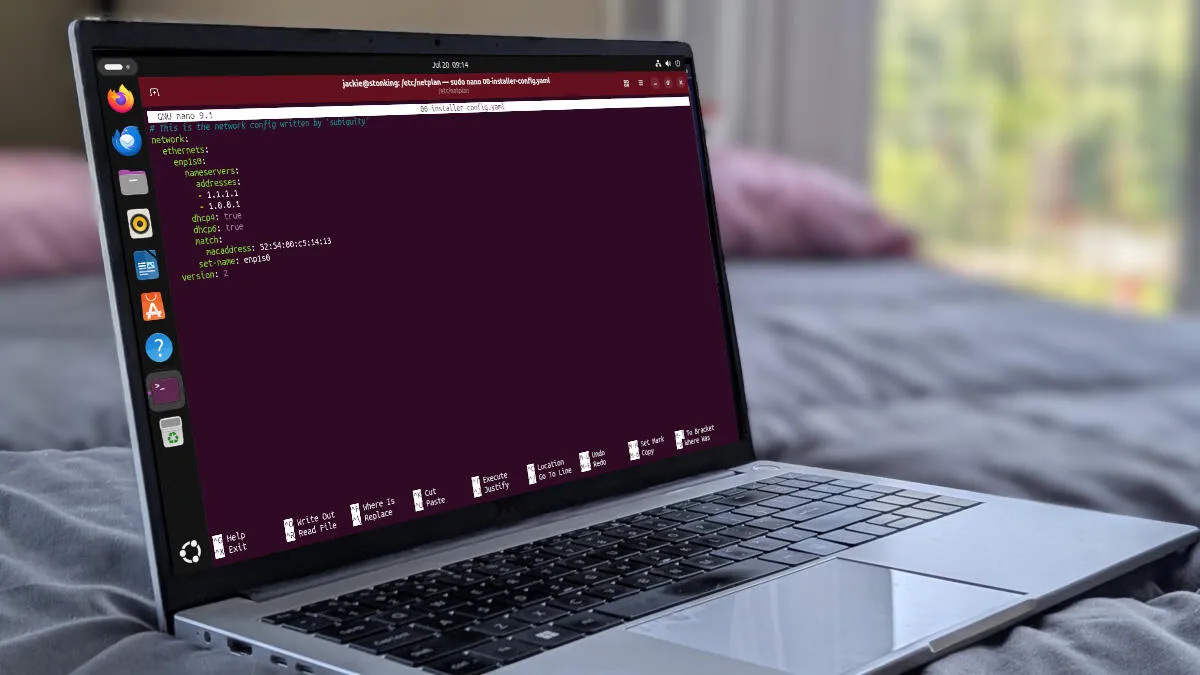
Jack Wallen/ZDNETFollow ZDNET: Add us as a preferred source on Google.ZDNET's key takeawaysI use Netplan to customize DNS on Ubuntu-based distros.This CLI method may be daunting, but you'll see its power.This method can be used on desktops and servers alike.Every once in a while, you might find yourself in a situation where you need to change DNS providers, and you don't have access to a desktop GUI. You might be dealing with a PC remotely, an at-home server, or maybe you just want to up your Linux skills. Either way, you might want to know how to configure DNS with the Netplan tool, which is the command-line system for configuring networking on Ubuntu-based desktops. Before we get into it, know that configuring DNS the GUI way is very easy, so if you have access to a desktop environment, you could do this without ever touching the command line. If, on the other hand, you've used SSH to remote into a machine (or the machine simply has no GUI), be glad the command line method is almost as easy (as long as you have at least a modicum of experience with the command line). Also: 7 Linux commands I can't live without after 20 years in the terminalFortunately, it's not as hard as you think. All you need to do is edit a single file. Do note that this does work, whether you have your system set up for a DHCP IP address or a static IP address. What is Netplan? Netplan is used for network configurations on Linux systems. With this tool, you create a description of a network interface, define what it should do, and then apply it. Netplan files are laid out in YAML configurations and can be used on server, desktop, cloud, or even IoT installations. It is also capable of controlling various backends, such as NetworkManager and systemd-networkd. Netplan is configured via files within the /etc/netplan directory, where you may or may not find multiple YAML files. Most desktops using DHCP will only have one YAML file, but it's not out of the ordinary to have multiple files. Also: 5 reasons you should ditch Windows for Linux todayThe layout of the config file is typical YAML, where you'll have a description of an option on the left side of a colon and then the option on the right, such as: dhcp4: true Keep in mind that YAML is very picky about indentation, so make sure you follow the indentation layout of the file you are editing. If you get an error when applying a configuration file, most likely it's caused by improper indentation. Also: Linux desktop frozen? My 5 go-to tricks to try - before forcing a hard rebootAnother issue to think about is that on the desktop, your DNS is probably controlled by NetworkManager. You can override that functionality (to give you more flexibility) by adding the following to /etc/NetworkManager/NetworkManager.conf dns=none rc-manager=unmanaged Save and close the file. Restart NetworkManager with: sudo systemctl restart NetworkManager With that said, let's configure. Configuring the Netplan file Let's assume you'll be using Cloudflare's secure DNS addresses of 1.1.1.1 and 1.0.0.1. Open your terminal app and change into the netplan directory with:
How I configure DNS on Ubuntu Linux distros via the command line - it's easier than you think
DNS is a critical component for PC networking, searching, and security. If you want to learn how to set it up on Ubuntu-based distros from the command line, here's how.
835 words~4 min read