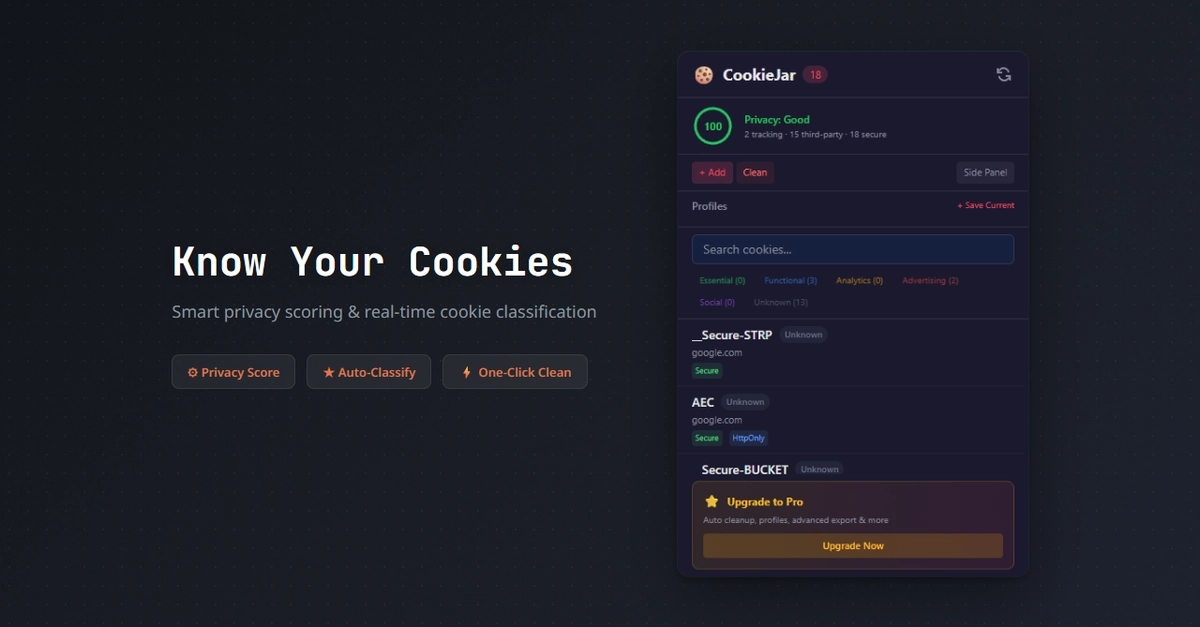
Do you "accept" or "reject" that cookie request? Browser cookies don’t just remember your login details: They can track your browsing history across websites, follow you around with specific ads, or even hijack your active browser session to log into your accounts without a password. On the other hand, if you don’t click accept when you see a cookie banner, that can affect your browsing experience—many websites need cookies to function normally. Luckily, cookie management isn’t just a binary choice any more. You can choose which cookies to accept on a website, auto-delete cookies after a set amount of time, or even switch between browser profiles to control which cookies stay active during a session. Switch on Device Bound Session Credentials in Chrome
When an attacker steals your session cookies, they can bypass the requirement for passwords or multi-factor authentication and get into your logged-in accounts right away. Websites think it’s you accessing an account you already logged into, so they don’t ask for credentials again.
DBSC (aka Device Bound Session Credentials) is a Chrome feature that restricts your session cookies so that they apply to your current physical device only. A hardware boundary is established, preventing hackers from replaying your session cookies from a different device. DBSC is turned on by default in Chrome, but you need to be using version 146 or above and enable TPM on Windows for it to work. Install the official Multi-Account Containers add-on for Firefox