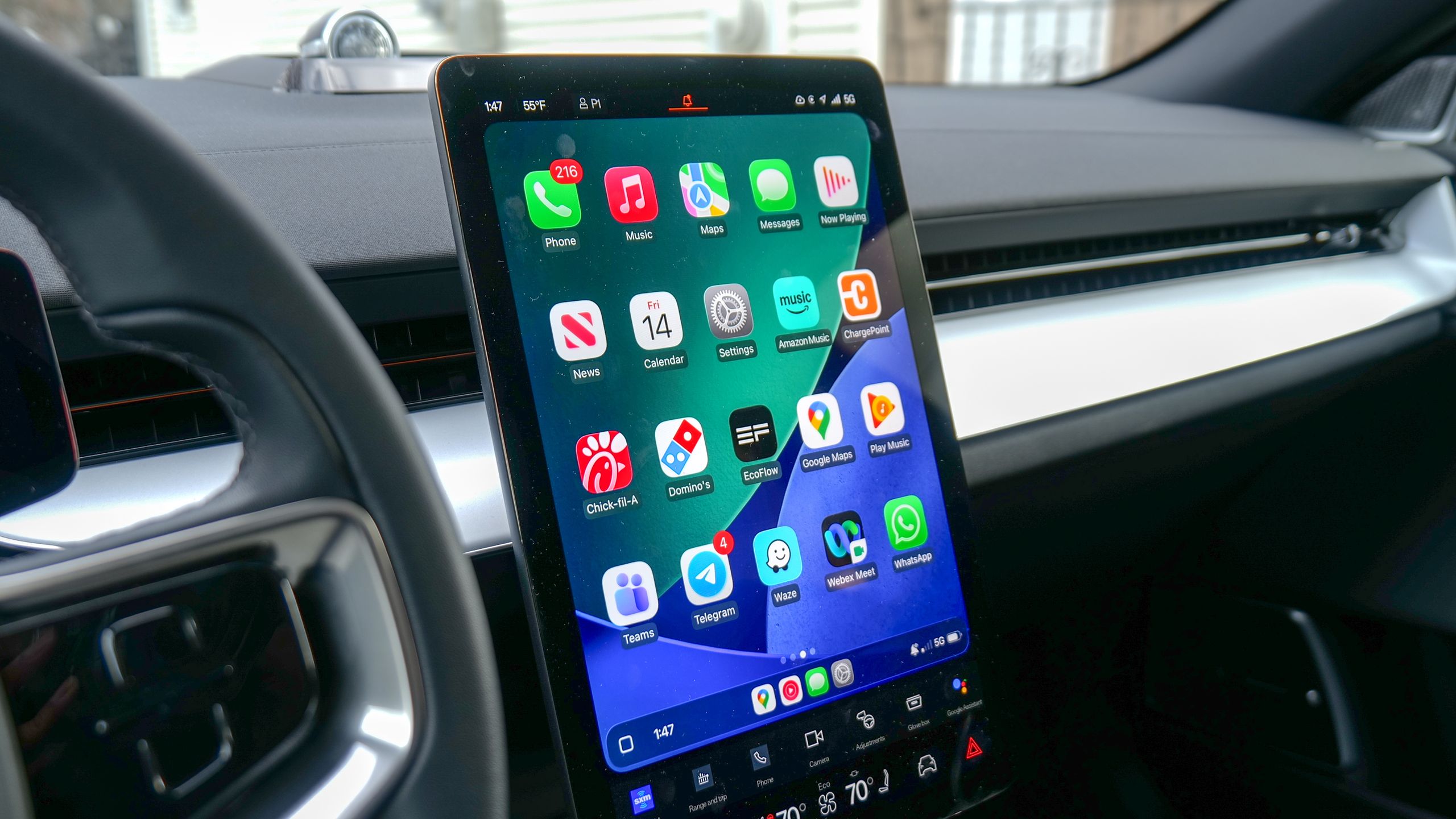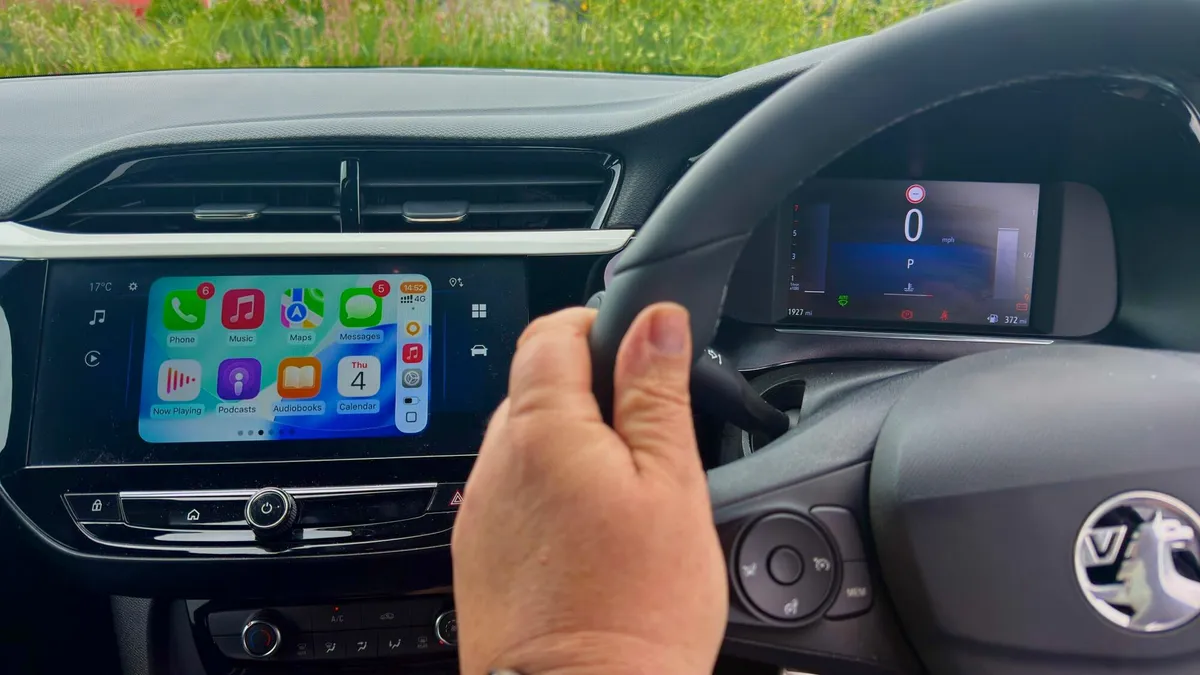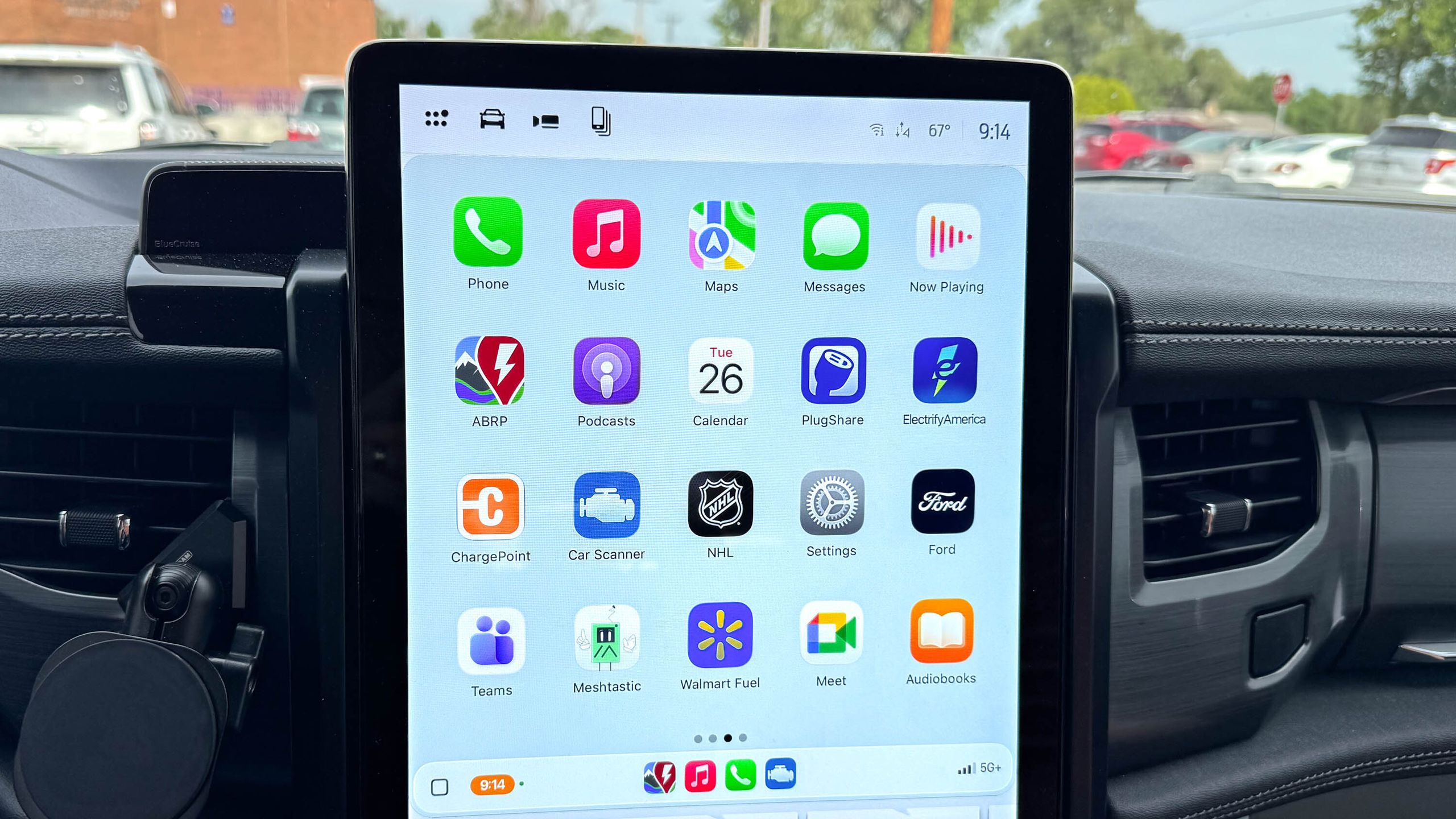
(Image credit: Tom's Guide / Jason Cipriani)
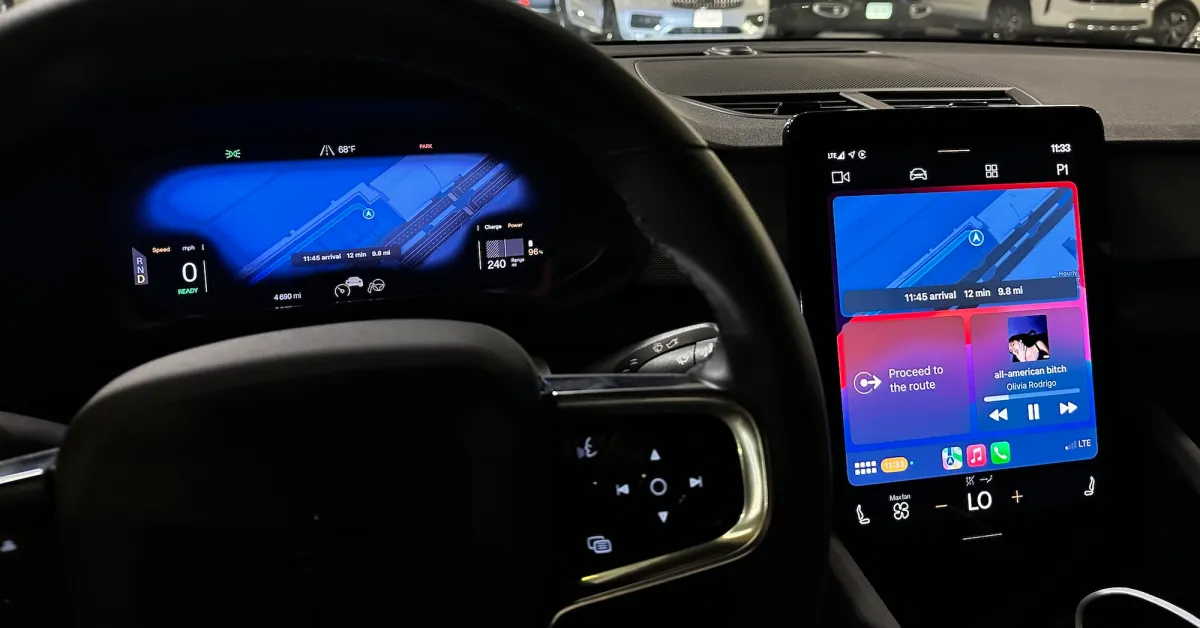
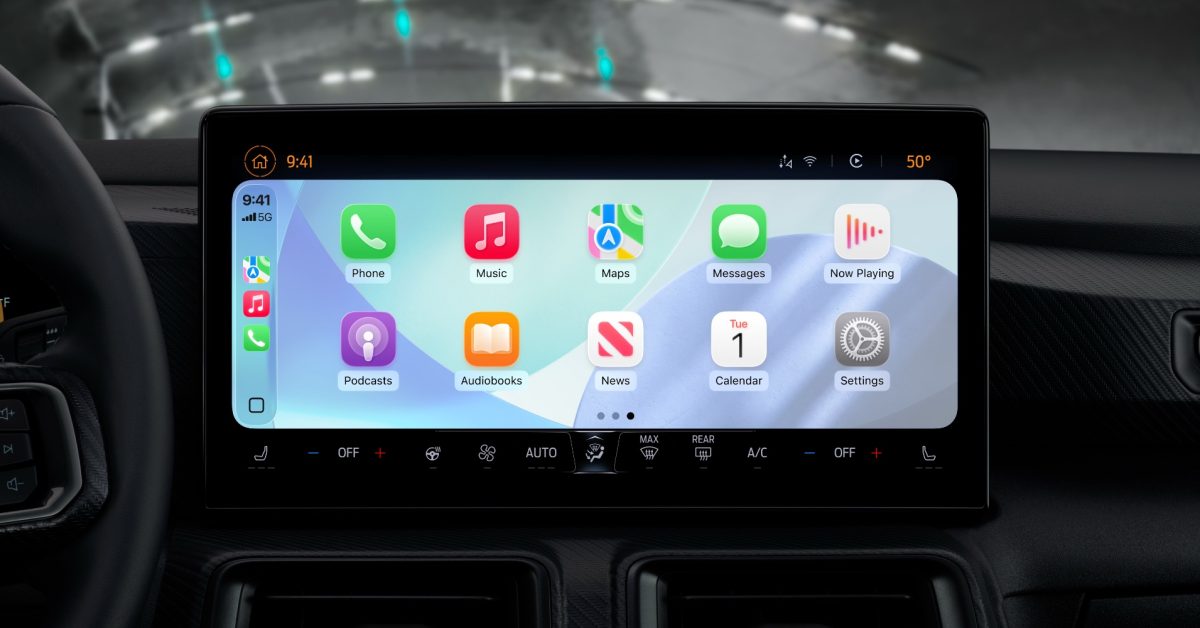
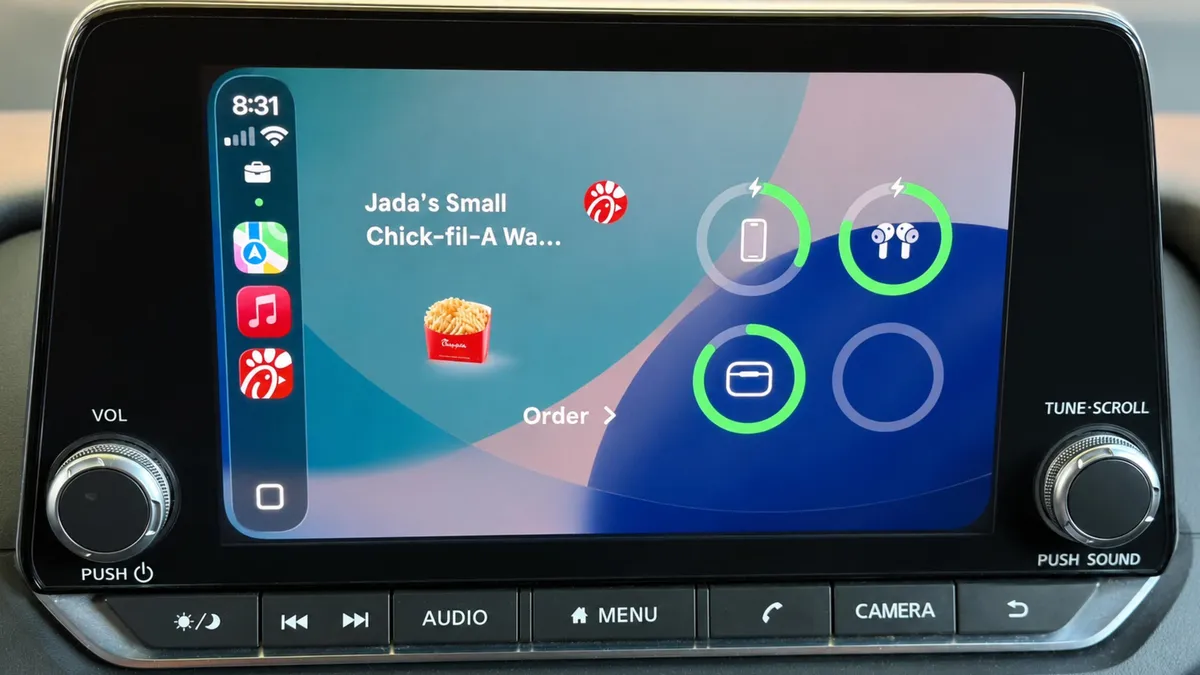
One of the more annoying aspects of CarPlay is how any and all compatible apps are automatically displayed on your vehicle’s screen — whether you like it or not. For example, ChatGPT recently added CarPlay support to its iPhone app, and now I have the AI giant’s icon on my screen. I’ll never want to talk to AI while driving down the road, especially when I barely like talking to Siri to send a text message.Adding to the frustration, there’s really no rhyme or reason to the order the apps are put in. It's annoying. If you're like me and despise the unorganized look of your CarPlay dashboard, I’ll guide you through on how to add, remove, and rearrange apps in Apple CarPlay.How to rearrange CarPlay apps
1. Go to your iPhone Settings
You don’t need to follow these steps while using CarPlay in your vehicle. You can do it right now, without your car anywhere nearby. To start, open the Settings app on your iPhone.
2. Select General in Settings