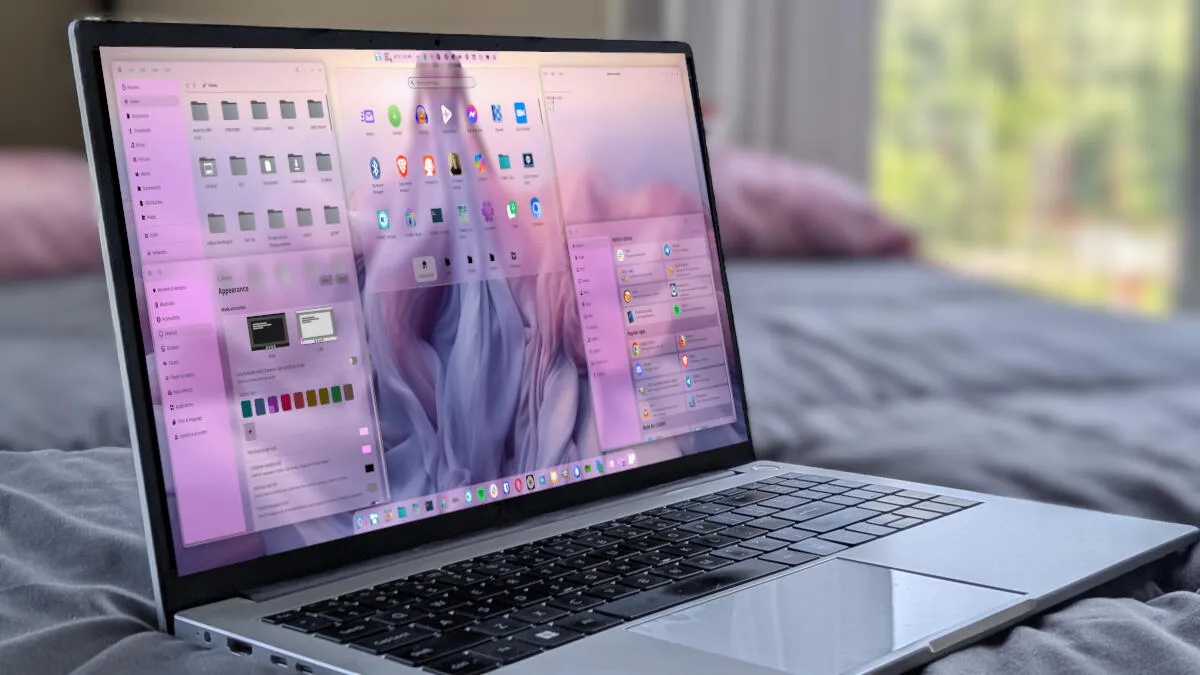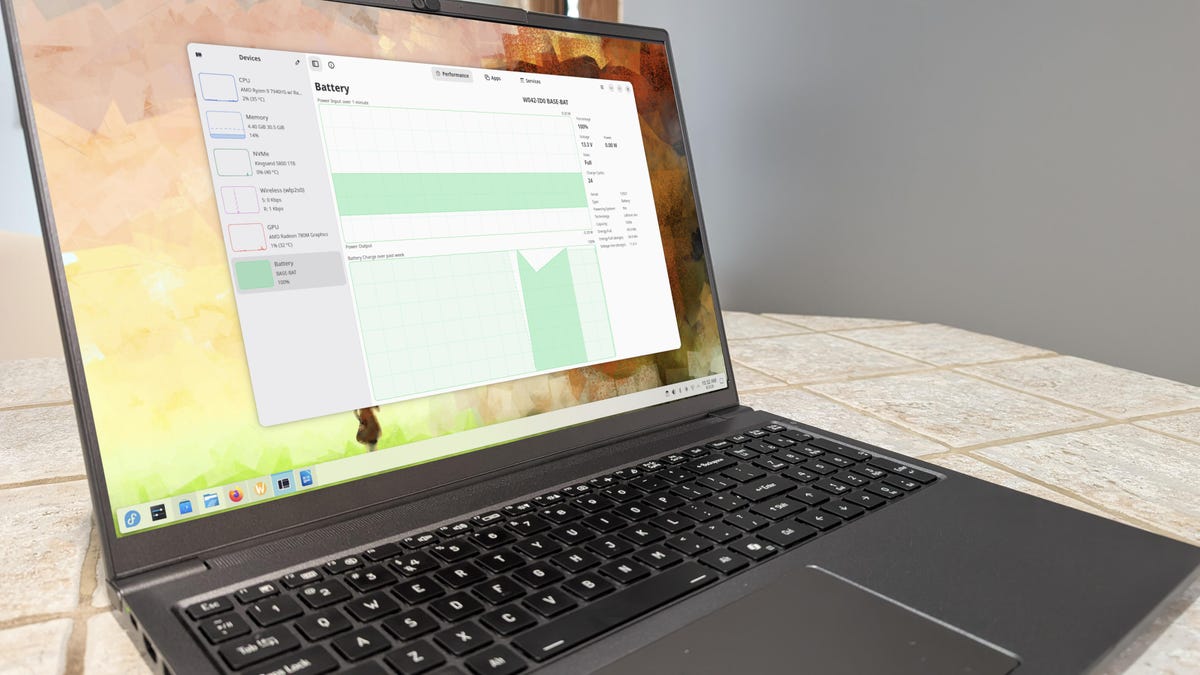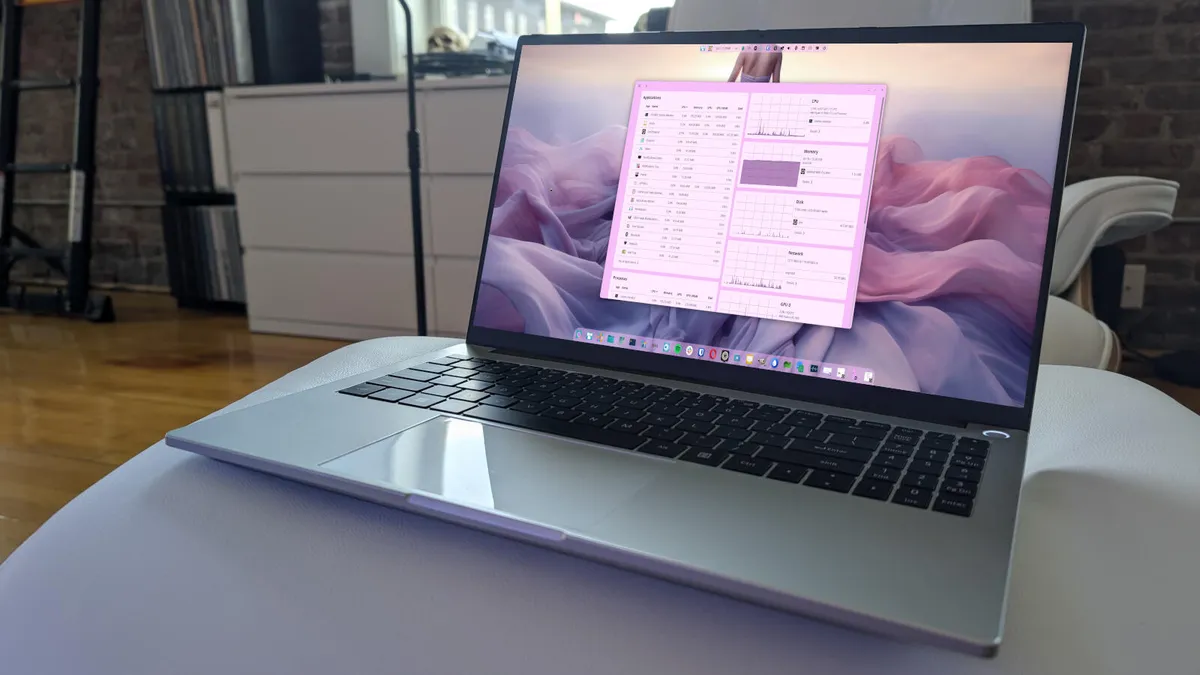
Jack Wallen/ZDNETFollow ZDNET: Add us as a preferred source on Google.ZDNET's key takeawaysSystem76 has created a brilliant system monitor.This tool is built specifically for the COSMIC Desktop.With the perfect amount of information, this monitoring tool is ideal.Linux users love to view the processes running on their machines. They like to make sure the system is running as expected, see how many system resources an app is consuming, view network traffic in and out, get information about GPUs, and more. To that end, there are several GUI and command-line tools for not only locating that information but also managing the processes that might be causing problems. There's GNOME System Monitor, Plasma System Monitor, MATE System Monitor, Mission Center, Conky, Resources, Stacer, Htop, Glances, and more.Also: I've tested many portable Linux distros, but PorteuX is the one I keep on my USB driveAnd now there's COSMIC System Monitor, a lightweight system monitoring tool that integrates with the COSMIC Desktop. The app displays real-time system metrics for users who want to keep track of system performance without using slow, bulky, or cluttered apps.COSMIC System Monitor is very much in line with the desktop it represents: it's faster than the competition, well-designed, and gives you all the information you need.As the name implies, however, COSMIC System Monitor was designed specifically for the COSMIC Desktop, so if you want to use it, you'll need to use COSMIC. Yes, you can install it on other distributions, but the process is not exactly easy. You have to install Rust, cargo, just, and several development libraries, clone the repository, and then build and install. It's not worth the trouble.What COSMIC System Monitor monitorsCOSMIC System Monitor monitors everything you'd expect it to, including applications, processes, process utilization per core, CPU usage, memory usage, disk usage, network download/upload speeds, GPU, and temperature. You can also click on a feature to expand the view.Also: Why Déjà Dup and these 4 other tiny Linux tools have become essential to my daily routineFor example, by default, you'll see a widget displaying CPU usage. If you click Details in that widget, it expands to give you even more information, such as process utilization per core. Look at all of the information you get. Screenshot by Jack Wallen/ZDNETClick on Memory, and you can also see swap usage. If you need to see how much memory is being consumed, here's where to look. Screenshot by Jack Wallen/ZDNETOther information you'll see in the Details section for each widget includes:Receiving and sending usage for all attached network cards in Network.Read/write speeds, processes, and temp in DiskGPU Utilization, GPU VRAM, and processes in GPUPID, CPU, Memory, GPU, GPU VRAM, Disk, and Priority in ProcessesUser, CPU, Memory, GPU, GPU VRAM, and Disk in ApplicationsAlso: The first 5 Linux commands every new user should learnIf you want to kill a process (such as those associated with an application), you click Details in the Processes widget, locate the process you want to kill, and then click either Quit or Force Quit (if Quit isn't working). Force Quit is a powerful tool, but you should use it only when you're certain a process needs to go away. Screenshot by Jack Wallen/ZDNETCOSMIC System Monitor is designed and built so well that it makes viewing system resource information and managing processes easy enough for anyone. Although there is a Settings feature in COSMIC System Monitor, you can only customize the theme, which lets you choose from "Match desktop," Dark, or Light.I'll admit that I'm not the process/data fanatic that I once was. I used to keep Conky running on my desktop, so I could quickly view system resources. Nowadays, I really only need to use a system monitor when something goes wrong, which is not very often. Also: Got a spare PC? How to open-source your smart home - for freeHowever, should something go wrong, I'll be glad to have COSMIC System Monitor at my fingertips. If I wanted, I could even leave the app open on a secondary monitor. Since the app honors the system theme I've created in COSMIC, it fits right in. In fact, since I started testing COSMIC System Monitor, I've done just that, so if I need to know what's going on under the hood, all I have to do is turn my head to the left, and all the information I need is staring right back at me.If System76 continues creating apps this helpful and elegant, I can't imagine ever leaving Pop!_OS and COSMIC Desktop.
If you like COSMIC Desktop, you'll love its new system monitor
If you like to see and manage your system processes on Linux, but aren't happy with the tool you're using, System76 might have just the app you've been looking for (and a reason to switch to either COSMIC Desktop or Pop!_OS).
746 words~3 min read