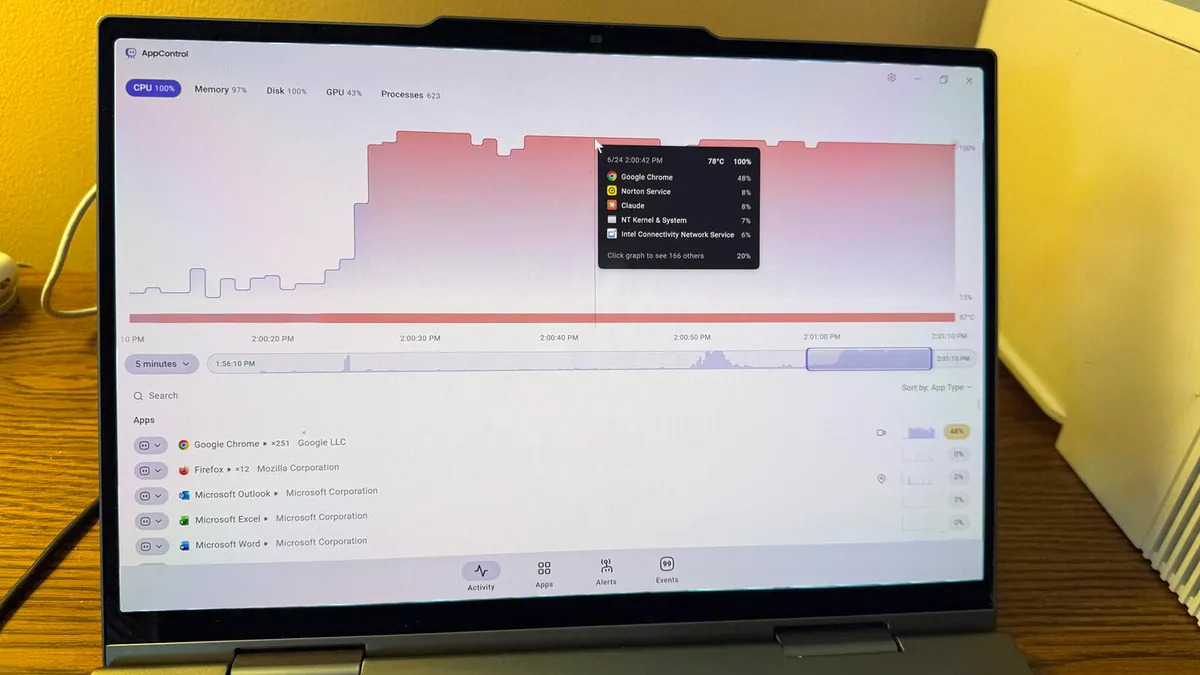
Lance Whitney/ZDNETFollow ZDNET: Add us as a preferred source on Google.My Windows PC sometimes bogs down, running much slower than usual. Whatever activity I'm trying to accomplish stalls or freezes momentarily. Often, the only solution is to reboot. But that doesn't fix the underlying problem. Instead, I've been using a free Windows utility that can pinpoint which apps and processes are hogging memory and system resources so I can deal with the culprits.Known as AppControl, this tool displays a list of all running apps and processes and shows you how much CPU, memory, and other resources they're using. At the main menu, you're able to view details on an app or other file so you know what it does. From there, you can disable or kill a certain process to see if that jolts Windows back to life. Also: After setting up Windows 11, these 9 steps are non-negotiable for meIf AppControl sounds like the built-in Windows Task Manager, that's on purpose. Both tools will show you running apps and processes and allow you to shut down any that are chewing up resources. But AppControl offers a host of additional features and options. While Task Manager can display only the current status of running apps and processes, AppControl keeps a running count as far back as the last three days. This means you're able to view the recent history of a specific app or process to track its behavior over time. The tool also clues you in to any software updates that run in the background and any new or unsigned applications that pop up. AppControl tracks CPU and GPU temperatures so you can tell if your PC is running too hot. And with a nod toward privacy, AppControl even tells you if any apps are accessing your webcam, microphone, or location. Also: You can fix most Windows 11 issues by double checking these 4 settings firstPlus, AppControl is more than just a static tool. With the software itself residing in memory, you're able to set up alerts to notify you of certain events, such as camera access, changes to a Windows service, or an unsigned app launching in the background. As one more bit of icing on the cake, you can ask an AI assistant like Claude to analyze and answer questions about any behaviors captured by AppControl. Claude responds to your system-related requests by accessing data from AppControl in the background, so you don't even have to directly interact with the tool when using AI this way. How to use AppControl on your Windows PCHere's how AppControl works and how to use it if you bump into system slowdowns or related issues. Screenshot by Lance Whitney/ZDNET Screenshot by Lance Whitney/ZDNET Screenshot by Lance Whitney/ZDNETAlso, by default, the list of apps is sorted based on type, but you can change that as well. Click the drop-down box next to "Sort by" to switch the order to memory usage or publisher. Screenshot by Lance Whitney/ZDNET Screenshot by Lance Whitney/ZDNETClicking the Alerts icon displays all events for which you'd receive an alert. You can add other alerts, including those for apps that get updates, apps that track your location, new apps, and new suspicious apps. You're also able to turn alerts off and on or pause them for three hours. Screenshot by Lance Whitney/ZDNETClicking the Events icon reveals a list of all tracked events that have occurred over the past three days. Selecting a particular event shows you more details about it. Screenshot by Lance Whitney/ZDNET Now, let's say your PC is running much slower than usual. You've loaded a bunch of apps and want to see which one may be triggering the slowdown. With AppControl open, hover over any spikes in the activity graph to see which app is chewing up the most CPU and memory. Select that app in the list. You then have a few different options.You can try to shut down the app normally to see if resources are freed up. If a browser is causing the slow performance, you can simply close a number of open tabs. If the app itself is frozen, or performance doesn't significantly improve after you close it, return to AppControl. Make sure any work in the app is saved, and then click the Kill button. That should release all resources used by that app.If the app has a history of causing trouble, you may want to click the Disable button to prevent it from starting until you're able to investigate the issue.Also: The 11 Microsoft apps I ditch on every new Windows install - and the 11 I keep
This free Windows tool shows exactly why my PC is slowing down (and it beats Task Manager)
AppControl reveals which apps are chewing up your memory and system resources - so you can better control them.
1,044 words~5 min read