Headphone volume creeps up over time. You start at a reasonable level, then gradually increase it to compensate for ambient noise, distraction, or just habit. Before you realize it, you're listening at levels that damage your hearing. The damage is permanent and often goes unnoticed until it's too late.Your phone has built-in settings designed to prevent this. Both Apple and Google included hearing protection features that either cap volume automatically or alert you when you're pushing into dangerous territory. Many people never actually find these settings because they're buried in menus designed for accessibility.Here's where they are and how to enable them.
iPhone hearing protection settings
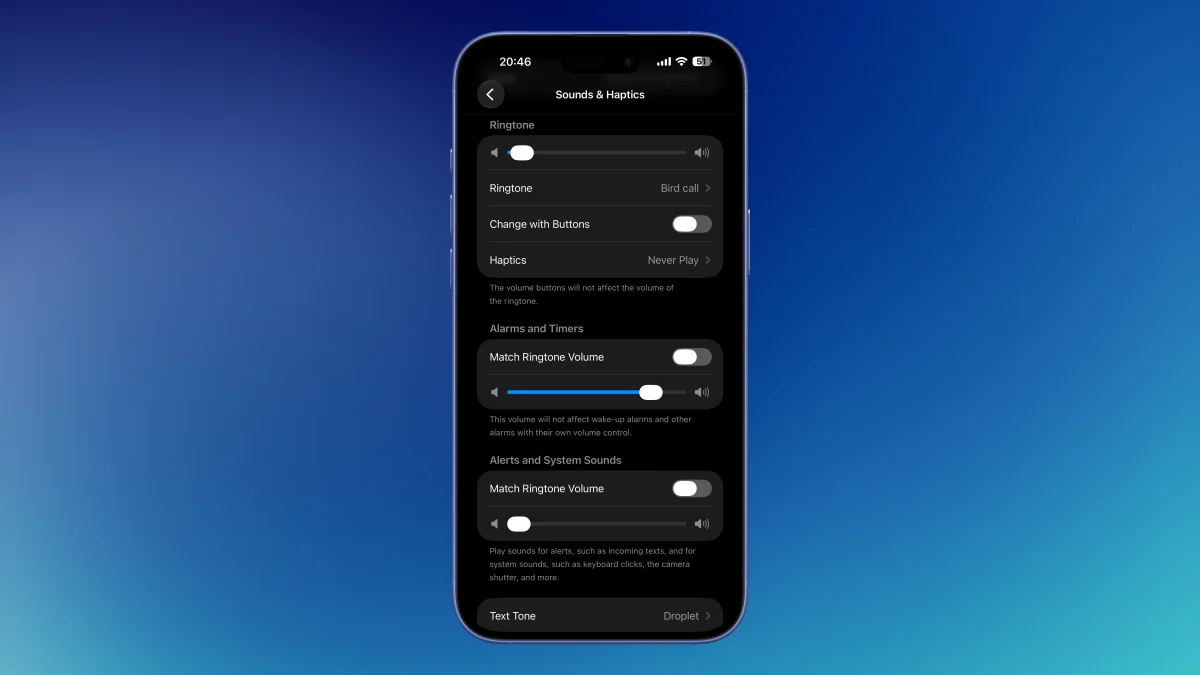
Open the Settings app on your iPhone and tap "Sounds and Haptics." Then scroll down and tap "Headphone Safety." You'll see two features here.Enable Headphone Notifications: Turn this on and your phone will send alerts when your listening habits approach dangerous volume levels. Your device monitors decibel exposure over time and warns you before hearing damage occurs.Enable Reduce Loud Audio: This feature sets a maximum decibel level for your device. If you play audio above that limit, your phone automatically reduces the volume. You set the decibel cap yourself — Apple recommends 85dB as a safe listening level based on World Health Organization (WHO) guidelines, though you can adjust this lower if you prefer.Once enabled, these features run automatically. You don't have to do anything except keep the settings active.