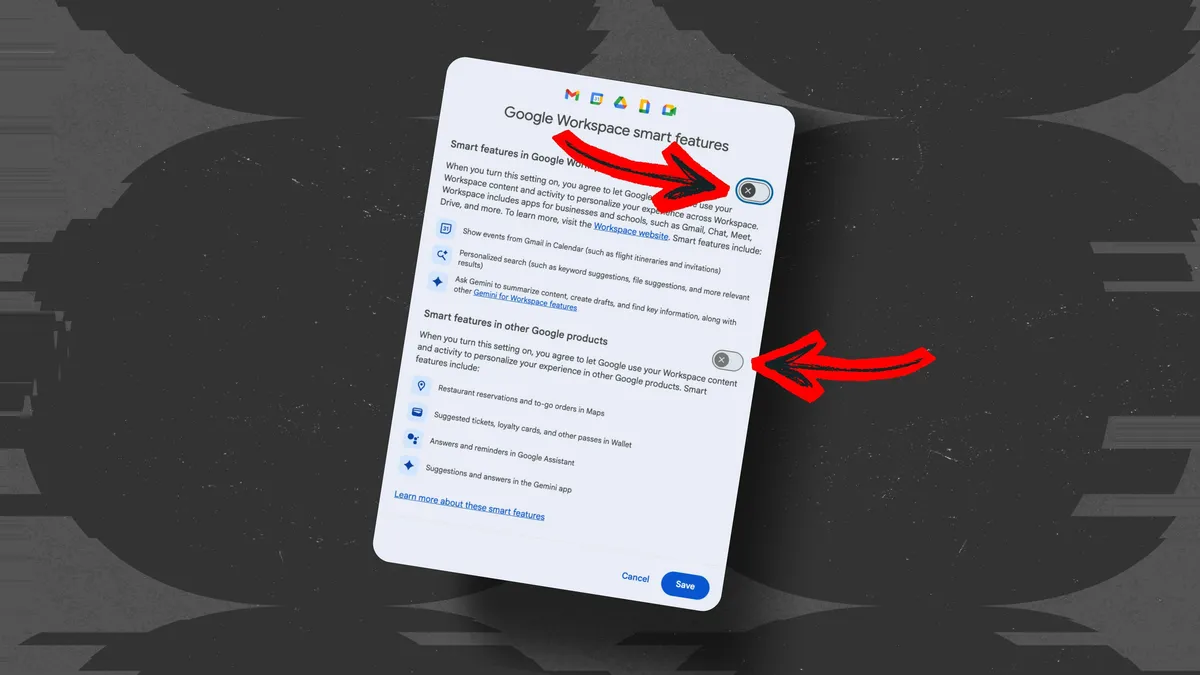
Elyse Betters Picaro / ZDNETFollow ZDNET: Add us as a preferred source on Google. ZDNET's key takeaways You can completely disable Gemini in Gmail, Docs, Drive, and more.Google Photos has separate Gemini settings you must turn off, too.Chrome users can also disable Gemini directly in browser settings.Are you frustrated by Google's insistence on injecting Gemini into everything? While some do enjoy Google's latest AI tools and smart features, which seem to roll out every week, others might prefer things the way they were before.Also: Sick of AI in Search? These 7 Google alternatives still put links firstIf that's you, you'll be happy to know there's a way out. How to disable Gemini in Google's apps Google somewhat buries a Gemini toggle in settings. If you know where to look, you can find it and turn off Gemini in Gmail, Google Docs, Google Photos, and every other Google product you know and love. Here's how. Go to your Gmail account on the web, as it's the easiest place to turn it off. You can also do this through other Google Workspace apps like Drive or Calendar via settings, but Gmail is the most straightforward.Go to Gmail. Make sure you're logged in with your Google account.Open settings. Look for the Settings cog (gear icon), and click it.Select See all settings. At the top of the settings pane, click "See all settings."Find Smart Features. Under the General tab, scroll down until you see "Google Workspace smart features."Click "Manage Workspace smart feature settings." This will open controls for Google's smart features.Once you're there, you'll see two toggles (pictured above):The top toggle is for smart features in Google Workspace products (like Gmail, Docs, Drive, etc.). When you turn this setting on, you agree to let Gemini "summarize content, create drafts, and find key information."The bottom toggle is for other Google products that interact with your Workspace data (like Maps or Wallet). When you turn this setting on, you agree to get "suggestions and answers in the Gemini app."Other examples are listed for both, but we're here for the Google Workspace smart features. Toggle that one off.If you want to be thorough, disable the bottom toggle for "other Google products" as well. Just keep in mind that turning that one off removes Gemini assistance across all Google products, along with other convenient features like automatic calendar entries and smart suggestions, since they are bundled together.When I disabled smart features in Workspace products, the little Gemini icons were still visible, like the "Help me write" button. But clicking any of them prompted Google to ask me to turn smart features back on to re-enable Gemini. I didn't see any AI-generated summaries or Gemini-powered suggestions across my apps.From what I could tell, Gemini was gone entirely, with a couple of exceptions.Also: I tried Gmail's new Gemini AI features, and now I want to unsubscribe
You can turn off Gemini in Gmail, Photos, Chrome, and more - here's how
There are simple ways to remove Google's AI tools from your favorite apps. The settings are buried but easy to disable.
1,104 words~5 min read